
WhatsApp Not Working on Android? Here’s What to Check
If WhatsApp is not working on your Android phone, don’t uninstall it straight away. The problem may be caused by your internet connection, an outdated app, corrupted temporary data, low storage, missing permissions, or an Android version that WhatsApp no longer supports.
There’s also an important compatibility change affecting older Android phones: as of September 8, 2026, WhatsApp supports Android 6.0 and newer. If your phone is still running Android 5.0 or 5.1, WhatsApp is no longer supported on that device.
Before changing several settings at once, use the checks below to narrow down where the problem actually is.
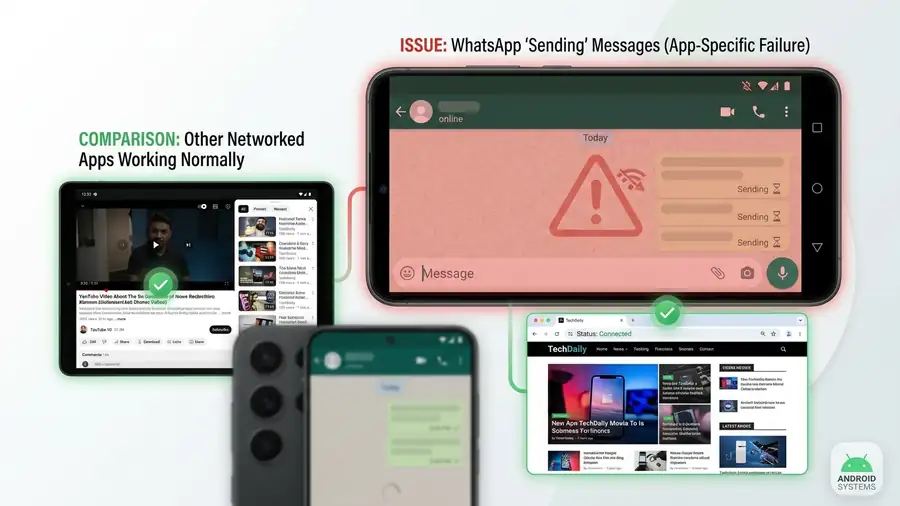
First: Is WhatsApp the Problem or Your Internet?
Start with a test that takes less than a minute.
Open Chrome and visit a website. Then try another app such as YouTube.
- Other apps work normally: the problem may be specific to WhatsApp.
- Several apps have no internet: check Wi-Fi or mobile data first.
- WhatsApp opens but messages are stuck: try another network.
- WhatsApp crashes or won’t open: move to the Android and app checks below.
This is worth doing before clearing WhatsApp data. If your whole phone is having connection problems, changing WhatsApp settings won’t fix the real cause.
1. Check Your Android Version
If you’re using an older Android phone, check this before doing anything more complicated.
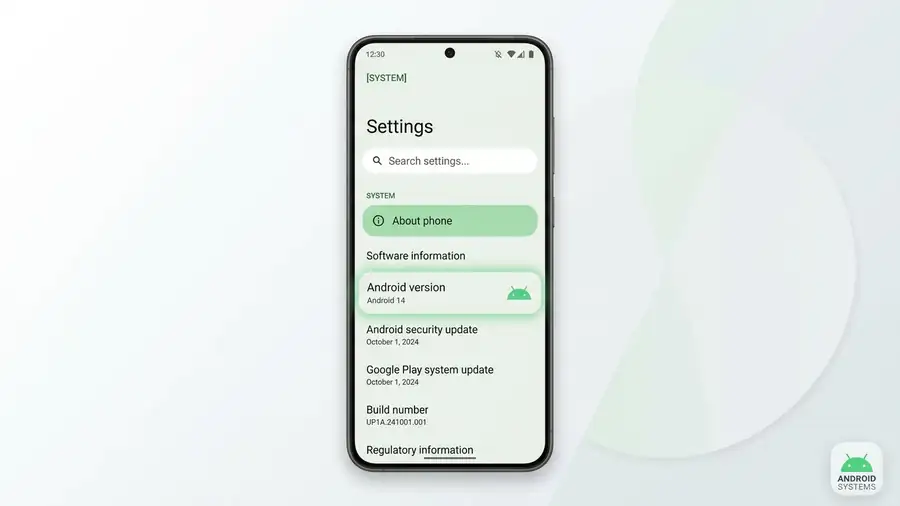
Go to:
Settings → About phone → Android version
The exact menu can vary between Samsung, Google Pixel, Xiaomi, Motorola, and other Android phones.
WhatsApp’s supported operating systems information says that Android 6.0 and newer are supported, while Android 5.0 and 5.1 are no longer supported as of September 8, 2026.
If your phone is running Android 5.0 or 5.1, check:
Settings → System → Software update
If an Android 6.0 or newer update is available, install it and restart the device.
If the manufacturer never provided an upgrade beyond Android 5.x, changing WhatsApp settings is unlikely to solve the compatibility problem. In that case, you’ll need a supported device to keep using the current WhatsApp app.
Tip: Don’t judge your phone only by its age. The important thing here is the Android version actually installed.
2. Update WhatsApp
If your Android version is supported, check WhatsApp itself.
Open the Google Play Store, search for WhatsApp, and look for Update.
An outdated version can cause problems when WhatsApp changes its requirements or when Android receives a major update.
If you see Open instead of Update, there isn’t a newer version currently offered to your device through Google Play.
After updating, open WhatsApp again and test the exact feature that was failing.
If the problem started immediately after an update, don’t assume the update itself is broken. First check whether the issue happens on another network or with another WhatsApp function.
3. Test Wi-Fi and Mobile Data
If WhatsApp opens but messages won’t send, calls won’t connect, or new messages aren’t arriving, test your connection before clearing app data.
If you’re using Wi-Fi, temporarily switch to mobile data.
If you’re using mobile data, connect to a reliable Wi-Fi network.
Also try loading another website in Chrome.
What the Result Means
WhatsApp works on another network: your original Wi-Fi or mobile connection may be causing the problem.
WhatsApp still doesn’t work: continue with the Android and app checks.
Other apps also have connection problems: the issue probably isn’t limited to WhatsApp.
If your Android phone is connected to Wi-Fi but other apps also show no internet, see our guide on Android Connected to WiFi but No Internet.
4. Restart, Then Force Stop WhatsApp
A simple restart is still worth trying, especially if WhatsApp suddenly became slow, frozen, or unresponsive.
Restart your Android phone, open WhatsApp, and test it again.
If WhatsApp is still frozen or crashing, force stop it:
Settings → Apps → WhatsApp → Force stop
Then open WhatsApp again.
The exact menu can differ by Android manufacturer, but the option is normally inside WhatsApp’s app settings.
Force stopping WhatsApp does not delete your chats. It simply closes the app so Android can start it again from a clean state.
5. Clear WhatsApp’s Cache
If WhatsApp opens but behaves strangely, temporary app data could be part of the problem.
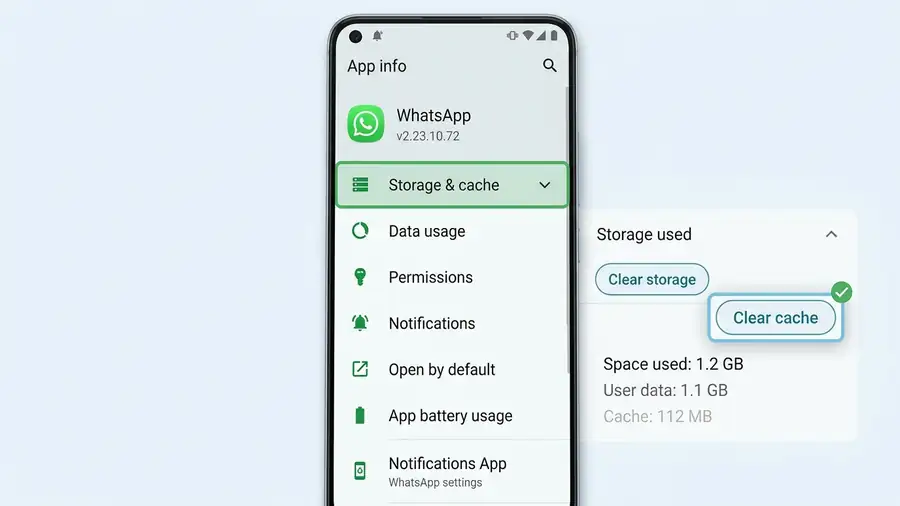
Go to:
Settings → Apps → WhatsApp → Storage & cache
Then choose:
Clear cache
Open WhatsApp again and test it.
Start with Clear cache, not Clear storage.
Clearing the cache removes temporary files. Clearing storage is much more disruptive and can remove locally stored app data, so don’t use it unless you understand the consequences and have confirmed your chat backup.
A useful rule: if clearing the cache fixes the problem, you probably didn’t need to reinstall WhatsApp in the first place.
6. Check Storage and Permissions
Two Android settings are easy to overlook when only certain WhatsApp features stop working.
Check Storage
Go to:
Settings → Storage
If your phone is almost full, remove unnecessary videos, downloads, unused apps, or other large files.
Very low storage can make it harder for apps to update and create temporary files.
You don’t necessarily need to free up a huge amount of space. Start by removing a few large files or apps you no longer use, then restart WhatsApp.
Check Permissions
Go to:
Settings → Apps → WhatsApp → Permissions
Depending on the feature you’re using, check permissions for things such as:
- Camera
- Microphone
- Photos and videos
- Contacts
For example, if WhatsApp messages work but you cannot use the camera during a call, checking the camera permission makes much more sense than reinstalling the entire app.
7.WhatsApp Still Isn’t Working? Reinstall Carefully
If you’ve confirmed that:
- Your Android version is supported
- WhatsApp is updated
- Your internet connection works
- Restarting didn’t help
- Force stopping didn’t help
- Clearing the cache didn’t help
then reinstalling WhatsApp can be a reasonable final step.
But don’t uninstall WhatsApp before checking your backup.
If the app still opens, go to:
WhatsApp → Settings → Chats → Chat backup
Check when your last backup was created.
If the backup is old, create a new one before removing the app.
Then reinstall WhatsApp from Google Play and sign in with the same phone number. If WhatsApp finds your backup, follow the restore process.
WhatsApp’s official Android download page currently lists Android OS 6.0 or above and explains the basic installation process.
Don’t use random APK websites just to get an older WhatsApp version working on an unsupported Android phone. Apart from compatibility problems, installing apps from unofficial sources can create unnecessary security risks.
Quick Diagnosis
| What you’re seeing | Check this first |
|---|---|
| WhatsApp won’t open | Android version and app update |
| Messages won’t send | Wi-Fi or mobile data |
| WhatsApp keeps crashing | Restart, force stop, then clear cache |
| WhatsApp is very slow | Storage and cache |
| Camera or microphone doesn’t work | App permissions |
| WhatsApp stopped working on an old phone | Android version |
| Android 5.0 or 5.1 | Check whether the phone can be upgraded |
| Several apps are failing | Android system, storage, or connection |
Frequently Asked Questions
Why is WhatsApp not working on my Android phone?
The cause can be an unsupported Android version, outdated WhatsApp app, internet connection problem, corrupted temporary data, low storage, or missing permissions. Start by checking your Android version and connection.
Why did WhatsApp suddenly stop working?
If your phone is still running Android 5.0 or 5.1, WhatsApp is no longer supported on that device as of September 8, 2026. WhatsApp’s current supported operating systems information lists Android 6.0 and newer.
Will WhatsApp work on Android 6?
Yes. WhatsApp currently supports Android 6.0 and newer. The official Android download page also lists Android 6.0 or above as the minimum requirement.
Should I uninstall WhatsApp if it isn’t working?
Not immediately. Update WhatsApp, restart your phone, test your connection, force stop the app, and clear its cache first.
If you eventually need to reinstall it, check your chat backup before uninstalling the app.
Why is WhatsApp working on Wi-Fi but not mobile data?
This usually points toward a mobile-data or Android network setting rather than WhatsApp itself. Check whether mobile data is enabled and whether WhatsApp is allowed to use mobile data. Testing another app on mobile data can also tell you whether the problem affects the whole phone.
Why can I receive WhatsApp messages but not send them?
Check your internet connection first. If incoming messages work but outgoing messages remain stuck, switch between Wi-Fi and mobile data and test again. If the problem happens only on one network, investigate that connection before changing WhatsApp data.
More Android & App Troubleshooting Guides
If the problem isn’t limited to WhatsApp, these guides may help:
- Android Connected to WiFi but No Internet
- Spotify Not Working on Android?
- Google Play Store Not Downloading Apps?
- Google Gemini Not Working?
Final Thoughts
When WhatsApp is not working on Android, don’t change everything at once.
First find out whether the problem follows your internet connection, your Android version, or the WhatsApp app itself.
If you’re using an older phone, check the Android version first. As of September 8, 2026, WhatsApp supports Android 6.0 and newer, so Android 5.0 and 5.1 devices are no longer supported.
For supported phones, the usual path is much simpler: test another network, update WhatsApp, restart the phone, force stop the app, clear its cache, and check storage and permissions.
And before you uninstall WhatsApp, check your chat backup. That small step can save you from turning a WhatsApp problem into a lost-chat problem.