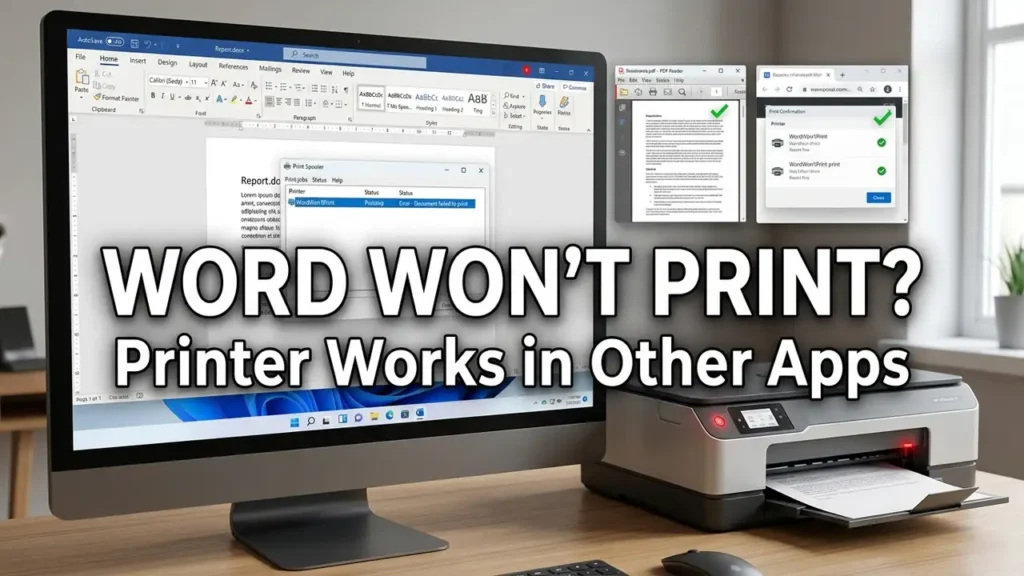

Printer Not Printing From Word but Prints From Other Apps? Here’s Why
Your printer works normally in Chrome, a PDF reader, or another app—but when you try to print from Microsoft Word, nothing happens.
So why is your printer not printing from Word but printing from other apps?
This is an important clue: if other apps can print successfully, your printer itself may not be the problem. The issue is more likely related to Word, the document you’re trying to print, the printer selected inside Word, print settings, Office, or the Windows print service.
Before reinstalling your printer or changing drivers, use the checks below to find out exactly where the problem is.
First, Confirm It’s Only Word
Try printing something simple from another application, such as:
- A webpage from Chrome or Edge
- A PDF
- A simple text file from Notepad
- An image
If those print normally but Word doesn’t, you’ve already narrowed down the problem.
Microsoft recommends testing another app or another file first because this helps determine whether the problem is specific to the application. Microsoft’s printer troubleshooting guide
Now test a different Word document.
What the result tells you
Only one Word document won’t print:
The document itself may be damaged or contain problematic formatting.
No Word document will print:
Focus on Word, its printer selection, Office, or Windows printing components.
Nothing prints from any application:
Stop troubleshooting Word and investigate the printer or Windows printer connection instead.
That distinction can save you from changing settings that have nothing to do with the actual problem.
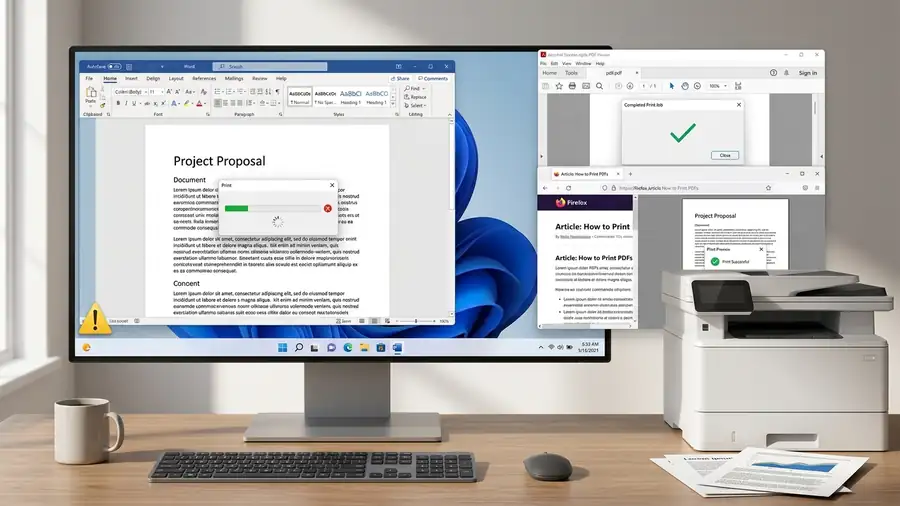
1. Make Sure Word Is Using the Right Printer
Open the document in Word and go to:
File → Print
Look carefully at the printer selected under Printer.
Make sure it is your actual printer—not:
- Microsoft Print to PDF
- OneNote
- An old printer
- A printer that is currently unavailable
Also check that Word shows the printer as available or ready.
It’s possible for Windows to have several printers installed while Word is still pointing to the wrong one.
If the correct printer isn’t selected, choose it and try printing again.
2. Try a New Blank Word Document
This is one of the fastest ways to determine whether the problem is the document or Word itself.
Open Word and create a completely new blank document.
Type one short sentence and try to print it.
If the new document prints
Your original Word file is the likely problem.
The document may contain unusual formatting, objects, fonts, sections, or corrupted content that is interfering with printing.
Try copying the text into a new Word document and printing the new file.
If the new document also won’t print
The problem is probably not limited to that particular file.
Continue with the Word and Windows checks below.
3. Check Word’s Print Settings
In:
File → Print
check the basic settings before doing anything advanced.
Look at:
- Correct printer
- Print All Pages
- Correct page range
- Paper size
- Orientation
- Number of copies
- Print to PDF or file options
Microsoft specifically recommends checking page size, orientation, layout, page range, and making sure Print to File/Print to PDF isn’t selected accidentally. Microsoft Word/Excel printing troubleshooting
If you’re trying to print only certain pages, temporarily select Print All Pages and test again.
4. Print a Windows Test Page
Now let’s separate Word from the printer connection.
Open:
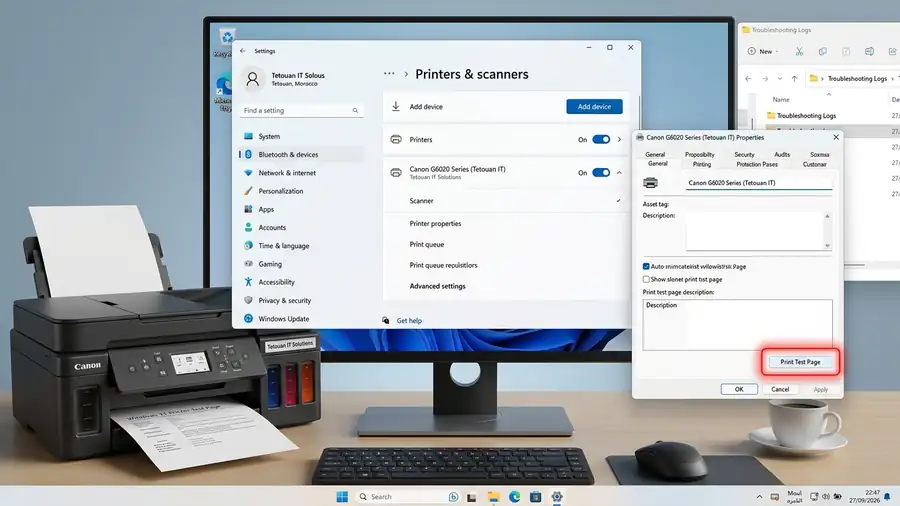
Settings → Bluetooth & devices → Printers & scanners
Select your printer, then open its printer properties and choose:
Print Test Page
If the Windows test page prints successfully, Windows can communicate with the printer. That makes a Word-specific problem much more likely.
If the Windows test page also fails, don’t keep changing Word settings. The problem may be with the printer, driver, queue, or Windows printing service.
Microsoft recommends this exact test to determine whether Windows can communicate with the printer. Microsoft’s printer troubleshooting steps
5. Restart the Print Spooler
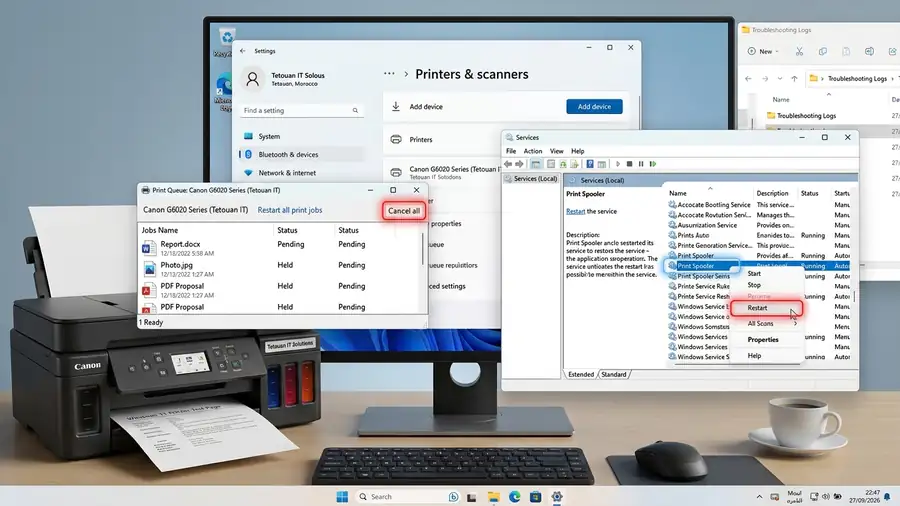
The Print Spooler manages print jobs in Windows. If it gets stuck, Word may send a document to print without anything actually coming out.
Press:
Windows + R
Type:
services.msc
Press Enter.
Find:
Print Spooler
Right-click it and choose:
Restart
Then completely close Word, reopen it, and try printing the document again.
This is particularly worth trying if the document appears to enter the print process but nothing happens.
Microsoft includes restarting the Print Spooler among its troubleshooting steps for app-specific printing problems. Microsoft Support: Fix printing problems in Word and other apps
6. Try Printing Word in Safe Mode
If Word itself seems to be the problem, an add-in could be interfering with printing.
Press:
Windows + R
Type:
winword /safe
and press Enter.
Word will open in Safe Mode.
Create a small test document and try printing it.
If printing works in Safe Mode
That points toward a Word add-in or customization rather than the printer itself.
You can then disable Word add-ins and test again.
If printing still fails
The problem is less likely to be caused by a normal Word add-in, so continue to the Office repair step.
7. Repair Microsoft 365 or Office
If Word won’t print any document, while the same printer works from other applications, repairing Office is a reasonable next step.
Go to:
Settings → Apps → Installed apps
Find Microsoft 365 or Microsoft Office.
Open its options and choose:
Quick Repair
Test Word again afterward.
If the problem remains, Microsoft also provides Online Repair, which is more extensive and requires an internet connection. Microsoft Support: Repair an Office application
8. Don’t Reinstall the Printer Yet
If your printer already prints correctly from Chrome, PDFs, or another application, reinstalling the printer should not be your first move.
You’ve already established that the printer can receive and produce print jobs.
At this point, focus on:
Word → document → Word settings → Print Spooler → Office
Only investigate the printer driver more deeply if the Windows test page also fails or other applications start having the same problem.
Quick Diagnosis
| What happens | Most likely direction |
|---|---|
| PDFs and Chrome print, Word doesn’t | Word/document/settings |
| One Word file won’t print | Document may be corrupted |
| No Word files print | Word/Office/printing service |
| Windows test page prints | Printer connection is probably OK |
| Windows test page fails too | Printer/driver/Windows printing |
| Word prints in Safe Mode | Add-in or customization |
| Print job gets stuck | Print Spooler/queue |
| Wrong printer selected in Word | Word print settings |
FAQ
Why is my printer not printing from Word but printing from other apps?
If the same printer works in Chrome, PDFs, or other programs, the problem is more likely related to Word, the document, Word’s printer selection, print settings, Office, or the Windows Print Spooler.
Why does Word not print one specific document?
The document itself may contain corrupted formatting, objects, fonts, or other content that interferes with printing. Try copying the text into a new Word document and print that version.
Why does Word say it’s printing but nothing happens?
A stuck Print Spooler, incorrect printer selection, Word settings, or an Office problem can prevent the job from reaching the printer correctly. Restarting the Print Spooler is a useful check.
Should I reinstall my printer if Word won’t print?
Not immediately. If the printer works from other applications and the Windows test page prints successfully, investigate Word and Office first.
More Printer Troubleshooting Guides
Still having printer problems? These related guides may help:
- Printer Printing Blank Pages? Here’s How to Fix It
- Printer Not Showing Up in Windows 11? 10 Fixes
- Epson Printer Not Printing Black? 6 Fixes to Try First
Final Thoughts
If your printer is not printing from Word but works from other apps, don’t assume the printer is broken.
Start by printing from another Word document and checking which printer Word has selected. Then use a Windows test page to determine whether the problem is actually Word or the Windows printer connection.
If the printer works everywhere else, focus on Word, the document, Print Spooler, and Office before reinstalling drivers or removing the printer.
The goal isn’t to try every printer fix you can find. It’s to identify why Word is the only place where printing fails.