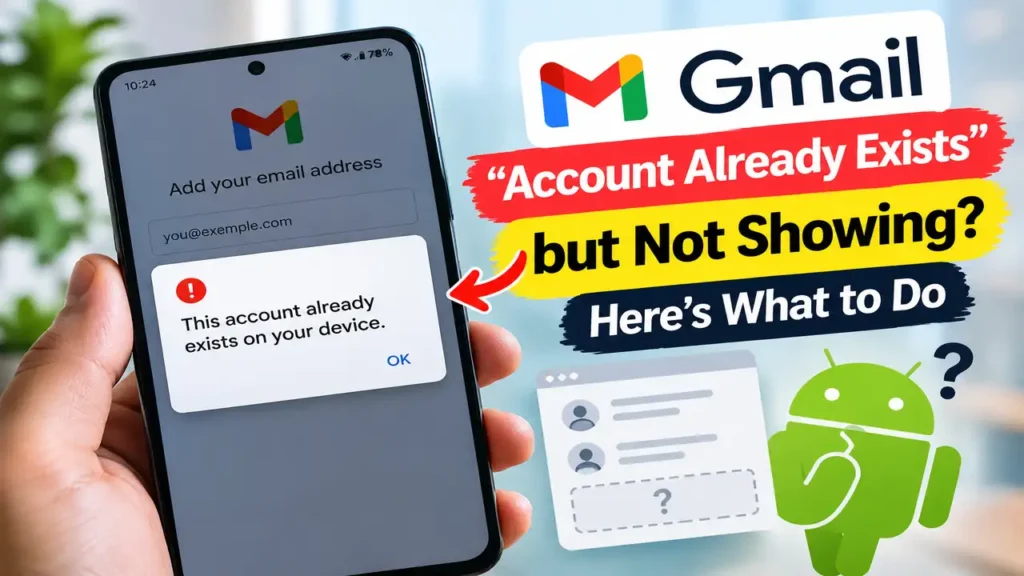

Gmail “Account Already Exists” but Not Showing? Here’s What to Do
If Gmail says “This account already exists on your device” but the account is not showing in the Gmail app, you may be stuck in a frustrating sign-in loop.
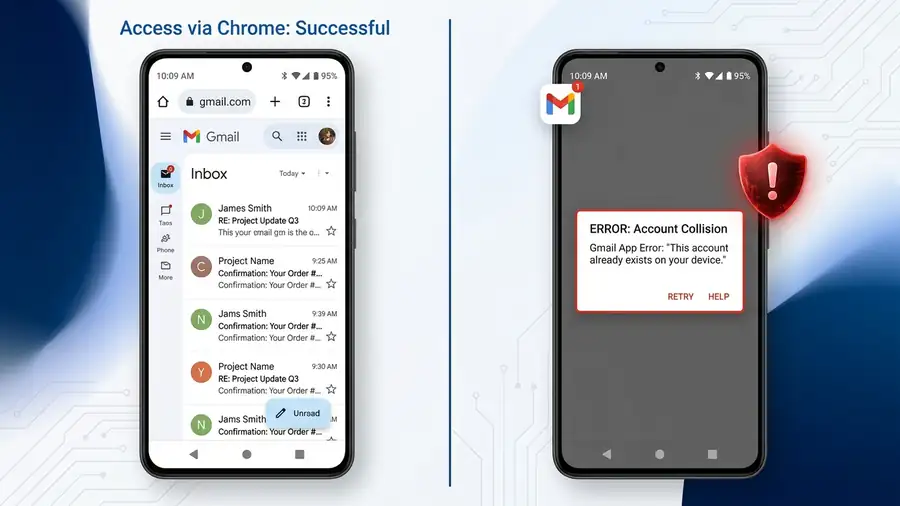
You open Gmail, try to add your Google account, and expect it to appear normally. Instead, Gmail tells you that the account is already on your phone.
Why does Gmail say “This account already exists on your device” when I can’t see the account anywhere in Gmail?
That exact problem has been reported by Android users recently. In some cases, the Google account is still listed in Android’s account settings, while Gmail acts as if the account isn’t available in the app.
Before removing your Google account or resetting your phone, try these steps.
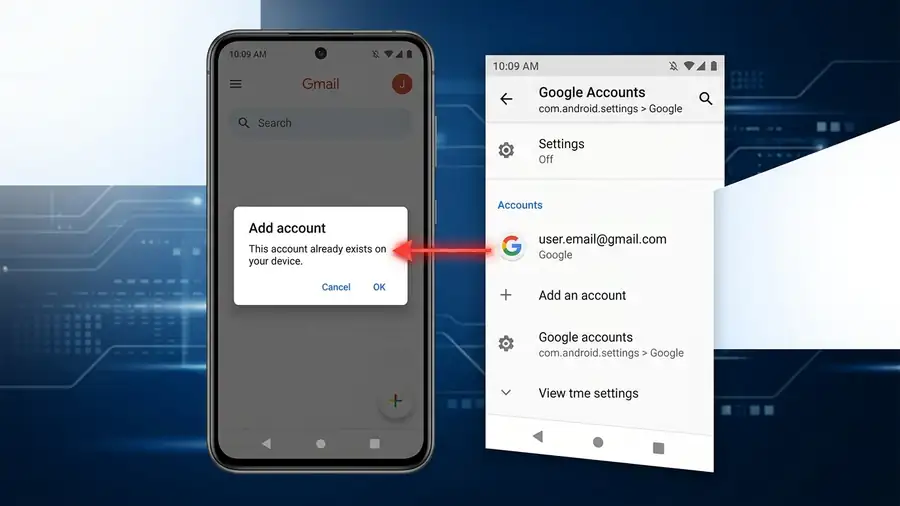
1. Check if the Google account is still on your phone
First, don’t add or remove anything yet.
Open:
Settings → Accounts / Passwords & accounts → Google
The exact menu can vary depending on your Android phone. Google says Android may use names such as Passwords & accounts, Users & accounts, or Manage accounts. (Google Support)
Look for the email address that Gmail says already exists.
If you can see the account there, that’s an important clue: Android still recognizes the account even though Gmail isn’t displaying it normally.
If the account isn’t there at all, add it through Android’s account settings instead of repeatedly trying to add it from Gmail.
2. Update Gmail from the Play Store
Open the Google Play Store, search for Gmail, and check whether an update is available.
Google recommends keeping Gmail updated when troubleshooting app errors and synchronization problems. (Google Support)
After updating:
Restart your phone.
Open Gmail.
Tap your profile picture.
Check whether the missing account appears.
If it does, you may not need to change anything else.
3. Did this start after a Gmail update? Try rolling it back
This step is particularly worth trying if Gmail was working normally and the problem appeared suddenly after an update.
Recent Android users have reported the “This account already exists on your device” message appearing while their existing Gmail accounts disappeared from the app. Some users reported that uninstalling Gmail’s latest update temporarily brought their accounts back. (Google Support)
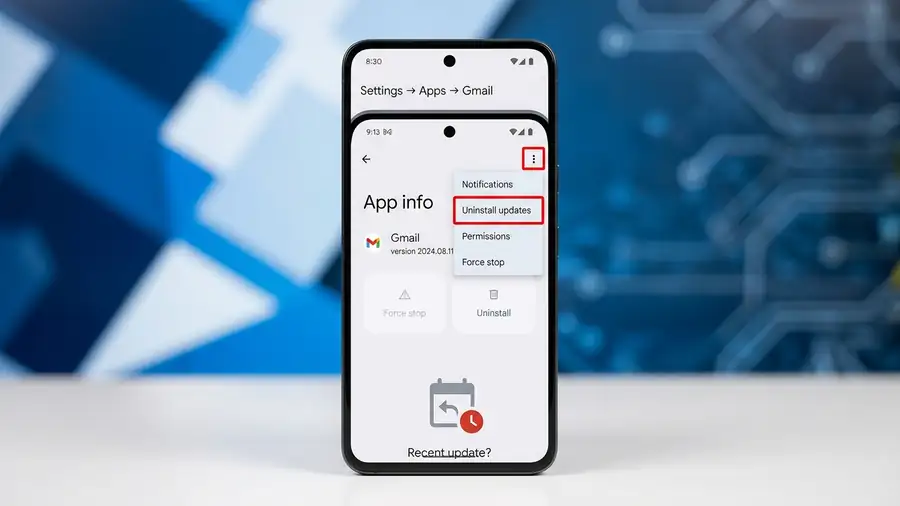
On some phones, Gmail is a pre-installed system app, so you may see Uninstall updates instead of a normal uninstall option.
Try:
Settings → Apps → Gmail → ⋮ → Uninstall updates
Then restart your phone and open Gmail again.
If the account comes back, that gives you a useful clue that the Gmail app version may be involved.
This should be treated as a temporary troubleshooting step, not a permanent fix. Check for a newer Gmail update later.
4. Clear Gmail’s cache
If Gmail is still stuck, try clearing only its temporary cache.
Go to:
Settings → Apps → Gmail → Storage & cache → Clear cache
Then open Gmail again.
Clearing the cache removes temporary app files without deliberately removing your Google account from the phone.
If nothing changes, don’t keep clearing the cache repeatedly. Move to the next step.
5. Check Gmail and Android sync
The account may still be present but not syncing correctly.
Inside Gmail, check:
Gmail → Menu → Settings → Your account → Sync Gmail
Make sure Sync Gmail is enabled.
You can also check your phone’s account-sync settings. The exact location varies between Android manufacturers.
Google recommends checking Gmail synchronization when messages or account data aren’t updating correctly. (Google Support)
If the account appears in Android settings but Gmail still doesn’t show it, that points more toward an issue with the app rather than the Google account itself.
6. Temporarily use Gmail in your browser
If you need your emails immediately, open Chrome and sign in to Gmail on the web.
This is more than just a temporary workaround. It can help you identify where the problem is.
If your emails appear normally in the browser, your Google account is still accessible and the problem is more likely limited to the Gmail app on your phone.
Don’t remove a working Google account just because the Gmail app isn’t displaying it correctly.
7. Don’t remove your Google account too quickly
This is the step I’d be most careful with.
If Android already shows your Google account under Settings → Accounts, don’t immediately remove it just because Gmail isn’t displaying it.
Google explains that removing an account from Android also removes associated data from the device, including email, contacts, and settings. (Google Support)
So removing the account shouldn’t be your first reaction to this particular Gmail problem.
Start with the less disruptive options:
Update → restart → check sync → uninstall the latest Gmail update if necessary → clear cache → test Gmail in Chrome.
Only consider removing and re-adding the account if the simpler steps don’t help.
What if Gmail still says “Account Already Exists”?
If you’ve updated Gmail, restarted the phone, checked the account in Android settings, and the account still appears there but not inside Gmail, you may be dealing with an app-side problem.
At that point, keep using Gmail through your browser if you need immediate access and send feedback through the Gmail app.
Also watch for another Gmail update.
Google’s official Gmail troubleshooting guidance recommends updating the app, restarting the device, checking sync settings, and checking account storage when troubleshooting Gmail problems. (Google Support)
If the problem changes into a broader sign-in issue, Google’s official Gmail sign-in troubleshooting guide can also help. (Google Support)
More Android & Google Troubleshooting Guides
Having another problem with an Android or Google app? These guides may help:
Google Photos Not Backing Up? Here’s What’s Really Going On — what to check when Google Photos suddenly stops backing up.
Google Play Store Not Downloading Apps? — useful if apps won’t download or update.
Android Connected to Wi-Fi but No Internet? — troubleshooting when Android says Wi-Fi is connected but apps can’t get online.
Spotify Not Working on Android? — steps to check when another Android app suddenly stops working.
Final Thought
If this started suddenly after Gmail had been working normally, don’t immediately assume that your Google account has been deleted or that your password is wrong.
The important clue is the combination of these two symptoms:
Android still knows the account exists, but Gmail doesn’t show it and says the account is already on the device.
Start with the simple checks first. Update Gmail, restart the phone, verify synchronization, and use Gmail in Chrome if you need access immediately.
And before removing your Google account, remember that doing so affects account data stored on the device.
Sometimes the safest fix is simply not to make the problem bigger than it already is.