
HP Printer Not Recognizing New Ink Cartridge? How to Fix It
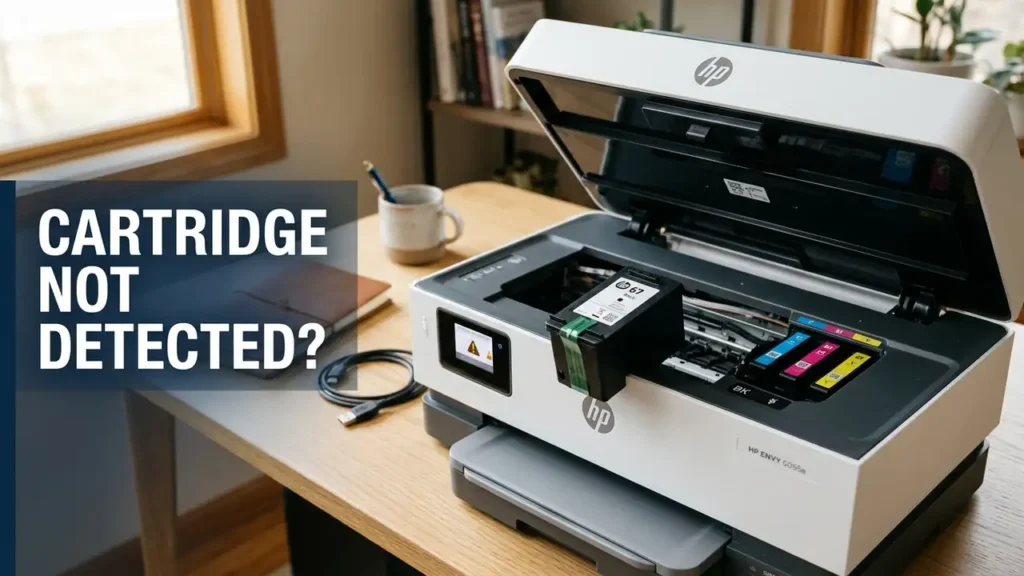
Your HP printer was working fine, but after installing a new ink cartridge, it suddenly refuses to print. You may see a “Cartridge Problem,” “Cartridge Not Detected,” or “Incompatible Cartridge” message—even though the cartridge is brand-new.
Before returning the cartridge or buying another one, identify the exact error. An installation issue requires a different solution from an incompatible cartridge or a failed electronic connection.
This guide walks you through the checks in the order worth trying, so you can narrow down the cause without wasting ink or money.
Why Is My HP Printer Not Recognizing a New Ink Cartridge?
The most common causes are:
- The cartridge is not seated correctly.
- Protective tape remains on the cartridge.
- The cartridge number is incompatible with your printer.
- The electrical contacts are dirty or damaged.
- The cartridge is defective.
- HP Instant Ink, HP+, or printer security requirements affect compatibility.
HP confirms that cartridge errors can result from compatibility problems, poor contact, missing cartridges, or cartridges the printer cannot communicate with. <Cite refs={[“turn408811search0″,”turn408811search1”]}/>
1. Check the Cartridge Before Resetting the Printer
If the error appeared immediately after replacing the ink, start here.
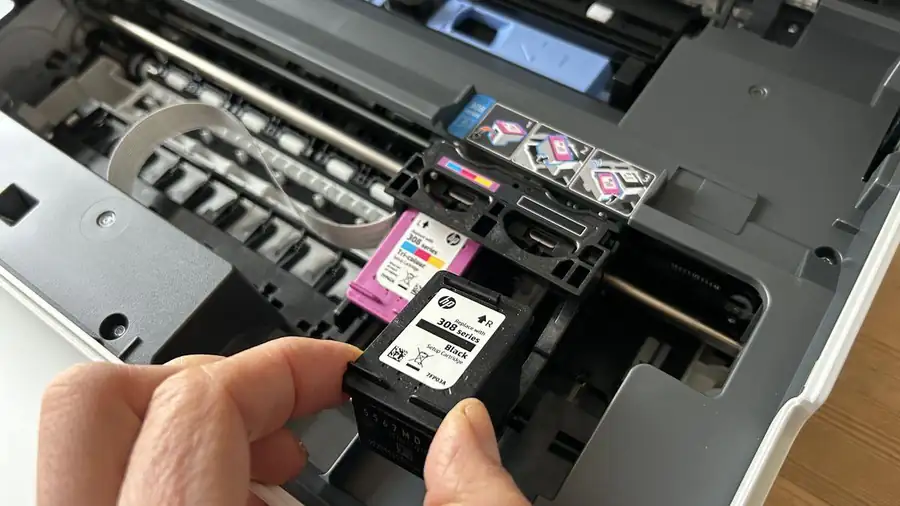
- Turn on the printer and open the cartridge access door.
- Wait until the carriage stops moving.
- Remove the cartridge identified in the error message.
- Check that all required protective tape has been removed.
- Match the cartridge to the correct color-coded slot.
- Reinstall it according to your printer’s instructions.
- Close the door and check the display.
Never force a cartridge into its slot. If it does not fit or lock into place normally, verify its compatibility first.
Still seeing the error? Don’t keep removing and reinstalling the cartridge. Check its model number next.
2. Verify the HP Ink Cartridge Number
A brand-new cartridge can still be the wrong one for your printer.
Find your exact HP printer model and compare it with the cartridge number on the label. Use HP’s official ink and toner compatibility information to confirm that the cartridge is suitable for your device and region.
Pay special attention if:
- You bought a cartridge for a similar-looking printer.
- You recently moved between countries or regions.
- Your printer is enrolled in HP Instant Ink.
- You have an HP+ printer with original-cartridge requirements.
Instant Ink cartridges may differ from retail cartridges, and HP+ printers require Original HP cartridges. Check the requirements for your specific model before buying another cartridge. <Cite refs={[“turn408811search0”]}/>
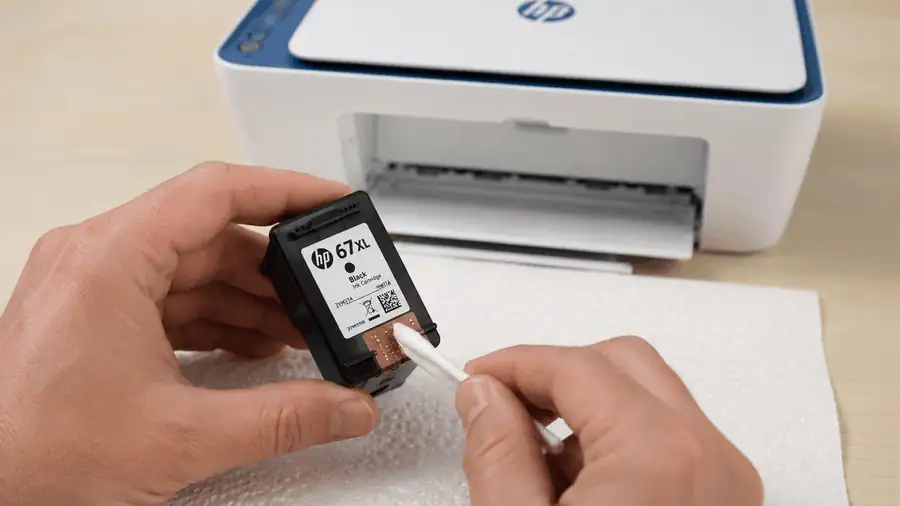
3. Clean the Cartridge’s Electrical Contacts
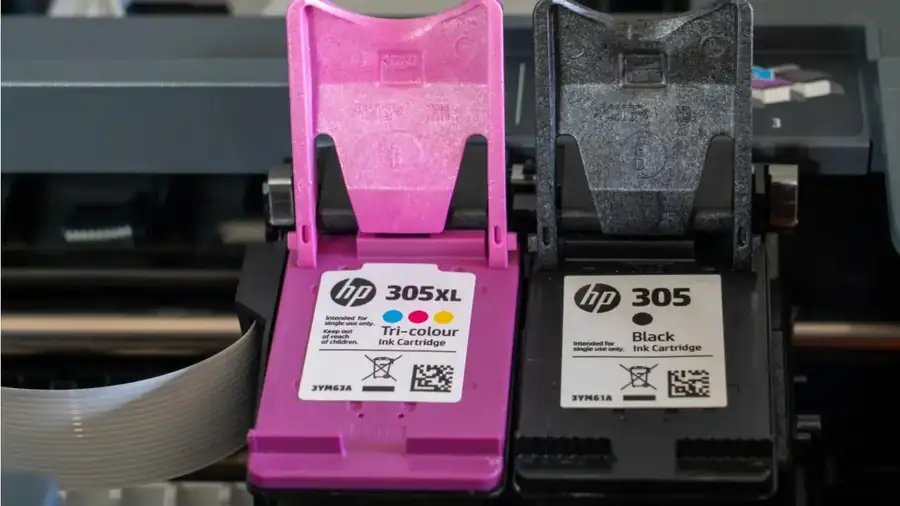
If the cartridge is compatible and correctly installed, the printer may be having trouble reading its electrical contacts.
- Turn off the printer and disconnect its power cable.
- Remove the affected cartridge.
- Locate the electrical contacts identified in your printer’s instructions.
- Gently wipe the cartridge contacts with a clean, dry, lint-free cloth.
- Reinstall the cartridge and reconnect the printer.
Avoid touching the ink nozzles or cleaning inside the cartridge carriage unless HP’s instructions for your model specifically tell you how to do so. Don’t use water or alcohol unless the manufacturer recommends it.
If a contact is damaged or missing, cleaning will not repair it.
For further guidance, see HP’s official ink cartridge problem troubleshooting page. <Cite refs={[“turn408811search1”]}/>
4. Restart the Printer to Clear a Temporary Error
A restart is worth trying after checking installation and compatibility.
- Turn off the printer using its power button.
- Unplug the power cable from the printer and wall outlet.
- Wait 60 seconds.
- Reconnect the power cable directly to a wall outlet.
- Turn on the printer and check whether the cartridge error remains.
A restart may clear a temporary error, but it cannot make an incompatible cartridge compatible or repair damaged contacts.
5. Understand the Exact Cartridge Error
The wording on the screen helps determine what to do next.
| Error message | What to check |
|---|---|
| Cartridge Not Detected | Installation, contacts, or a defective cartridge |
| Incompatible Cartridge | Cartridge number, printer model, and region |
| Cartridge Problem | Follow the model-specific HP troubleshooting steps |
| Non-HP Chip or Circuitry Detected | HP’s dynamic security and cartridge compatibility guidance |
| Instant Ink cartridge error | Subscription status and cartridge eligibility |
Some HP printers use dynamic security that can prevent cartridges with non-HP electronic chips from working. If you see a chip or circuitry message, consult HP’s dynamic security guidance rather than repeatedly resetting the printer. <Cite refs={[“turn408811search0″,”turn408811search1”]}/>
6. Find Out Whether the Cartridge Is Defective
If the error persists after the previous checks, the cartridge itself may be faulty.
If you have another cartridge that is confirmed compatible, test it according to HP’s instructions. If the second cartridge works, the original may need replacement.
Check the cartridge’s warranty information and contact the seller or HP to ask whether it qualifies for a replacement. If multiple compatible cartridges produce the same error, the printer may need further inspection.
Use HP Customer Support for model-specific help before paying for a repair.
More Printer Guides
- Printer Printing Blank Pages? Here’s How to Fix It
- HP Printer Only Printing in Black and White? Fix It
- Printer Connected but Not Printing? Here’s Why
Frequently Asked Questions
Why won’t my HP printer recognize a brand-new ink cartridge?
Common causes include incorrect installation, an incompatible cartridge number, dirty contacts, or a defective cartridge. Start by checking the exact error message and cartridge compatibility.
Can I fix an HP cartridge error without buying another cartridge?
Often, yes. Correct installation, removing protective tape, checking compatibility, or cleaning the contacts as instructed by HP may resolve the problem. A defective cartridge may still require replacement.
Why does my HP printer reject a genuine HP cartridge?
Even a genuine cartridge can be incompatible with a particular printer model or region. Check the cartridge number, Instant Ink requirements, and the error message before assuming the cartridge is faulty.
Final Thoughts
If your HP printer is not recognizing a new ink cartridge, check installation and compatibility first. Then inspect the electrical contacts safely, restart the printer, and follow the guidance for the exact error message.
If the same error continues with a confirmed compatible cartridge, contact HP or the cartridge seller to determine whether replacement or printer service is needed.