
Gmail Not Receiving Emails? 10 Fixes That Actually Work
If Gmail is not receiving emails, the problem may not be your inbox itself. A message can be redirected to Spam, moved by a filter, blocked by a full Google Account, delayed by a sync problem, or affected by a browser or connection issue.
The good news is that you don’t need to change every Gmail setting at once.
The fastest way to troubleshoot the problem is to first determine whether Gmail is missing all incoming messages or only certain emails.
Google recommends checking your account storage, missing-message folders, internet connection, and Gmail sync when new messages aren’t showing up.
Quick Diagnosis: What Happens When Someone Emails You?
Before changing anything, send yourself a test email from another account.
Then use the result below:
| What you’re seeing | Start here |
|---|---|
| No emails arrive at all | Check storage and Gmail status |
| Only certain emails are missing | Check Spam, filters and blocked addresses |
| Emails arrive on computer but not phone | Check Gmail app sync |
| Gmail doesn’t refresh | Check connection and browser |
| Emails appear in Spam | Review spam settings |
| Inbox looks normal but new mail is missing | Search All Mail |
| Problem started suddenly | Check storage and service status |
| Gmail works in another browser | Check extensions/cache |
| Messages are forwarded elsewhere | Check forwarding settings |
| Nothing works anywhere | Check account/service-level problems |
This small test is important because “Gmail not receiving emails” can describe several completely different problems.
1. Check Your Google Account Storage First
If Gmail is not receiving emails, check your Google Account storage before changing other Gmail settings.
Your storage is shared across Gmail, Google Drive, and Google Photos. When you reach the storage limit, Gmail may stop sending or receiving emails.
Check Your Storage
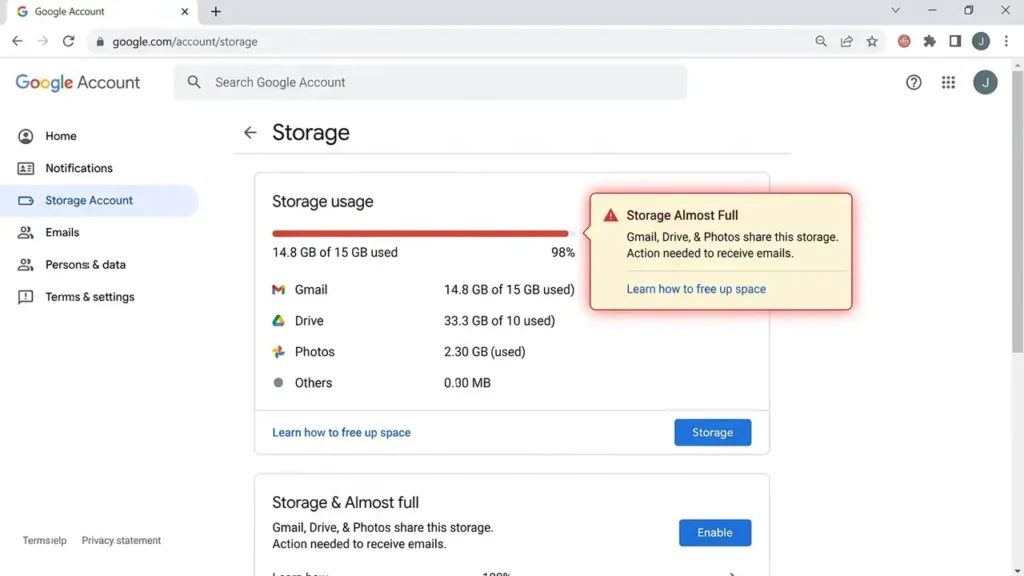
Open your Google Account storage page and check how much space you’re using.
Pay particular attention to:
- Gmail messages and attachments
- Google Drive files
- Google Photos
- Trash and Spam
If your storage is full, delete large files or emails you no longer need, then check your available space again.
Important: Storage May Take Time to Update
If you just deleted a large amount of data, your available storage may not update immediately. Google says it can take up to 48–72 hours in some cases.
Once enough storage is available, send yourself a simple test email from another account.
If the test email arrives after you free up storage, your full Google Account storage was likely preventing new messages from reaching your Gmail account.
2. Search Spam, Trash, and All Mail
Sometimes Gmail receives an email but doesn’t show it in your Inbox. It may have been moved to Spam, Trash, or another folder.
Start With Gmail Search
Search for the sender:
from:example@gmail.com
If you still can’t find it, try:
in:anywhere from:example@gmail.com
The in:anywhere search checks Gmail more broadly, including messages in Spam and Trash.
You can also search for a subject or keyword, such as:
in:anywhere "order confirmation"
Check These Folders
Also look in:
- Spam
- Trash
- All Mail
If you find the missing message, Gmail is receiving it—the problem is likely filtering or where the message is being stored.
If you can’t find it anywhere, move on to checking filters, blocked addresses, forwarding, and storage.
Find the message first. Don’t change Gmail settings until you know where the problem is.
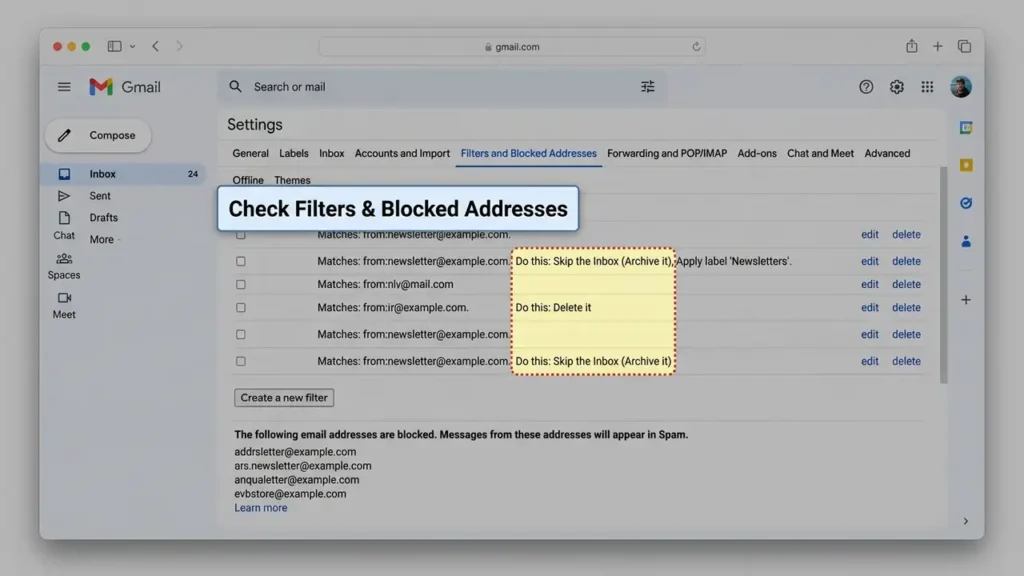
3. Check Gmail Filters and Blocked Addresses
If emails from one specific sender aren’t appearing, check your Gmail filters and blocked addresses.
Go to:
Gmail → Settings → See all settings → Filters and Blocked Addresses
Look for filters that may:
- Skip the Inbox
- Delete messages
- Archive messages
- Apply labels
Also check whether the sender’s email address is listed under Blocked addresses.
If emails from other people arrive normally but one sender’s messages don’t, this is an important place to check.
After making any necessary changes, ask the sender to send you a simple test email.
4. Check Gmail Forwarding
If incoming emails seem to disappear or don’t reach your Inbox, check whether Gmail is forwarding them to another address.
Go to:
Gmail → Settings → See all settings → Forwarding and POP/IMAP
Look for any forwarding address you don’t recognize.
Important Security Check
If you don’t recognize the forwarding address, change your Google Account password and disable the forwarding rule immediately.
An unexpected forwarding address can indicate that someone else has accessed your account.
After disabling it, send yourself a test email and check whether it appears in your Inbox.
5. Check Gmail on Another Device or Browser
This is one of the best diagnostic tests because it tells you whether the problem is with Gmail itself or your current device.
Try Gmail from:
- Another browser
- Another computer
- Your phone
- Another internet connection
Example
If Gmail receives new emails normally on your phone but not in Chrome on your PC:
Gmail itself is probably working.
Your next step should be troubleshooting the browser rather than changing Gmail account settings.
Google recommends trying another device and checking the connection when Gmail won’t load correctly.
6. Check Your Internet Connection
If Gmail isn’t refreshing or new emails aren’t appearing, your internet connection may be part of the problem.
Before changing Gmail settings, run these quick tests:
- Refresh Gmail and check whether new messages appear.
- Open another website to make sure your internet connection is working normally.
- Try another network, such as a different Wi-Fi connection.
- Test Gmail using mobile data on your phone instead of Wi-Fi.
A Useful Test
If Gmail starts receiving new emails when you switch from Wi-Fi to mobile data, your Wi-Fi connection becomes a stronger suspect.
If Gmail works normally on another network, focus on the original connection rather than changing your Gmail account settings.
If Gmail doesn’t receive emails on any device or network, move on to the next troubleshooting steps instead of repeatedly refreshing your inbox.
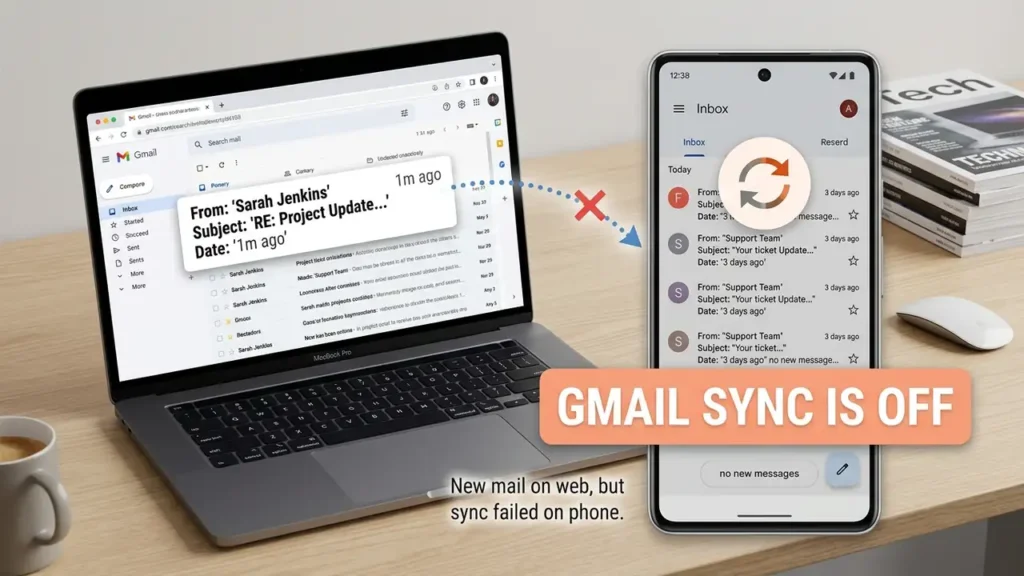
7. If Gmail Works on the Web but Not Your Phone, Check Sync
This is a different problem.
Suppose:
Gmail.com receives new emails
but:
The Gmail app doesn’t show them.
In that situation, your Gmail account may be fine.
The problem may be synchronization on your phone.
Google’s Gmail app troubleshooting guidance recommends checking the internet connection, manually syncing Gmail, updating the app and restarting the device.
Try this first
Open the Gmail app and manually refresh your inbox.
Then check that Gmail synchronization is enabled for the account.
Also make sure the Gmail app is updated.
8. Check Gmail in a Private Browser Window
If Gmail isn’t behaving normally in your browser, test it in a private/incognito window.
For example, in Chrome press:
Ctrl + Shift + N
Then open Gmail and sign in.
Why is this useful?
If Gmail works in Incognito but not in your normal browser, a browser extension, cookie, cache, or site setting may be interfering with Gmail.
9. Check If Gmail Is Having a Service Problem
Sometimes the problem isn’t your Gmail account, browser, or phone. Gmail itself can experience a temporary service outage.
Before changing account settings or troubleshooting your devices further, check the Google Workspace Status Dashboard to see whether Google has reported a problem affecting Gmail.
This is especially useful if:
- Gmail stopped working suddenly
- New emails aren’t arriving on multiple devices
- Gmail isn’t loading normally
- The same problem happens on different browsers or networks
- Other people are experiencing the same issue
What the Result Tells You
If the dashboard shows an active Gmail incident, the problem may be on Google’s side rather than with your account or device.
In that case, avoid making unnecessary changes to your Gmail settings. Wait for the service to recover, then send yourself a test email and check whether new messages are arriving normally.
If the dashboard shows no known Gmail outage, continue troubleshooting your account, device, browser, connection, or the sender’s email.
Checking the service status first can save you time when the problem is actually affecting Gmail itself.
10. Ask the Sender to Check What Happened
This step is often overlooked.
If you’re waiting for one specific email, ask the sender whether their message was successfully delivered.
For example, if you’re waiting for:
- A password reset
- A verification code
- A job application response
- A receipt
- A confirmation email
ask the sender to check whether their email bounced or was rejected.
Google’s Gmail guidance for bounced or rejected messages lists possible causes including an invalid recipient address, spam rejection, sending limits and temporary problems.
Try this test
Ask the sender to send a simple message with:
Subject: Test
Body: Hello
If the simple test arrives but the original message doesn’t, the problem may be related to the original sender, message, attachment or delivery process rather than your entire Gmail account.
Before You Change Anything: A 60-Second Gmail Test
Here’s the test I’d recommend doing before changing filters, deleting emails, or reinstalling the Gmail app.
Send yourself a simple email.
Use another account and send:
Subject: Gmail test
Message: Test message
Then check your Gmail account from:
1. Gmail on your computer
2. Gmail on your phone
3. Spam
4. All Mail
Now compare the results.
If the test arrives everywhere, Gmail’s receiving system is probably working and the missing message deserves a more specific investigation.
If it arrives on the web but not your phone, investigate sync.
If it doesn’t arrive anywhere, check storage, service status and account settings.
This one-minute test can prevent you from making unnecessary changes to a Gmail account that is actually working normally.
Frequently Asked Questions
Why is Gmail not receiving emails?
The most common possibilities include full Google Account storage, Spam filtering, Gmail filters, blocked addresses, sync problems, browser issues, connection problems or a problem on the sender’s side. Google specifically recommends checking storage and missing-message locations such as Spam and Trash.
Why am I not receiving emails from one person?
Check Spam, Trash, filters, blocked addresses and Gmail search first. If other messages arrive normally, ask the sender to verify the address and check whether their email bounced.
Can full Google storage stop Gmail from receiving emails?
Yes. Google states that if your storage is full, you may not be able to send or receive emails.
Why are Gmail emails going to Spam?
Gmail may classify messages as spam. Check the Spam folder and review filters and blocked addresses if messages from a particular sender repeatedly disappear.
Why is Gmail not updating?
If Gmail isn’t refreshing, check your internet connection, try another network or device, and test another browser. Google recommends these steps for Gmail loading problems.
Should I delete and reinstall the Gmail app?
Not as your first step. If Gmail works normally on the web, check sync, connection and app settings first.
Related Troubleshooting Guides
If you’re having other common device or app problems, you may also find these guides useful:
- Android Connected to WiFi but No Internet
- Chrome Not Responding on Windows 11
- iPhone Storage Full When You Have Space
- Discord Not Opening? 10 Fixes That Actually Work
Final Thoughts
When Gmail is not receiving emails, the fastest solution isn’t always a complicated setting.
Start with a simple test email.
Then determine whether the problem affects:
one sender → several senders → your phone → your browser → every device.
That distinction tells you where to look next.
Check storage first, then Spam and All Mail, filters, synchronization, browser problems, and finally the sender or Gmail service itself.
Most importantly, don’t change multiple Gmail settings at once. Test one thing, check the result, and use that result to decide what to do next.