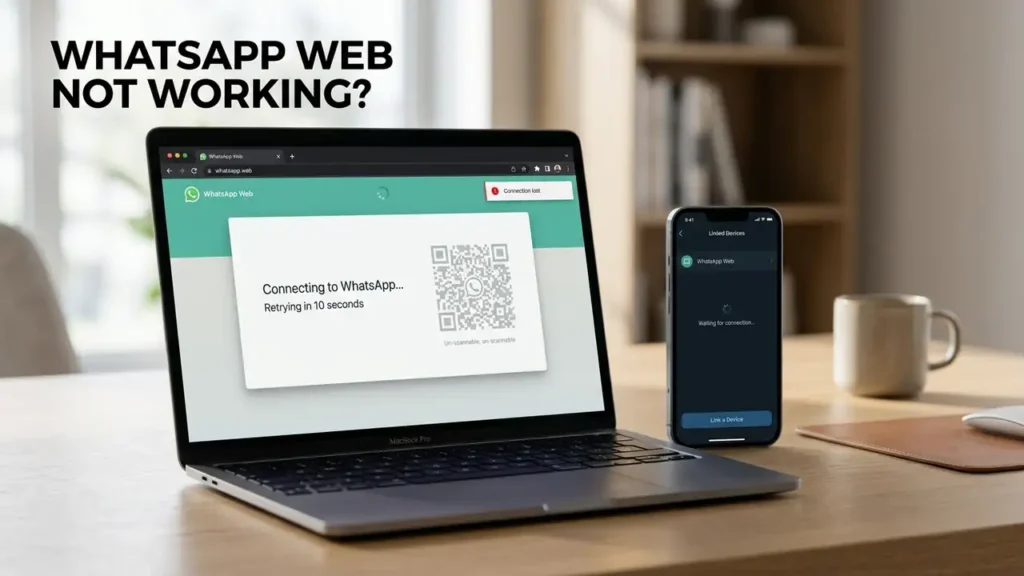

WhatsApp Web Not Working? 10 Fixes That Actually Work
If WhatsApp Web is not working, you may see a blank page, a QR code that won’t scan, chats that won’t sync, repeated logouts, or a browser that stays stuck on the loading screen.
The important thing is that these symptoms don’t always have the same cause.
A problem with your internet connection requires a different fix than a corrupted browser session. Likewise, if WhatsApp works perfectly on your phone but not in Chrome, reinstalling WhatsApp on your phone probably isn’t the answer.
WhatsApp’s own troubleshooting guidance recommends checking the connection, refreshing WhatsApp Web, clearing browser cache and cookies, logging out and back in, restarting your device, and trying another network when connection problems occur.
This guide starts with a quick diagnosis so you don’t have to try every fix blindly.
Before you start: Keep WhatsApp open on your phone while troubleshooting. You’ll need access to Linked Devices to reconnect your browser if the current session needs to be removed.
First: What Exactly Is Wrong With WhatsApp Web?
Before changing anything, identify your symptom.
| What you’re seeing | Start here |
|---|---|
| WhatsApp Web won’t load | Check connection and browser |
| QR code doesn’t appear | Refresh and test another browser |
| QR code won’t scan | Check phone camera and QR session |
| QR code scans but nothing happens | Re-link the device |
| WhatsApp Web keeps logging out | Check linked devices and browser data |
| Chats aren’t syncing | Check phone and internet connection |
| Messages won’t send | Check connection |
| WhatsApp Web is very slow | Browser/cache/network |
| Works in Edge but not Chrome | Chrome settings/extensions |
| Works nowhere | Check WhatsApp/service connection |
Don’t start with advanced settings.
First determine whether the problem is:
WhatsApp → Phone → Internet → Browser → Linked Device
That diagnosis can save you a lot of unnecessary changes.
1. Make Sure You’re Using the Official WhatsApp Web Site
Before troubleshooting anything else, verify the website you’re using.
WhatsApp’s official instructions say to open WhatsApp Web from your desktop browser and link it by scanning the QR code with your phone.
Use:
Why this matters
Search results can contain websites that look similar to WhatsApp.
Don’t enter your phone number, password, or other sensitive information into a suspicious page.
The genuine WhatsApp Web experience uses the official WhatsApp domain.
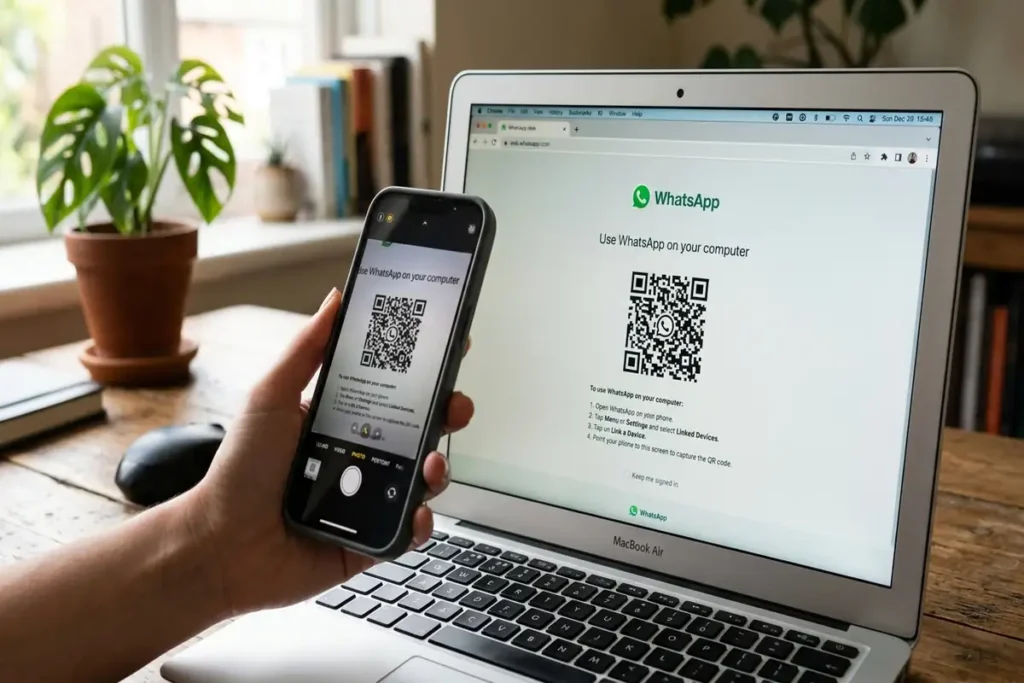
2. Refresh WhatsApp Web and Generate a New QR Code
If the QR code has been sitting on your screen for a while, start with a fresh session.
Press:
Ctrl + R
or select the browser’s refresh button.
Then wait for a new QR code and try scanning it again.
If the QR code doesn’t appear
Try opening WhatsApp Web in a new tab.
If the page remains blank or keeps loading, move to the browser troubleshooting steps later in this guide.
A refresh is also one of WhatsApp’s own recommended troubleshooting steps for connection problems.
3. Check Your Phone’s Internet Connection
This is one of the easiest things to overlook.
Open WhatsApp on your phone.
Send a message to someone you trust or use your own chat if available.
If the message sends normally
Your phone has an active WhatsApp connection.
If the message stays stuck
Your phone’s connection may be the problem.
Try switching between:
Wi-Fi → Mobile Data
or:
Mobile Data → Wi-Fi
WhatsApp specifically recommends checking your device’s internet connection and trying another network when connection problems occur.
Try this simple test
Turn off Wi-Fi on your phone.
Use mobile data and open WhatsApp.
If WhatsApp suddenly works, the Wi-Fi network becomes the main suspect.
4. Log Out of WhatsApp Web and Link the Device Again
If WhatsApp Web worked before but suddenly stopped syncing, the linked-device session may need to be refreshed.
On your phone:
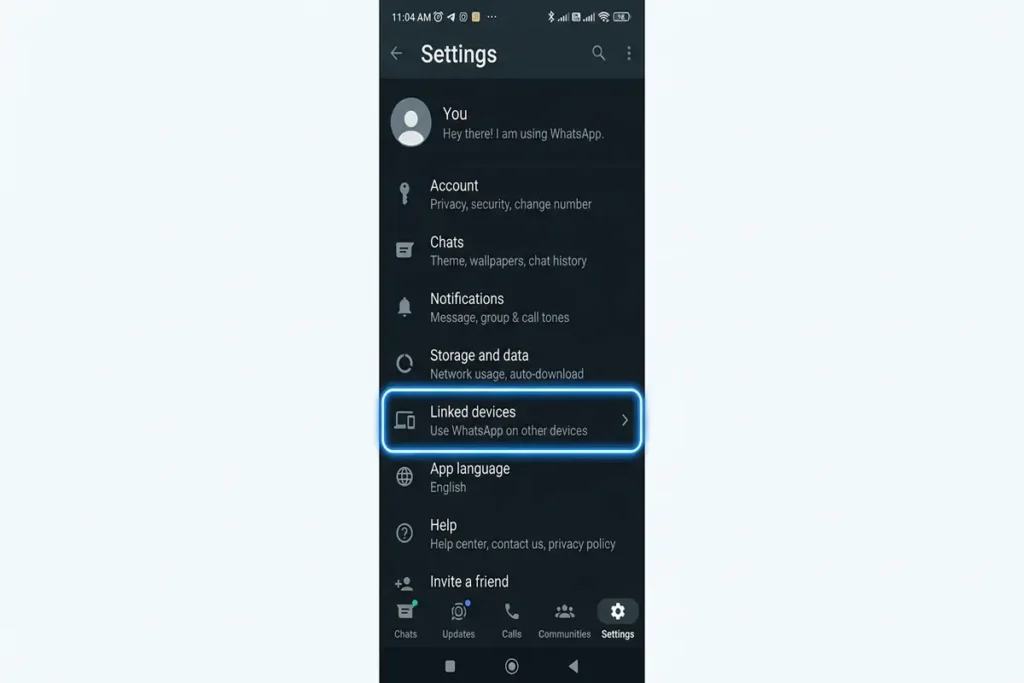
WhatsApp → Linked Devices
Find the computer you’re having trouble with.
Select it and log out.
Then open WhatsApp Web again on your computer and scan the new QR code.
This gives you a clean pairing instead of repeatedly trying to repair a potentially broken session.
WhatsApp’s own connection guidance recommends logging out of WhatsApp Web and logging back in when connection problems persist.
You don’t need to log out of every linked device. Remove only the device that’s having the problem, then link it again.
5. Try WhatsApp Web in Another Browser
This is one of the best diagnostic tests in this entire guide.
If WhatsApp Web doesn’t work in Chrome, try:
- Microsoft Edge
- Firefox
- Another supported browser
WhatsApp currently lists recent versions of Chrome, Firefox, Edge, Opera and Safari among supported browsers.
Here’s what the result tells you
Works in Edge but not Chrome
→ The problem is probably related to Chrome.
Doesn’t work in any browser
→ Check your network, phone connection, linked device or WhatsApp itself.
Works on another computer
→ The original computer is more likely to be the problem.
This is much more useful than immediately reinstalling everything.
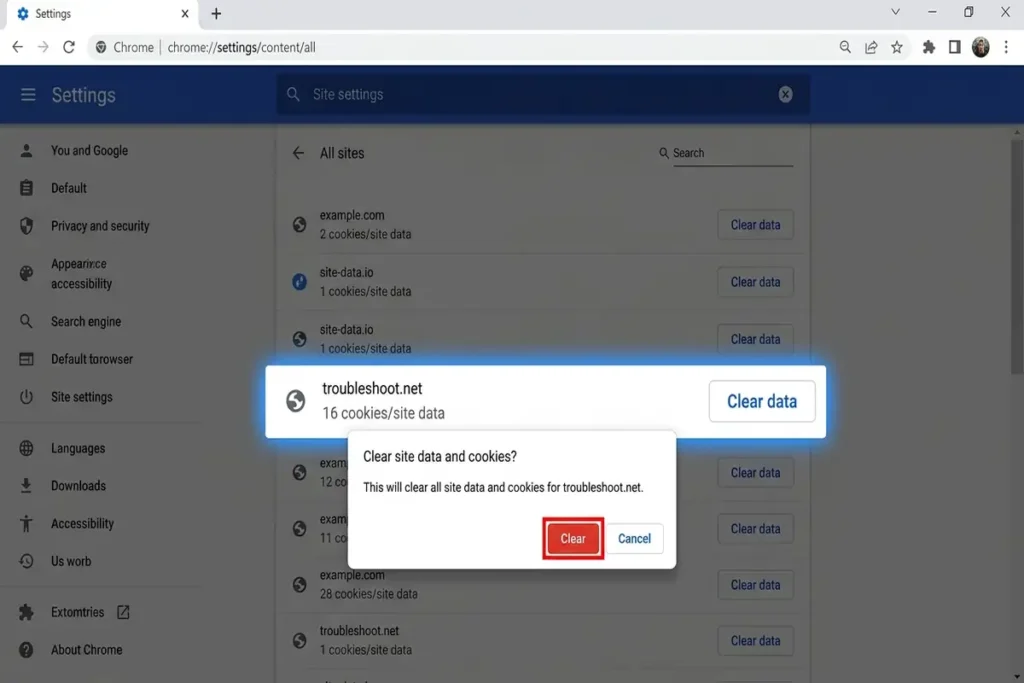
6. Clear WhatsApp Web’s Browser Data
If WhatsApp Web loads incorrectly, freezes, or repeatedly returns to the QR code, old browser data may be interfering with the session.
WhatsApp’s official troubleshooting guidance recommends clearing your browser cache and cookies for connection-related problems.
In Chrome, you can clear site data specifically for WhatsApp rather than deleting everything from your browser.
After clearing the data:
- Close the WhatsApp Web tab.
- Open a new tab.
- Go back to WhatsApp Web.
- Scan the QR code again.
Why do this?
The browser stores information associated with websites.
If that data becomes corrupted or outdated, a website can behave strangely even when your internet connection is perfectly fine.
7. Temporarily Disable Browser Extensions
If WhatsApp Web works in an Incognito or Private window but not in your normal browser, a browser extension becomes a strong suspect.
Extensions that modify websites, privacy settings, scripts or page content can sometimes interfere with web applications.
The easiest test
Open a private/incognito window.
Then visit WhatsApp Web.
If it works there but doesn’t work in your normal browser, don’t immediately reinstall Chrome.
Instead, temporarily disable extensions and test again.
Test them one at a time
Disable:
- Ad blockers
- Privacy extensions
- Script-blocking extensions
- Security extensions
- Other extensions that modify webpages
Then reload WhatsApp Web.
If the problem disappears, you’ve found a much more specific cause.
8. Check Whether Your Network Is Blocking WhatsApp Web
WhatsApp Web may behave differently depending on the network you’re using.
For example, problems can occur on:
- School Wi-Fi
- University Wi-Fi
- Office networks
- Public Wi-Fi
- Restricted corporate networks
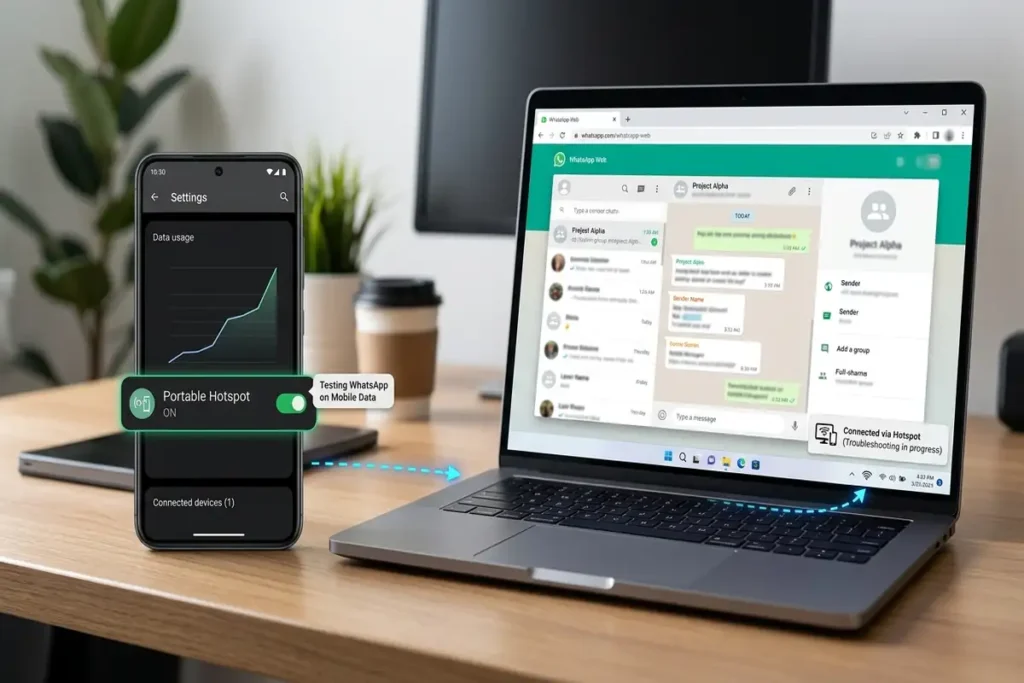
WhatsApp specifically notes that office or university Wi-Fi can sometimes cause connection problems and recommends trying another Wi-Fi network or a hotspot.
Try this test
Connect your computer to your phone’s mobile hotspot.
Then open WhatsApp Web.
If WhatsApp Web suddenly works
Your computer is probably fine.
The original Wi-Fi/network is now the main suspect.
This is one of the most useful tests because it separates a device problem from a network problem.
9. Update Your Browser and WhatsApp
An outdated browser or WhatsApp installation can cause compatibility problems.
Check for updates for:
Chrome / Edge / Firefox
and update WhatsApp on your phone.
WhatsApp’s troubleshooting documentation recommends keeping the app updated and notes that updates can include fixes for bugs and other problems.
Don’t skip Windows updates either
If you’re using WhatsApp Web on a Windows PC, keeping Windows and your browser updated can eliminate compatibility issues.
But don’t assume an update is always the cause.
Use it as one part of the troubleshooting process.
10. Restart Both Devices
If you’ve tried everything above and WhatsApp Web still isn’t working, restart:
Your phone
and
Your computer
This sounds basic, but it can clear temporary browser, network and application problems.
WhatsApp itself recommends restarting the device as part of troubleshooting connection problems.
After restarting:
- Connect your phone to the internet.
- Open WhatsApp.
- Open WhatsApp Web.
- Scan the QR code again.
- Send a test message.
Frequently Asked Questions
Why is WhatsApp Web not working?
The most common causes are internet problems, browser issues, outdated software, corrupted site data, linked-device errors, or network restrictions. Start by checking your connection, refreshing WhatsApp Web, and trying another browser or network.
Why won’t WhatsApp Web scan the QR code?
Refresh WhatsApp Web to generate a new QR code, then open WhatsApp → Linked Devices on your phone and scan it again. Make sure your phone has a working internet connection.
Why does WhatsApp Web keep logging me out?
This can happen because of expired sessions, browser settings, or corrupted WhatsApp Web site data. Try logging out of the linked device, clearing its site data, and linking it again.
Why is WhatsApp Web not syncing messages?
Check that both your phone and computer have a stable internet connection. If messages still don’t sync, try another network or unlink and re-link the affected device.
Can Wi-Fi block WhatsApp Web?
Yes. Some workplace, school, public, or restricted Wi-Fi networks may block or interfere with WhatsApp Web. Try a different Wi-Fi connection or a mobile hotspot to see if the network is causing the problem.
Related Guides
If you’re troubleshooting other common technology problems, these guides may also help:
- Gmail Not Receiving Emails? 10 Fixes That Work
- Chrome Not Responding on Windows 11
- Android Connected to WiFi but No Internet
- Discord Not Opening? 10 Fixes That Actually Work
- iPhone Storage Full When You Have Space
Final Thoughts
When WhatsApp Web is not working, start by identifying where the problem occurs. Test your connection, try another browser, refresh the QR code, and re-link the affected device when necessary.
The key is to change one thing at a time. This makes it easier to identify whether the problem is coming from your browser, network, phone, or WhatsApp Web itself.