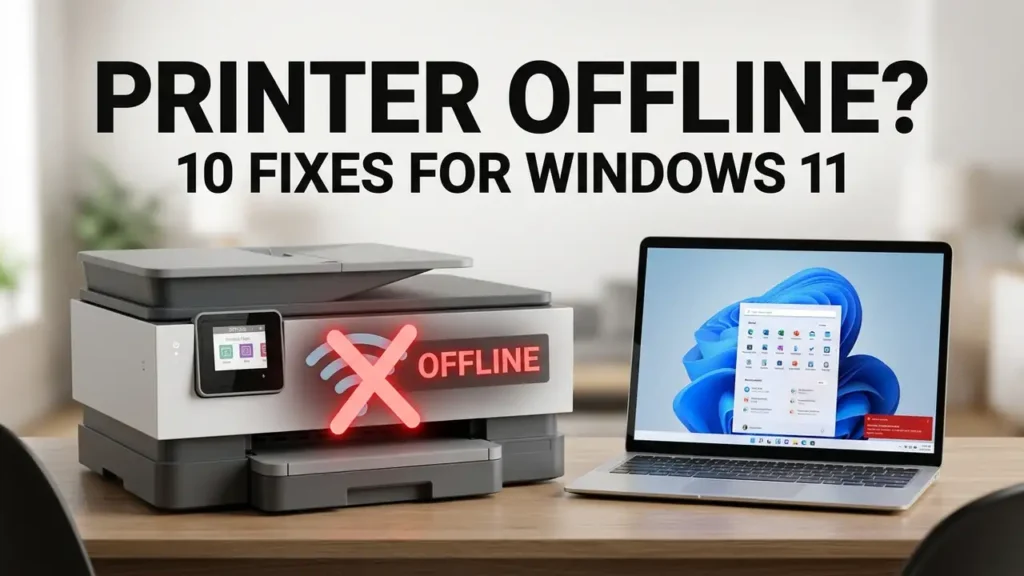

Printer Offline in Windows 11? 10 Fixes That Actually Work
Seeing “Printer Offline” in Windows 11 when your printer is clearly turned on can be confusing—and frustrating when you need to print something right away.
Your printer may be connected to Wi-Fi and working normally from another device, yet Windows can still show it as offline. The cause can be something as simple as a stuck print job or incorrect printer setting, but it can also involve the Print Spooler, network connection, or printer driver.
The good news is that you usually don’t need to reset Windows or replace your printer to fix the problem.
Before trying random solutions, take a quick minute to identify where the problem is coming from. Then work through the fixes below, starting with the simplest ones.
Before You Try the Fixes: Find Where the Problem Is
First, check the printer itself:
- Is it powered on?
- Does its display show an error?
- Is it connected to Wi-Fi?
- Is your Windows 11 PC connected to the same Wi-Fi network?
Then try printing from another device, such as your phone or another computer, if one is available.
- Another device can print: The printer is probably working, so focus on Windows 11.
- No device can print: Check the printer’s Wi-Fi connection and look for an error on the printer.
- Windows sees the printer but shows Offline: Check the print queue, Print Spooler, and printer settings.
- The printer goes offline again later: Look for a recurring network, driver, or sleep-related problem.
This quick test helps you identify the likely cause before changing Windows settings.
1. Restart the Printer
It sounds basic, but power cycling can clear temporary communication problems.
Turn off the printer.
Unplug it from the power outlet.
Wait about 30 seconds.
Plug it back in and turn it on.
Wait until the printer finishes starting up and reconnects to Wi-Fi.
Test again
After the printer is ready:
Settings → Bluetooth & devices → Printers & scanners
Select your printer and try printing a test page.
If it still says Offline, continue.
If the printer reconnects to Wi-Fi after restarting, try printing before changing any Windows settings.
2. Make Sure Your PC and Printer Are on the Same Wi-Fi
If you’re using a wireless printer, make sure your Windows 11 PC and printer are connected to the same Wi-Fi network.
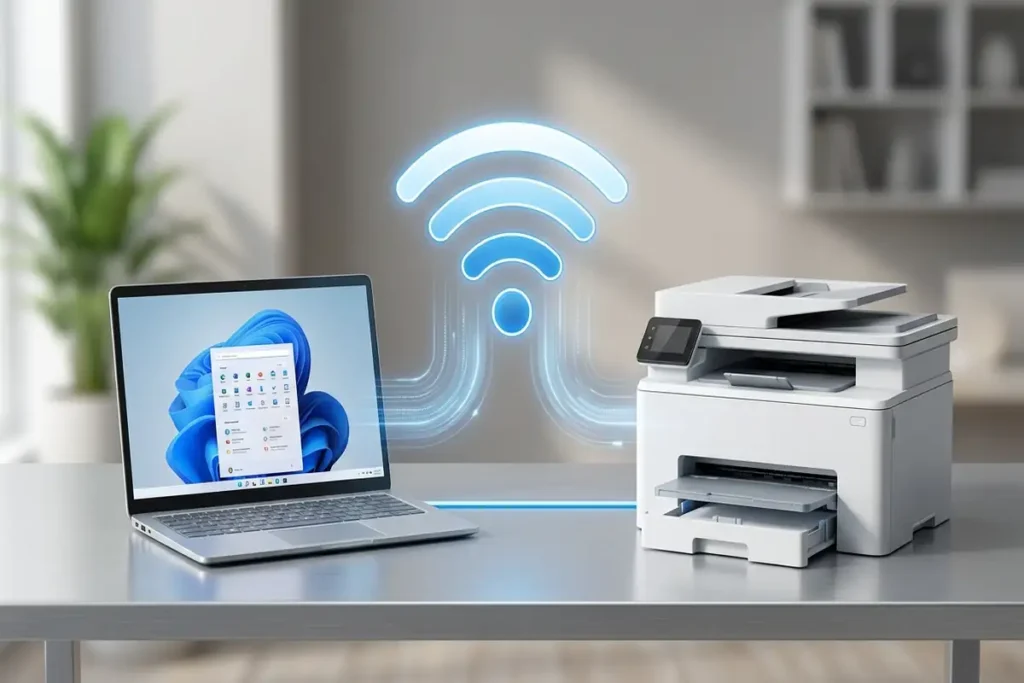
Check the network name on your printer, then go to:
Settings → Network & internet → Wi-Fi
Make sure both devices are using the same network.
For example:
PC: HomeWiFi
Printer: HomeWiFi ✅
If they’re connected to different networks, Windows may not be able to communicate with the printer properly.
Check After a Recent Wi-Fi Change
This is especially important if you recently:
- Changed your Wi-Fi password
- Replaced your router
- Switched internet providers
- Connected the printer to a Guest network
If you recently changed your Wi-Fi settings, reconnect the printer to your current network.
Test It
After connecting both devices to the same Wi-Fi, go to:
Settings → Bluetooth & devices → Printers & scanners
Select your printer and try printing a small document.
If it still shows Offline, continue to the next fix.
3. Run Windows 11’s Printer Troubleshooter
Windows 11 includes automated troubleshooting through the Get Help app.
Open Windows Search and type:
Then search for:
printer troubleshooter
Follow the instructions provided by Windows.
The tool can check common printer problems and attempt automatic repairs.
4. Check the Print Queue
A stuck print job can make it appear as if your printer isn’t responding.
Go to:
Settings → Bluetooth & devices → Printers & scanners
Select your printer.
Choose:
Open print queue
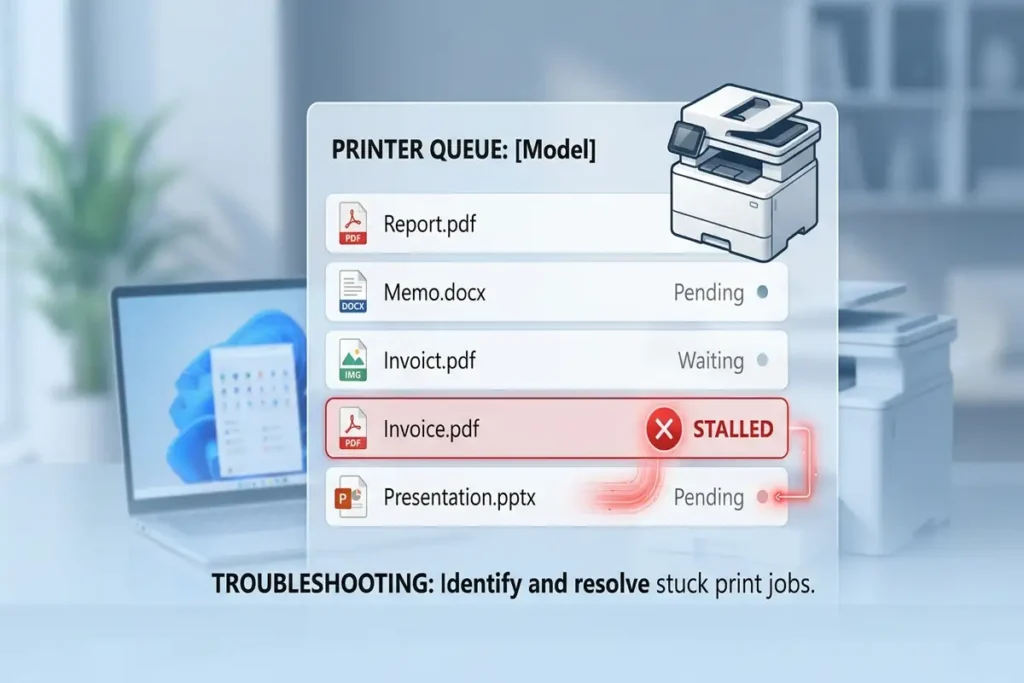
If you see documents waiting for a long time, cancel them.
Then try sending a new, small document to the printer.
Microsoft specifically recommends checking and clearing pending print jobs when troubleshooting printer problems.
5. Restart the Print Spooler
If the queue won’t clear or printing still doesn’t work, restart the Print Spooler service.
The Print Spooler manages printing jobs between Windows and the printer.
Press:
Windows + R
Type:
services.mscPress Enter.
Find:
Print Spooler
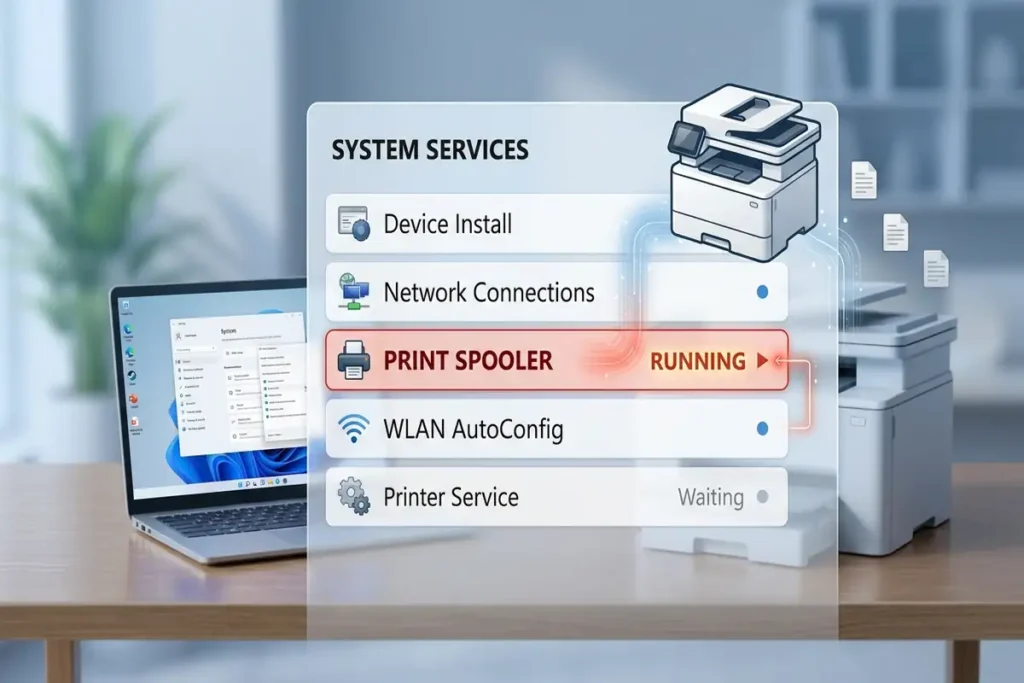
Right-click it.
Select:
Restart
Then try printing again.
6. Make Sure Windows Isn’t Set to “Use Printer Offline”
Sometimes the problem is caused by a setting rather than the physical printer.
Open your printer’s queue.
Look for the Printer menu.
Check whether:
Use Printer Offline
is enabled.
If it is, disable it.
Also check whether:
Pause Printing
is enabled.
If either option is active, Windows may not send the document to the printer normally.
Microsoft’s offline-printer guidance specifically tells users to check these printer status settings.
7. Set the Correct Printer as Your Default
If you have multiple printers installed, Windows may be trying to use the wrong one.
Go to:
Settings → Bluetooth & devices → Printers & scanners
Select the printer you actually want to use.
Choose:
Set as default
If you don’t see this option, Windows may be managing your default printer automatically.
Microsoft includes setting the correct printer as default among its Windows printer troubleshooting steps.
If Windows selects the wrong device, printing can fail even though your real printer is perfectly fine.
8. Remove and Reinstall the Printer
If Windows still shows the printer as offline, removing and adding it again can rebuild the connection.
Go to:
Settings → Bluetooth & devices → Printers & scanners
Select the affected printer.
Choose:
Remove
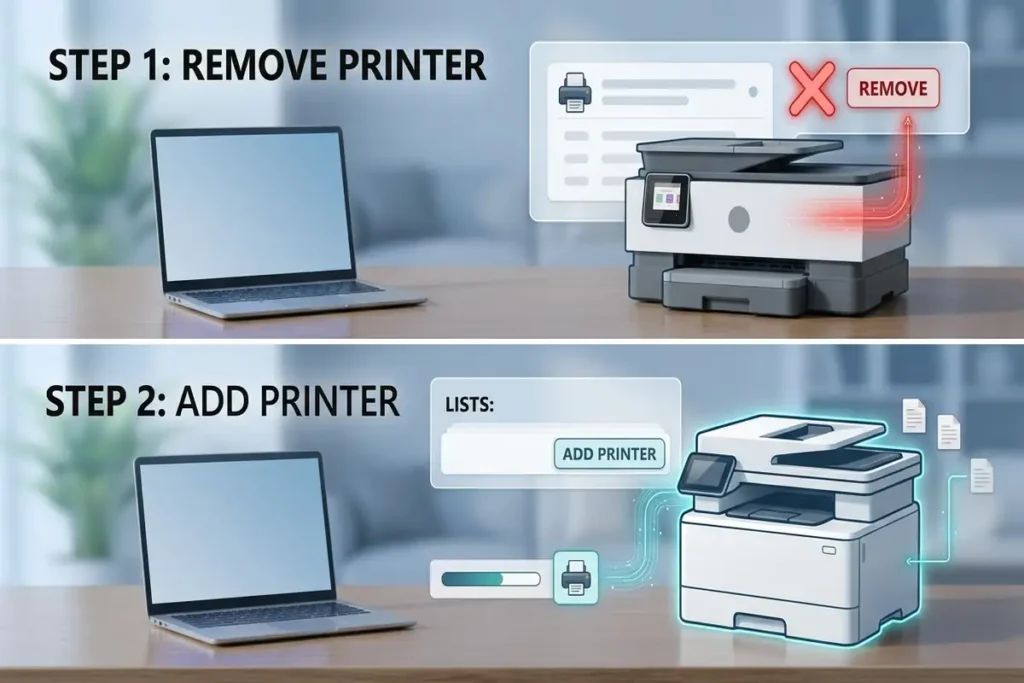
Then restart the PC.
Return to:
Printers & scanners
Select:
Add device
Follow the instructions to add the printer again.
Important
Before removing the printer, make sure you know how it connects:
- Wi-Fi
- USB
- Ethernet
For a wireless printer, you may need to reconnect it to your Wi-Fi network during setup.
9. Check the Printer Driver
An outdated or incompatible driver can cause communication problems between Windows and the printer.
You can check:
Device Manager → Printers
Then select the relevant device and check its driver options.
However, don’t download random drivers from third-party websites.
If you need a manufacturer-specific driver, use the printer manufacturer’s official support website.
This is especially important for brands such as:
- HP
- Canon
- Brother
- Epson
10. Restart the PC and Test Again
If you’ve completed the previous steps, restart Windows 11.
This gives Windows an opportunity to reload:
- Printer services
- Print Spooler
- Network components
- Printer configuration
- Device drivers
Microsoft also lists restarting the PC as part of its offline-printer troubleshooting process.
After restarting:
- Open Printers & scanners.
- Select your printer.
- Check its status.
- Send a small test document.
If the printer is now online, you can stop here.
What If Your Printer Says Offline but Is Connected to Wi-Fi?
This is one of the most confusing situations.
The printer can be connected to Wi-Fi but still appear offline in Windows.
That’s because:
Connected to Wi-Fi ≠ Windows successfully communicating with the printer.
For example:
Printer → Wi-Fi ✅
PC → Wi-Fi ✅
Windows → Printer communication ❌
In this situation, restarting the printer, checking the network, clearing the print queue, restarting Print Spooler, and reinstalling the printer can help isolate the problem.
What If the Printer Goes Offline Again?
If the printer works for a few minutes and then goes offline again, don’t keep reinstalling it.
Look for a pattern.
Does it happen:
- After the computer wakes from sleep?
- After the router restarts?
- After changing Wi-Fi?
- Only with wireless printing?
- After a Windows update?
- After the printer has been idle?
- Only from one computer?
The answer can point toward the actual cause.
For example
If your phone can print while your Windows 11 PC cannot, focus on Windows.
If every device loses access to the printer, investigate the printer or network.
Frequently Asked Questions
Why does my printer say Offline when it is connected?
Windows 11 may show your printer as offline when it cannot communicate with it correctly. Check that your PC and printer are on the same Wi-Fi network, then check the print queue and restart the Print Spooler.
How do I get my printer back online in Windows 11?
Start by restarting the printer and confirming that it is connected to the same network as your PC. Then clear any stuck print jobs, restart the Print Spooler, and check that Use Printer Offline is turned off.
Why does my wireless printer keep going offline?
A wireless printer can repeatedly go offline because of Wi-Fi problems, network changes, sleep or connection issues, or Windows printer settings. Check whether the problem affects other devices before reinstalling the printer.
Should I reinstall my printer if Windows says Offline?
Reinstalling the printer can help if restarting the printer, checking the network, clearing the print queue, and restarting Print Spooler do not solve the problem. Remove the printer from Windows 11 and add it again.
Why can my phone print but Windows 11 cannot?
If your phone can print successfully, the printer and network are likely working. Focus on Windows 11 by checking the printer settings, print queue, Print Spooler, default printer, and driver.
More Windows & Printer Troubleshooting Guides
If you’re dealing with another Windows or device problem, these guides may help:
- Printer Not Showing Up in Windows 11
- Windows 11 Wi-Fi Keeps Disconnecting
- Chrome Not Responding on Windows 11
Final Thoughts
When your printer shows Offline in Windows 11, don’t assume the printer is broken.
Start with the basics: restart the printer, check the Wi-Fi connection, and clear any stuck print jobs. If that doesn’t help, restart the Print Spooler or reinstall the printer.
The key is to test each fix one at a time. This makes it easier to find what’s actually causing the problem and get your printer back online.