
Spotify Not Working on Android? 9 Things to Check Before Reinstalling
Spotify can stop working on Android in frustrating ways. The app may open but refuse to play music, stay stuck loading, freeze when you tap a playlist, stop playing in the background, or close unexpectedly.
The cause isn’t always Spotify itself. Connection problems, Offline Mode, corrupted cache, low storage, battery restrictions, or an outdated app can all cause similar issues.
This guide helps you identify the cause first and apply the least disruptive fix.
Quick Answer
If Spotify is not working on Android, first check whether other apps and websites work normally. Then force-stop Spotify, test another internet connection, check Offline Mode, clear the app cache, make sure your phone has enough free storage, and update Spotify.
If Spotify still fails after those checks, reinstalling the app can help. Keep it as a last step because downloaded music and podcasts may need to be downloaded again.
Before Fixing Anything: Check Whether Spotify Is Down
Not every Spotify problem is caused by your Android phone.
If Spotify suddenly stopped working, check Spotify’s Ongoing Issues page before changing settings or reinstalling the app. Spotify uses this page to list reported app problems and their current status. Spotify Ongoing Issues
A useful test is to open Spotify on another device or try the Spotify web player. If the same account has problems across multiple devices, the issue may be with Spotify’s service rather than your Android phone.
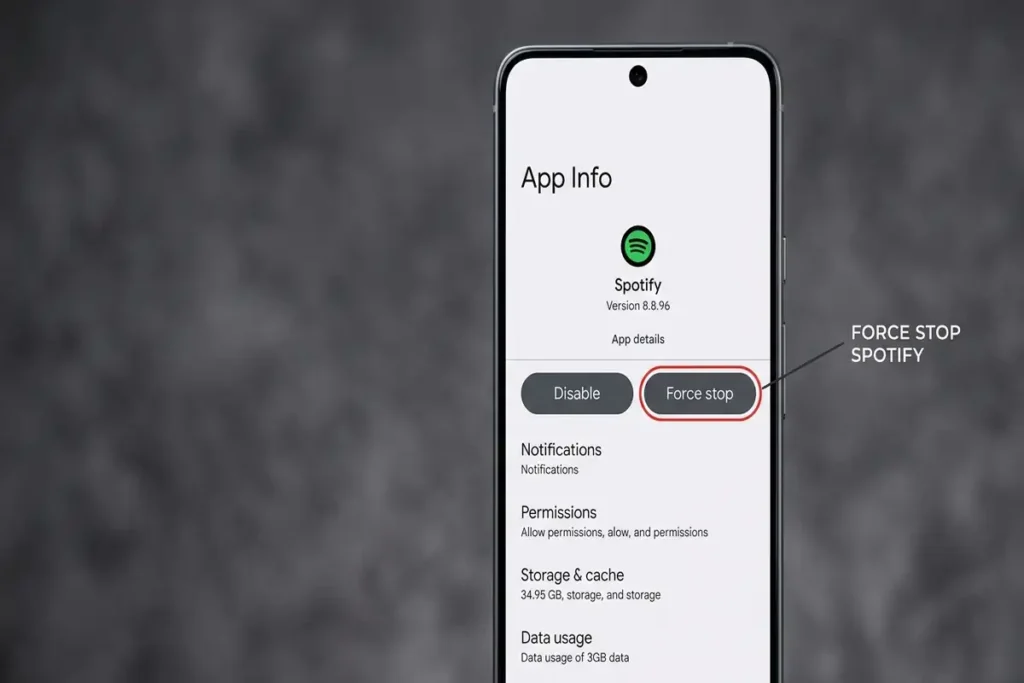
1. Force Stop Spotify and Open It Again
If Spotify was working earlier and suddenly became frozen or unresponsive, start here.
On most Android phones:
- Open Settings.
- Go to Apps or App management.
- Select Spotify.
- Tap Force stop.
- Open Spotify again.
This stops Spotify’s current app process so Android can start it again cleanly.
If Spotify starts working normally afterward, the problem was likely temporary.
2. Test Your Internet Connection
Spotify needs a reliable connection to load playlists, search for music, and stream songs.
Try this simple test:
- Open a website in Chrome.
- Play a YouTube video.
- Switch from Wi-Fi to mobile data.
- If possible, try another Wi-Fi network.
If Spotify works on mobile data but not Wi-Fi, your Spotify installation may be fine. The problem is more likely related to the Wi-Fi network, router, DNS, or connection itself.
If other apps also struggle to connect, fix the connection before changing Spotify settings.
3. Make Sure Spotify Is Not in Offline Mode
Offline Mode can make Spotify appear broken when your connection is actually fine.
Open Spotify and check its connection settings. If Offline Mode is enabled, turn it off and try playing a song again.
This is especially worth checking if:
- Search is not updating.
- New playlists will not load.
- Recently added music is missing.
- Spotify keeps showing previously downloaded content.
If downloaded songs play but new content does not load, the connection or Offline Mode setting deserves attention.
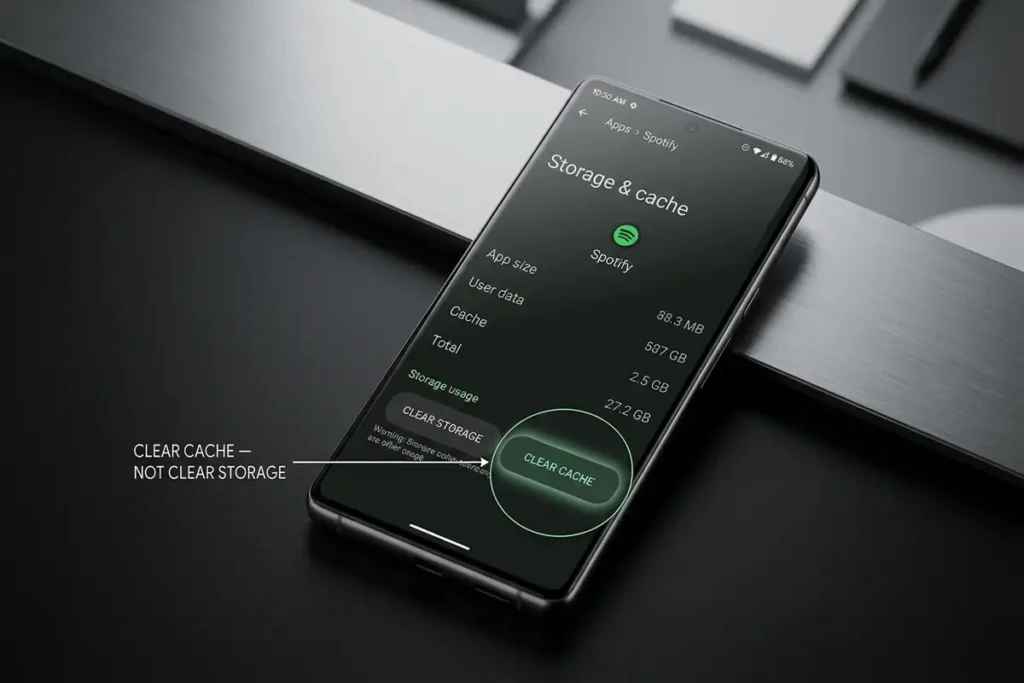
4. Clear Spotify’s Cache
A corrupted or unusually large cache can sometimes cause loading and playback problems.
On Android:
- Open Settings.
- Select Apps.
- Tap Spotify.
- Open Storage or Storage & cache.
- Tap Clear cache.
- Reopen Spotify.
Start with Clear cache, not Clear storage/data.
Clearing the cache removes temporary files without immediately resetting the entire app.
For more details on how Spotify uses storage and cache on Android, see Spotify’s storage information guide.
5. Check Your Phone’s Available Storage
Low storage can affect more than photos and videos.
Spotify uses local storage for temporary data and downloaded content. If your Android phone is almost full, the app may become less reliable.
Go to:
Settings → Storage
Check how much free space remains.
If you’re very close to the storage limit, remove files or apps you no longer need and then restart Spotify.
You do not need to delete Spotify just because the app is using storage. Start by freeing space elsewhere if possible.
6. Check Android’s Battery Restrictions
This step is particularly important if Spotify works while the app is open but stops playing after you lock your phone or switch to another app.
Android can restrict background activity to reduce battery usage.
Open:
Settings → Apps → Spotify → Battery
Depending on your phone manufacturer, you may see options such as:
- Unrestricted
- Optimized
- Restricted
- Allow background activity
The exact names vary between Samsung, Google Pixel, OnePlus, Xiaomi, and other Android devices.
If Spotify is heavily restricted in the background, allow the app to run normally and test playback again.
Do not disable battery optimization for every app. Change the Spotify setting only if background playback is the specific problem.
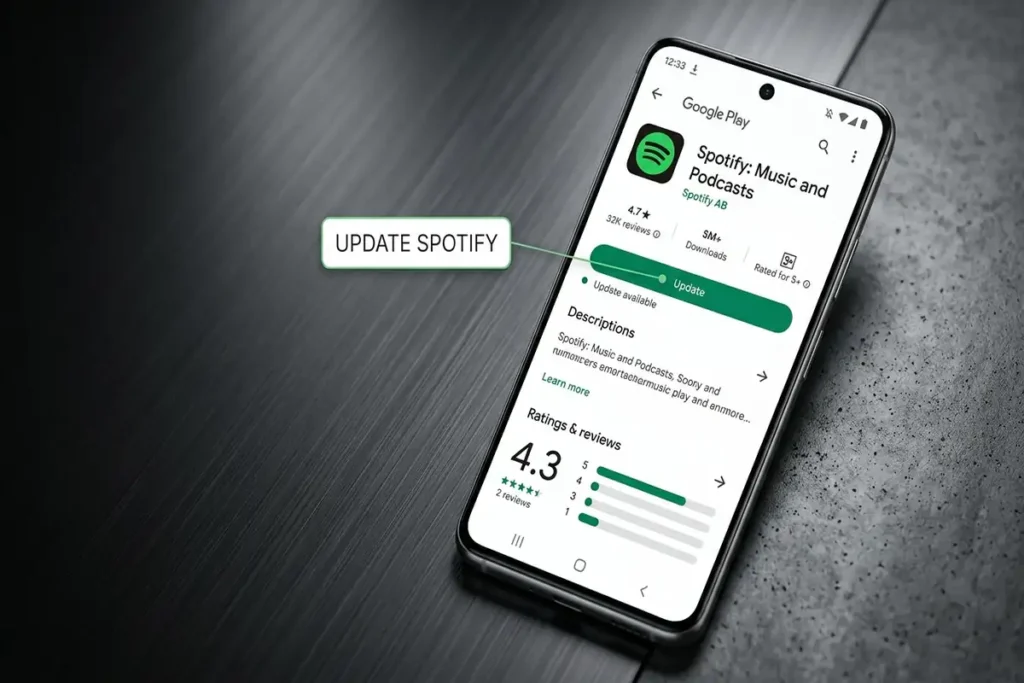
7. Update Spotify
An outdated Spotify version can cause compatibility or playback problems, particularly after Android system updates.
Open the Google Play Store, search for Spotify, and check whether an Update button is available.
If there is an update, install it and then reopen Spotify.
If Spotify stopped working immediately after an Android update, checking for a newer Spotify version is especially worthwhile.
8. Restart Your Android Phone
If Spotify still isn’t working after the previous checks, restart your Android phone before moving to a reinstall.
After the phone restarts, open Spotify and test the action that originally failed.
If the problem returns after restarting, continue to the next step.
9. Reinstall Spotify — Only After the Other Checks
If Spotify still does not work after the previous steps, reinstalling the app is a reasonable final troubleshooting step.
Before doing it, remember that downloaded music and podcasts may need to be downloaded again afterward.
To reinstall:
- Uninstall Spotify.
- Restart your Android phone.
- Open Google Play Store.
- Install Spotify again.
- Sign in.
- Test playback before changing additional settings.
A clean installation can resolve problems caused by damaged app files or a failed update.
How to Tell If Spotify Is Fixed
Do not stop troubleshooting just because Spotify opens.
Test the specific problem that originally brought you here:
- Play a song you haven’t downloaded.
- Search for a different artist.
- Switch between Wi-Fi and mobile data if necessary.
- Lock your phone and check background playback.
- Open a playlist and scroll through it.
- Close and reopen Spotify.
If all of these work normally, the problem is likely resolved.
If Spotify Still Does Not Work
At this point, look at the pattern instead of repeating the same fixes.
Spotify fails only on your phone:
The Android app, device settings, or phone software may be responsible.
Spotify works in a browser but not in the app:
Focus on the Android Spotify installation, cache, permissions, and updates.
Spotify works on mobile data but not Wi-Fi:
Investigate the Wi-Fi connection rather than reinstalling Spotify again.
Spotify fails on multiple devices:
Check Spotify’s service status and current reports before changing your phone.
Spotify started failing immediately after a system or app update:
Look for a newer Spotify update and reports from other users before making major changes.
Frequently Asked Questions
Why is Spotify not working on my Android phone?
Common causes include connection problems, Offline Mode, corrupted cache data, low storage, battery restrictions, outdated software, or a temporary Spotify service problem. Start by identifying whether other apps and Spotify on another device work normally.
Why does Spotify work when I open it but stop in the background?
Android may be restricting Spotify’s background activity to save battery. Check Spotify’s battery settings and make sure the app is not heavily restricted.
Will clearing Spotify’s cache delete my playlists?
Clearing the cache does not normally remove your Spotify account or playlists. It is different from clearing the app’s storage/data.
Should I reinstall Spotify if it is not working?
Not immediately. Try checking the service, connection, Offline Mode, cache, storage, battery restrictions, and updates first. Reinstall Spotify as a later step because downloaded content may need to be downloaded again.
What if Spotify is still not working after reinstalling?
If a clean installation does not help, test Spotify on another device or network. If the problem follows your account across devices, it may be a Spotify-side issue rather than an Android problem.
Related Guides
If you’re troubleshooting other common connection or app problems, these guides may also help:
- Android Connected to Wi-Fi but No Internet? 10 Fixes That Work
- How to Fix Windows 11 WiFi Keeps Disconnecting
- YouTube Not Working on Chrome? 10 Fixes That Actually Work
- How to Fix Chrome Not Responding on Windows 11
Final Thoughts
When Spotify stops working on Android, reinstalling the app is usually not the first thing to try.
Start by finding out where the problem is: Spotify’s service, your connection, Android’s settings, or the app itself. Test one change at a time and check whether it actually fixes the original problem.
If Spotify works after a simple fix, stop there. You don’t need to reset or reinstall the app just because it was temporarily having trouble.
Diagnose the cause first. Then apply the fix that matches it.