
Google Gemini Not Working? Here’s What to Check First
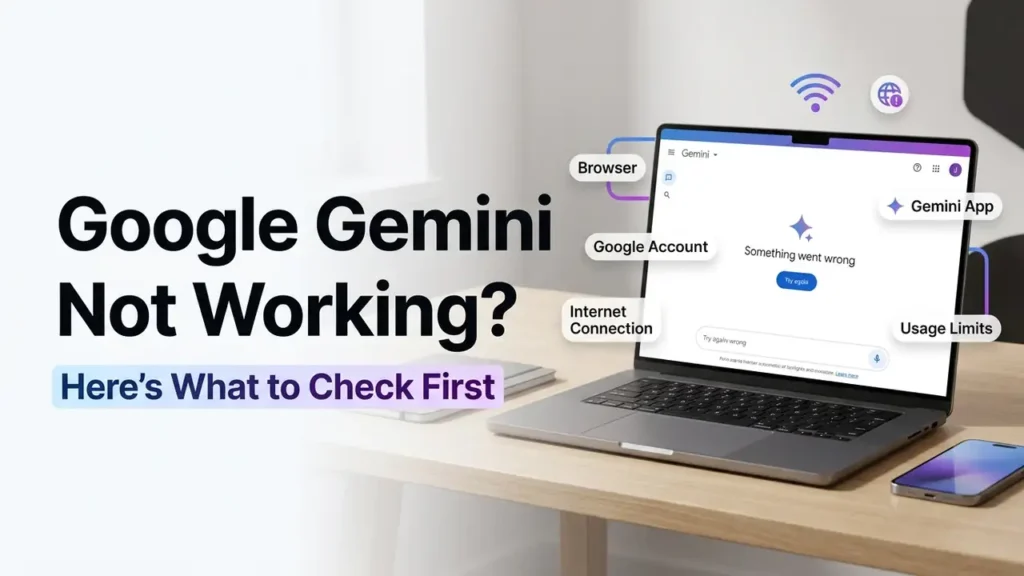
If Google Gemini is not working, the problem may not be Gemini itself. A browser extension, stuck conversation, Google account session, network connection, or usage limit can all cause Gemini to stop responding normally.
The fastest way to fix it is to first figure out where the problem is happening. Is Gemini completely unavailable, or does it open but fail when you send a prompt?
Here’s what to check before trying more advanced fixes.
1. Check if Gemini is down
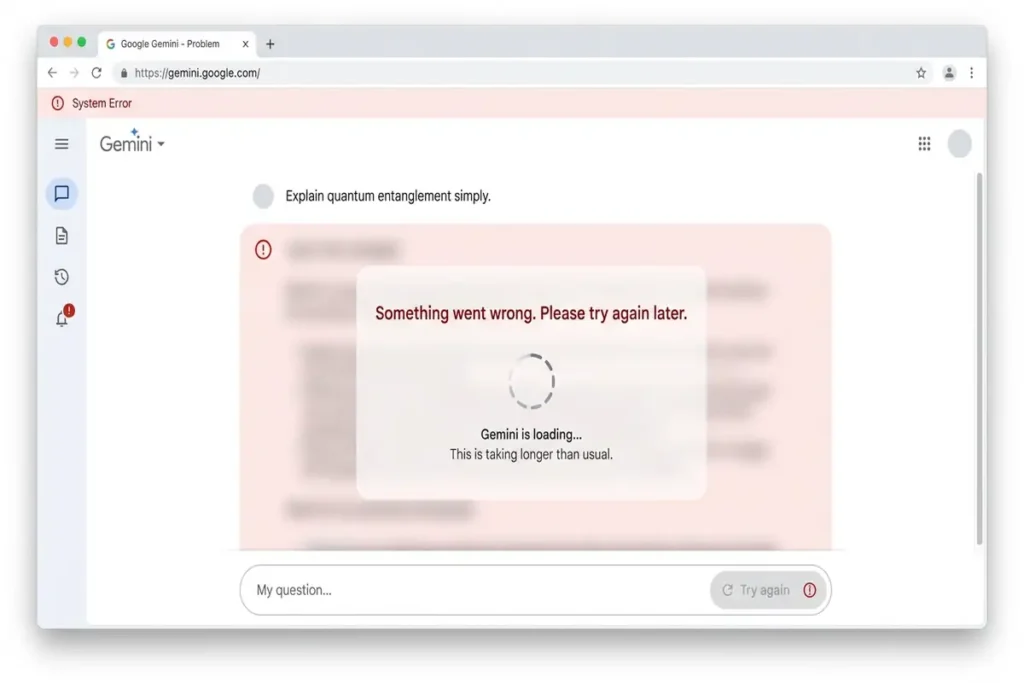
Before changing anything on your computer or phone, make sure the problem isn’t affecting Gemini itself.
Open Gemini in your browser and see whether the page loads normally.If Gemini fails across multiple browsers or devices, the problem is less likely to be limited to your browser. Check Google’s service-status information before changing local settings.
You can also check Google’s official service-status information and Gemini Help for current issues.
If other people are reporting the same problem, there may be nothing to fix on your device. Waiting and trying again later may be the best option.
2. Find out whether the problem is the website or the app
Gemini can be used through its web app, while mobile users can also use the Gemini app.
If you’re having problems on your computer, open Gemini using a different supported browser.Try Gemini in another supported browser, such as Chrome, Edge, Firefox, Safari, or Opera.
If Gemini works in another browser, the original browser is probably the problem.
3. Try a new Gemini chat
Sometimes the problem is limited to one conversation rather than Gemini itself.
If Gemini opens but stays stuck when generating a response, start a New chat and send a very simple prompt such as:
What is 2 + 2?
If the new conversation works, the original chat may have become stuck or encountered an issue.
Google’s Gemini documentation includes starting a new chat as a normal way to begin a fresh conversation.
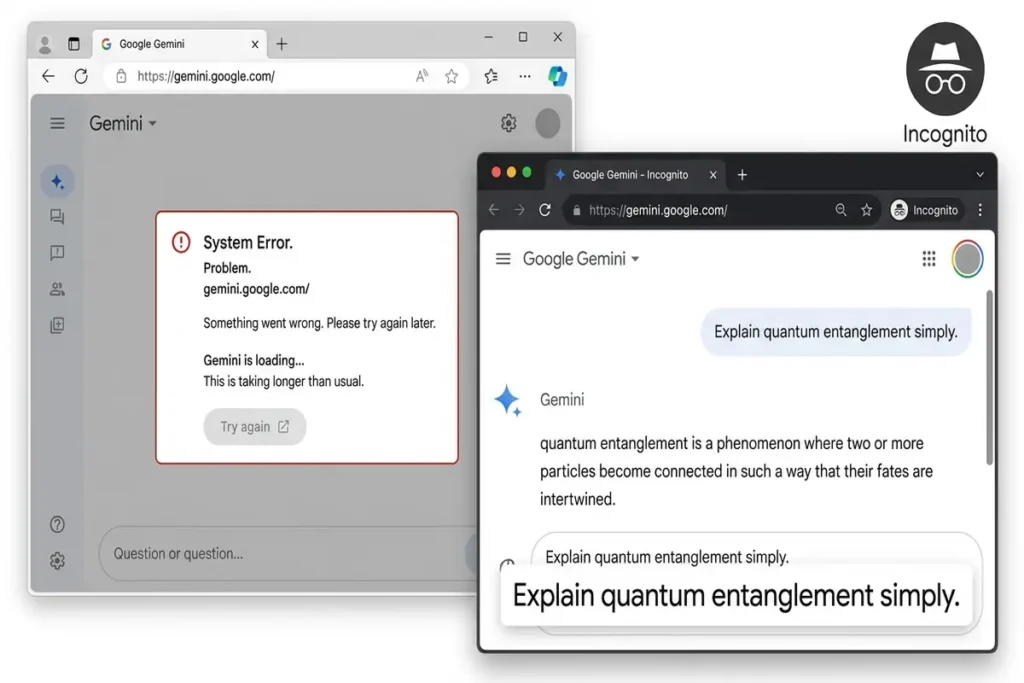
4. Test Gemini in Incognito mode
Browser extensions can interfere with websites, especially tools that use scripts, cookies, or complex web applications.
Open an Incognito or Private window and try Gemini again.
If Gemini works there, temporarily disable extensions in your normal browser. Start with:
- Ad blockers
- Privacy extensions
- VPN extensions
- Script blockers
- Security extensions
Then reload Gemini.
You don’t need to disable every extension permanently. The goal is to identify whether one of them is causing the problem.
5. Check your Google account
Some Gemini features require you to be signed in to a Google Account. Google also notes that availability and features can differ depending on the type of account and whether you’re using a personal, work, or school account.
If Gemini works with one Google account but not another, the problem is probably related to the account rather than your browser or internet connection.
Try signing out and signing back in.
If you’re using a work or school Google Account, access to Gemini can also depend on your organization’s settings or administrator. A personal Google Account may behave differently.
6. Check your internet connection
Gemini needs a working internet connection to communicate with Google’s servers.
If the page loads but responses keep failing, test another website first.
Then try:
- Disconnecting and reconnecting to Wi-Fi.
- Restarting your router.
- Switching temporarily to mobile data.
- Turning off a VPN.
- Trying Gemini again.
If Gemini works on mobile data but not Wi-Fi, the problem is more likely related to your network.
7. Clear Gemini’s browser data
If Gemini suddenly stopped working after working normally before, corrupted or outdated site data can sometimes cause problems.
In your browser settings, clear the site data for Gemini or the affected Google site rather than clearing all browser data.
You’ll probably need to sign in again afterward.
Before clearing everything, try Incognito mode first. If Gemini works there, you’ve got a stronger indication that stored browser data or an extension is involved.
8. If you’re using the Gemini app, update it
On Android, make sure the Gemini app is updated through Google Play.
Then completely close the app and open it again.
If the problem continues, restart your phone and test Gemini again.
9. Check Whether You’ve Reached a Gemini Usage Limit
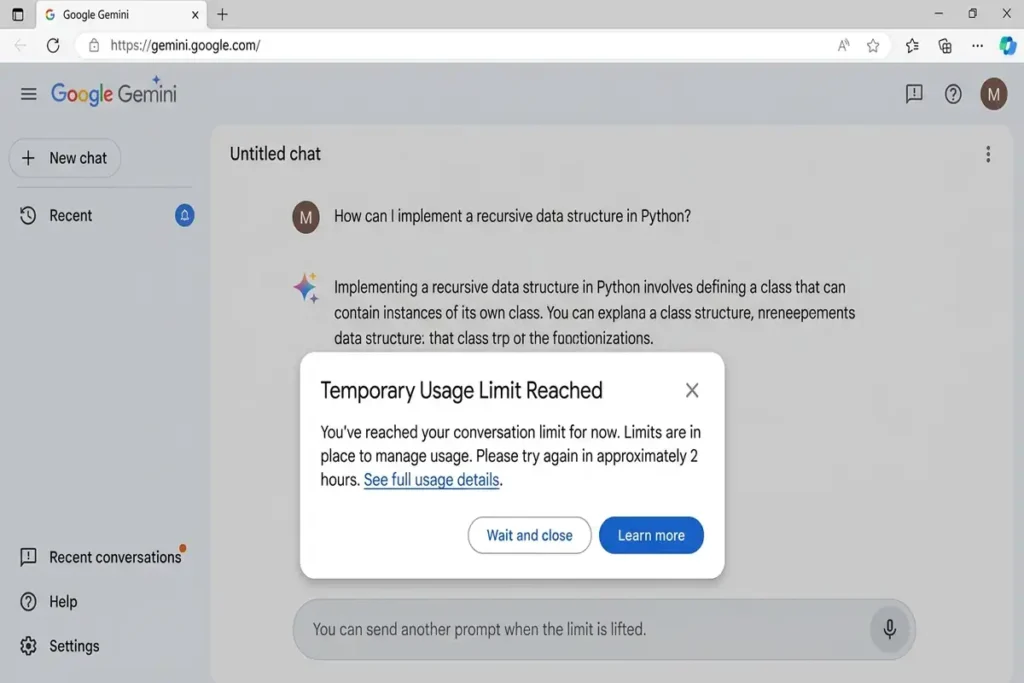
Gemini isn’t necessarily unlimited. Google says Gemini Apps usage limits can depend on your model, features, prompt complexity, and chat length.
This can explain cases where Gemini works normally but suddenly stops responding to certain requests or limits what you can do.
If you recently used Gemini heavily, try sending a simpler prompt or starting a new conversation.
Google also says usage limits can refresh periodically, and the available limits may change as capacity and availability change.
If the problem disappears later without changing your browser, account, or network, a temporary usage limit may have been the reason.
10. If Gemini still doesn’t work, compare the results
At this point, test Gemini in a few different ways:
| Test | What it tells you |
|---|---|
| Gemini fails everywhere | Possible Google-side issue |
| Works in Incognito | Extension or browser-data problem |
| Works in another browser | Browser-specific issue |
| Works with another Google account | Account-related issue |
| Works on mobile data | Wi-Fi/network problem |
| New chat works | Original conversation may be stuck |
| App fails but website works | Mobile app issue |
| Website and app both fail | Account, network, limits, or service issue |
This approach is usually faster than changing several settings at once.
Frequently Asked Questions
Why is Google Gemini not working?
Gemini may stop working because of a temporary service problem, browser extensions, corrupted site data, account issues, network problems, app problems, or usage limits.
Why does Gemini say “Something went wrong”?
A generic error can have several causes. Try starting a new chat, refreshing Gemini, checking your connection, using Incognito mode, and testing another browser.
Why does Gemini work in Incognito but not normally?
This usually points toward something in your normal browser session, such as an extension, cookie, or cached site data.
Why is Gemini not responding to my prompts?
Try starting a new chat and sending a simple prompt. If that works, the original conversation may be the issue. If nothing works, test another browser or device.
Does Gemini have usage limits?
Yes. Google says Gemini Apps have usage limits that can vary based on the model, features, prompt complexity, and conversation length.
Final Thoughts
When Google Gemini is not working, don’t immediately reset your browser or reinstall the app.
Start by finding out what actually fails.
If Gemini doesn’t work anywhere, check for a service-side problem. If it works in Incognito, investigate extensions. If it works with another account, look at your Google account. And if it works on mobile data but not Wi-Fi, focus on your network.
That simple diagnosis can save you from changing settings that were never causing the problem in the first place.