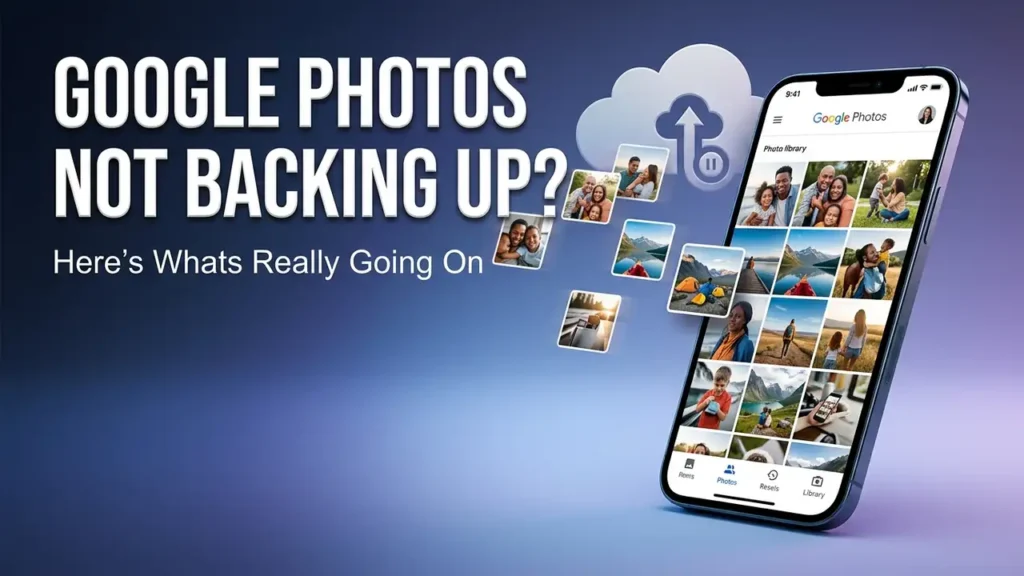

Google Photos Not Backing Up? Here’s What’s Really Going On
If Google Photos is not backing up, don’t delete your photos or reinstall the app right away.
The problem may be something simple: backup is turned off, you’re using the wrong Google account, your Google storage is full, a folder isn’t selected for backup, or Google Photos is waiting for Wi-Fi.
The fastest way to find the cause is to check the backup status first.
First: Check the Backup Status
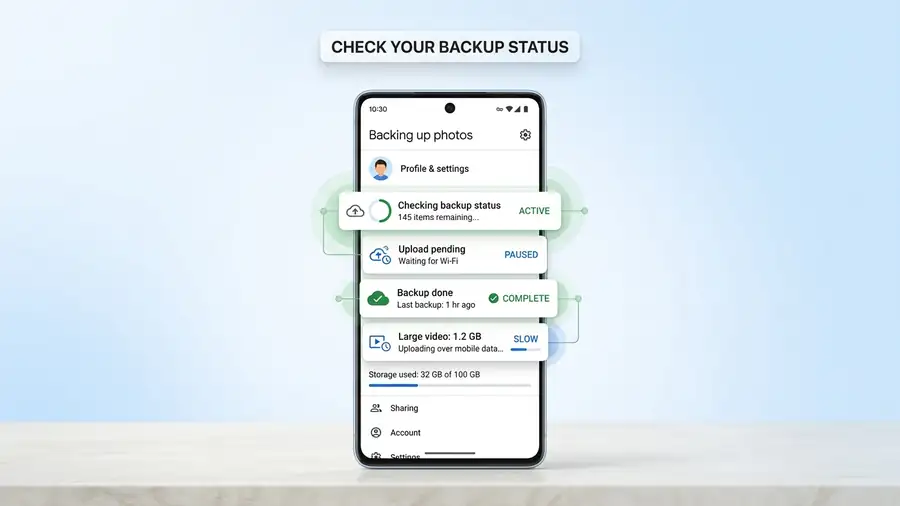
Open Google Photos and check the backup status near your profile picture.
You may see:
- Backup complete — nothing is currently waiting to upload.
- Backing up — photos or videos are still uploading.
- Waiting for Wi-Fi — backup is waiting for a Wi-Fi connection.
- Backup is off — backup needs to be enabled.
This message gives you the first clue about what’s stopping the backup. Google’s Google Photos backup troubleshooting guide
If it says Waiting for Wi-Fi, check your connection and backup settings.
If it says Backup complete but a particular photo is missing, skip ahead to the device-folder check.
Is Google Photos Actually Stuck?
Before changing any settings, check whether the backup is actually stuck:
- Remaining items are decreasing → Backup is working; give it more time.
- The same number stays for hours → Something may be preventing the backup.
- Waiting for Wi-Fi → Check your connection or mobile-data backup settings.
- Backup complete, but one photo is missing → Check the account, device folder, or individual file.
This quick check can tell you whether you need to fix something or simply let Google Photos finish.
1. Check the Google Account
If you have multiple Google accounts on your phone, make sure Google Photos is backing up to the account you actually use.
Go to:
Google Photos → Profile picture → Photos settings → Backup
Check the Backup account.
If the wrong account is selected, your photos may already be backed up — just not where you’re looking.
2. Make Sure Backup Is Turned On
While you’re in:
Photos settings → Backup
make sure Backup is enabled.
If it was turned off, turn it on and return to the main Google Photos screen.
Wait a few minutes and check the status again.
If the status changes to Backing up, the problem was simply that backup wasn’t enabled.
3. Check Your Google Storage
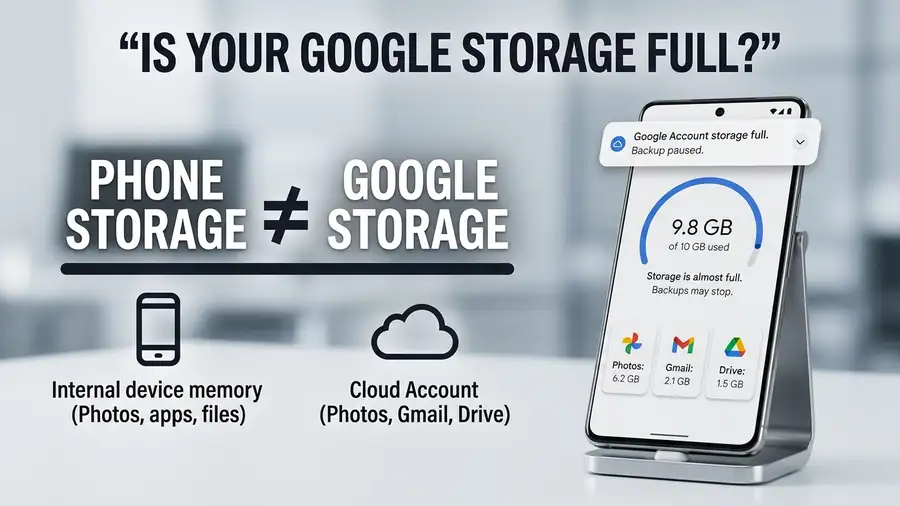
Your phone can have plenty of free storage while your Google Account storage is full.
Google Photos shares your Google storage with services such as Gmail and Google Drive. If the account has reached its storage limit, new photos and videos can’t be backed up. Google’s storage information for Google Photos
Check:
Google Photos → Profile picture → Photos settings → Backup → Manage storage
If your storage is full, remove unnecessary files or photos, or increase your available storage.
Important: Android phone storage and Google Account storage are two different things.
4. Check Wi-Fi and Mobile Data
If Google Photos says Waiting for Wi-Fi, your internet connection may not actually be broken.
The app may simply be configured not to use mobile data for backup.
Go to:
Google Photos → Photos settings → Backup → Mobile data usage
Check whether mobile-data backup is allowed.
If you’re using Wi-Fi, open Chrome and load a website to make sure the connection works.
Then return to Google Photos and check the backup status.
Works on another network? Your original connection may be causing the problem.
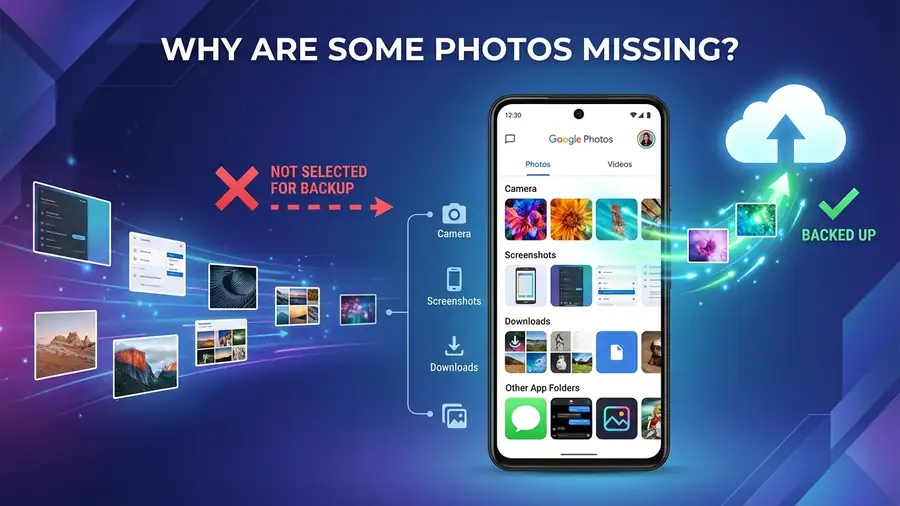
5. Check the Device Folder
This is especially important when some photos back up but others don’t.
A photo taken with your Camera may upload normally while screenshots, downloads, or images saved by another app don’t.
Go to:
Google Photos → Photos settings → Backup → Back up device folders
Look for the folder containing the missing photos and make sure backup is enabled for it. Google’s device-folder backup guide
If only screenshots or photos from another app are missing, this is one of the first things to check.
6. Check the Individual Photo
If almost everything is backed up except one photo or video, the entire backup system may not be the problem.
Open the file in Google Photos and check whether it offers a Back up option.
Also check the file size.
Google Photos lists limits for backed-up files, including photos over 200 MB or 200 megapixels and videos over 10 GB. Google Photos backup requirements
If only one unusually large file won’t upload, focus on that file rather than changing your whole Google Photos setup.
7. Let Google Photos Finish the Backup
Large backups can take time.
If you have hundreds of photos waiting, connect your phone to a charger and leave it on a reliable Wi-Fi connection for a while.
Google notes that backup can pause when the phone is idle or the screen is off to help save battery. Google Photos backup troubleshooting
Don’t keep restarting the app if the number of remaining items is slowly decreasing.
That means the backup is working.
8. Update Google Photos and Restart
If you’ve checked the account, storage, connection, and folders but backup still doesn’t move:
- Update Google Photos from Google Play.
- Restart your phone.
- Open Google Photos.
- Check the backup status again.
If the status changes or the remaining items start decreasing, let the backup finish before trying anything more complicated.
Quick Diagnosis
| What you’re seeing | Check this first |
|---|---|
| Backup is off | Turn backup on |
| Waiting for Wi-Fi | Check connection and mobile-data settings |
| Storage is full | Check Google Account storage |
| Some photos are missing | Check device folders |
| One large video won’t upload | Check file size |
| Photos are going to the wrong place | Check the backup account |
| Backup pauses while idle | Charge the phone and let it run |
Frequently Asked Questions
Why is Google Photos not backing up?
Start by checking the backup status, Google account, Google storage, internet connection, and device folders. The backup status usually gives you the first clue.
Why are some photos backed up but others aren’t?
The missing photos may be stored in a device folder that isn’t selected for backup. Check Back up device folders in Google Photos.
Why does Google Photos say Waiting for Wi-Fi?
Google Photos may be configured to use Wi-Fi for backup. Check the mobile-data backup settings or connect to a reliable Wi-Fi network.
Can full Google storage stop Google Photos backup?
Yes. If your Google Account reaches its storage limit, new photos and videos can’t be backed up.
Should I reinstall Google Photos?
Usually not. Check the backup status, account, storage, connection, and device folders first.
More Google & Android Troubleshooting Guides
- Google Play Store Not Downloading Apps?
- Google Gemini Not Working?
- Android Connected to WiFi but No Internet?
- Spotify Not Working on Android?
Final Thoughts
When Google Photos is not backing up, don’t start changing everything at once.
Check the backup status first, then follow the clue it gives you.
If it’s waiting for Wi-Fi, check the connection. If storage is full, deal with your Google Account storage. If only certain photos are missing, check their device folder.
That approach is faster than trying random fixes — and it helps you find out why the backup stopped in the first place.