
Google Maps Location Not Updating? What to Check First
You open Google Maps, tap the location button, and expect the blue dot to follow you.
Instead, it stays in the wrong place.
Sometimes the blue dot is gray. Sometimes it moves several minutes behind you. And during navigation, Google Maps may suddenly stop updating your position.
Before reinstalling the app, check your phone’s location settings first. Google Maps depends on GPS, Wi-Fi, mobile networks, and your phone’s sensors to estimate where you are. If one of those signals or settings is causing a problem, your location may appear stuck or inaccurate.
What the Blue Dot Is Telling You
The blue dot is more useful than it looks.
- Blue dot moving normally: Your location is updating.
- Large light-blue circle: Maps isn’t very confident about your exact position.
- Gray or missing blue dot: Maps may not be able to find your current location and can show your last known location instead.
If your dot is simply a little inaccurate, you may not have an app problem at all. Tall buildings, parking garages, tunnels, and indoor locations can weaken GPS signals.
Quick Test: Is the Problem GPS or Google Maps?
Instead of changing several settings at once, do this quick test first.
Take your phone outside, away from tall buildings, open Google Maps, and tap the Your location button.
Then wait a few seconds and watch the blue dot.
- The dot becomes accurate outdoors: GPS reception or indoor conditions may have been the problem.
- The dot is still stuck: Check Location permission and Location Accuracy.
- The dot moves but points in the wrong direction: Calibrate the compass.
- Other apps also show the wrong location: The problem may be with Android’s location services rather than Google Maps.
Change one setting at a time. Otherwise, you won’t know which setting actually fixed the problem.
1. Turn Location Back On
Start with the obvious check.
On Android, open:
Settings → Location
Make sure Use Location is enabled.
Then open Google Maps and tap the Your location button.
If Maps immediately finds you, you don’t need to change anything else.
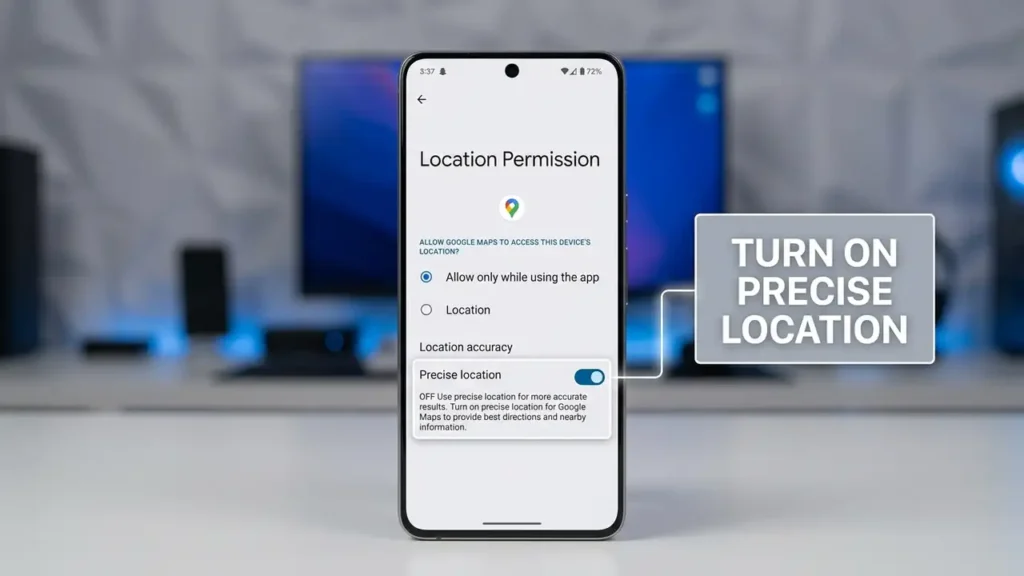
2. Give Google Maps Precise Location
Your phone can allow an app to use only an approximate location. That may not be enough for accurate navigation.
Go to:
Settings → Apps → Maps → Permissions → Location
Make sure Google Maps is allowed to access your location and enable Precise location if your Android version provides that option.
On Android 12 and later, precise location can be managed separately for individual apps.
3. Turn On Location Accuracy
This is one of the most important settings to check.
Go to:
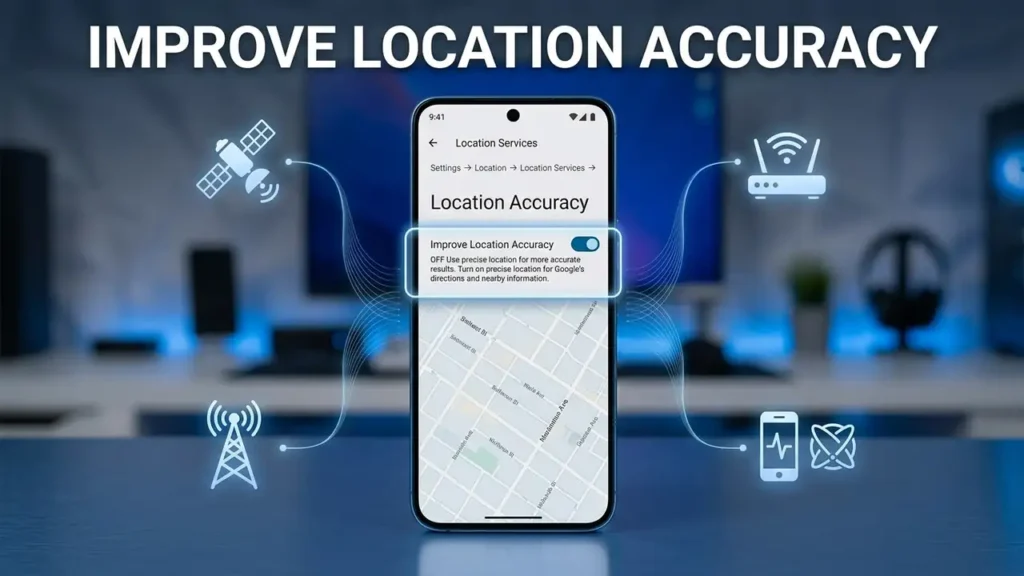
Settings → Location → Location Services → Location Accuracy
Then turn on:
Improve Location Accuracy
Android can combine GPS with Wi-Fi access points, mobile networks, and device sensors to estimate your position more quickly and accurately. This can make a noticeable difference when GPS signals are weak or blocked.
4. Turn Off Battery Saver
If your location stops updating while you’re moving, check your battery settings.
Battery Saver can affect location behavior and may make the blue dot update less reliably.
Google specifically recommends turning off Battery Saver when the location is jumping around in Maps.
For a quick test, turn Battery Saver off and use Google Maps again.
If the location starts updating normally, you have likely found the cause.
5. Check Wi-Fi, Mobile Data, and Airplane Mode
Google Maps doesn’t rely on GPS alone.
Make sure:
- Wi-Fi or mobile data is turned on
- Airplane Mode is off
- You have a reasonable network signal
Wi-Fi and cellular signals can help Android estimate your location, especially when GPS reception is poor.
If you’re inside a large building, underground, or surrounded by tall buildings, try testing Maps outside where the phone has a clearer view of the sky.
6. Calibrate the Blue Dot
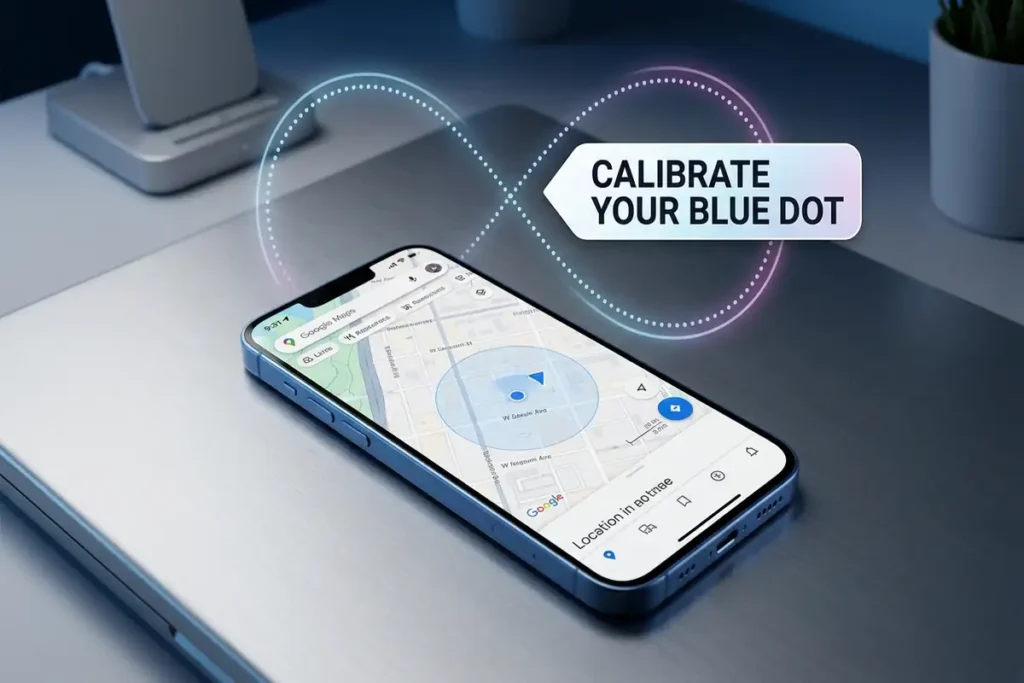
If the blue dot appears but points in the wrong direction, your phone’s compass may need calibration.
Open Google Maps and move your phone in a figure-eight motion a few times.
Google recommends calibrating your device when the blue dot’s direction is inaccurate or the blue circle is unusually wide.
You don’t need to shake the phone aggressively. A slow figure-eight movement is enough.
7. Restart Your Phone
If everything looks correct but Google Maps still shows an old location, restart your Android phone.
It sounds basic, but it can clear a temporary problem with location services, sensors, or an app running in the background.
After restarting, open Maps outside and tap Your location again.
If Google Maps Still Isn’t Updating
At this point, look at the pattern.
Only Google Maps has the problem: Check Maps permissions, update the app, and test again.
All location-based apps have the problem: The issue is more likely related to Android’s location services, GPS reception, or the phone itself.
It only happens indoors: Weak or blocked GPS signals may be responsible.
It happens when Battery Saver is enabled: Test Maps with Battery Saver turned off.
This distinction matters because reinstalling Google Maps won’t fix a phone-wide location problem.
How to Know It’s Fixed
Don’t judge the repair by the blue dot alone.
Walk or drive a short distance and watch whether the dot follows your movement.
A good result is:
- The blue dot moves with you
- The location updates without long delays
- The accuracy circle becomes smaller
- Navigation follows the correct road and direction
If the blue dot continues showing your old position even outdoors with Location Accuracy enabled, the problem needs further investigation.
One thing worth remembering: if Google Maps works normally outdoors but struggles inside buildings, don’t keep changing app settings. You may simply be dealing with weak GPS reception.
FAQ
Why is Google Maps showing my old location?
Maps may be unable to determine your current position and display your last known location instead. Check Location, app permissions, Location Accuracy, and your network connection.
Why is my Google Maps blue dot gray?
A gray or missing blue dot can mean Maps cannot currently determine your location. Turn on Location and check that Maps has permission to use it.
Why does Google Maps location keep jumping?
Weak GPS or Wi-Fi signals, compass calibration, or Battery Saver can affect location accuracy. Try moving outside, turning off Battery Saver, and calibrating the compass.
Does Google Maps need Wi-Fi for location?
Not necessarily. GPS can determine location without Wi-Fi, but Android can combine GPS, Wi-Fi, mobile networks, and device sensors to improve accuracy and speed.
Related Guides
If you’re having other location, Wi-Fi, or connectivity problems, these guides may also help:
- Android Connected to Wi-Fi but No Internet? 10 Fixes That Work
- How to Fix Windows 11 WiFi Keeps Disconnecting
- How to Fix Chrome Not Responding on Windows 11
Final Thoughts
When Google Maps isn’t updating your location, don’t start by reinstalling the app.
First check the things that actually determine your position: Location permission, Precise location, Location Accuracy, Battery Saver, network signals, and GPS conditions.
In many cases, the blue dot isn’t stuck because Google Maps is broken. Your phone simply isn’t giving Maps enough accurate location information.
Fix that first, and Maps can usually start following you again.