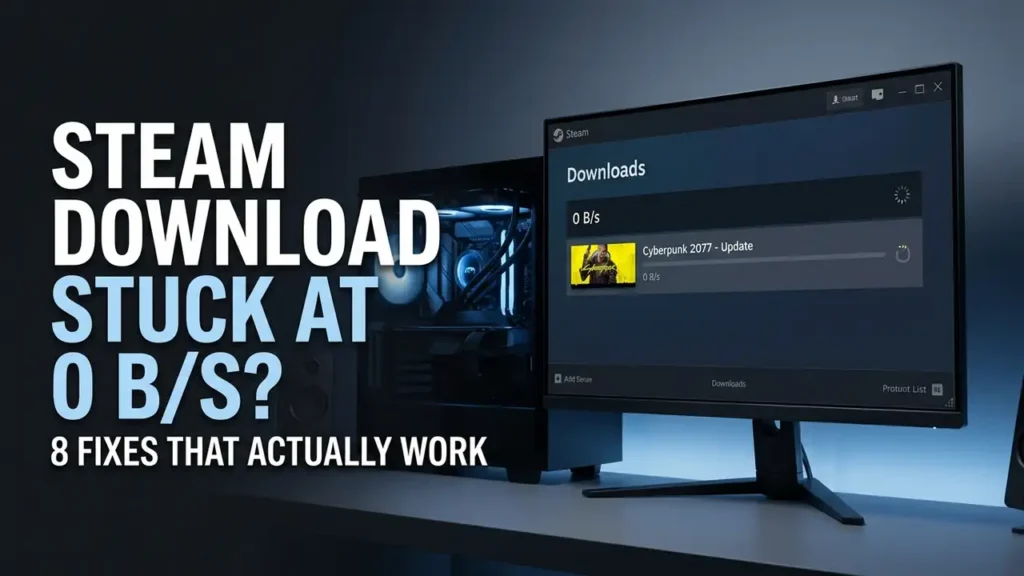

You start downloading a game on Steam, the speed looks normal for a while, and then suddenly drops to 0 B/s.
Before blaming your internet connection or restarting Steam, check one thing first: is Steam still using your disk?
Steam can temporarily show 0 B/s while it is unpacking or writing game files to your SSD or hard drive. In that case, the download may not actually be stuck.
If both network and disk activity stop for several minutes, however, there may be a real problem.
Here’s what to check before changing Windows settings or reinstalling Steam.
Quick Answer
If Steam shows 0 B/s, open the Downloads page and check the disk activity.
- 0 B/s + active disk: Steam may be processing game files. Wait a little.
- 0 B/s + no disk activity: Try the troubleshooting steps below.
- Download is consistently slow: Check your connection or try another Download Region.
1. Check Disk Activity First
Open Steam and go to Downloads.
If the network speed is 0 B/s but the disk usage is still active, Steam may be processing files it has already downloaded.
You can also check Windows:
Ctrl + Shift + Esc → Performance → Disk
If the drive is working heavily, don’t immediately pause or cancel the download. Large games can take time to unpack and write data, especially on slower drives.
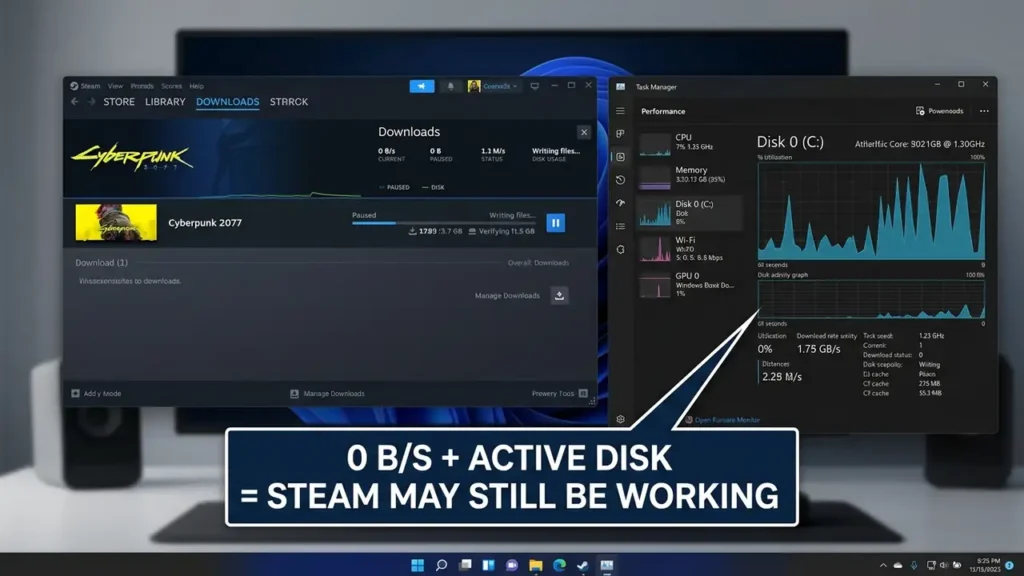
This is one of the most important things to check because a 0 B/s reading does not always mean the download has failed.
2. Pause and Resume the Download
If there is little or no disk activity, try a simple restart of the download.
Go to:
Steam → Downloads
Click Pause, wait a few seconds, then click Resume.
Give it a minute or two.
If the speed returns, you can leave everything as it is. If it immediately falls back to 0 B/s, continue with the next check.
3. Try Another Download Region
Steam uses different content servers to deliver game files. A problem with the server currently being used can affect download performance.
Open:
Steam → Settings → Downloads → Download Region
Choose another nearby region and test the download again.
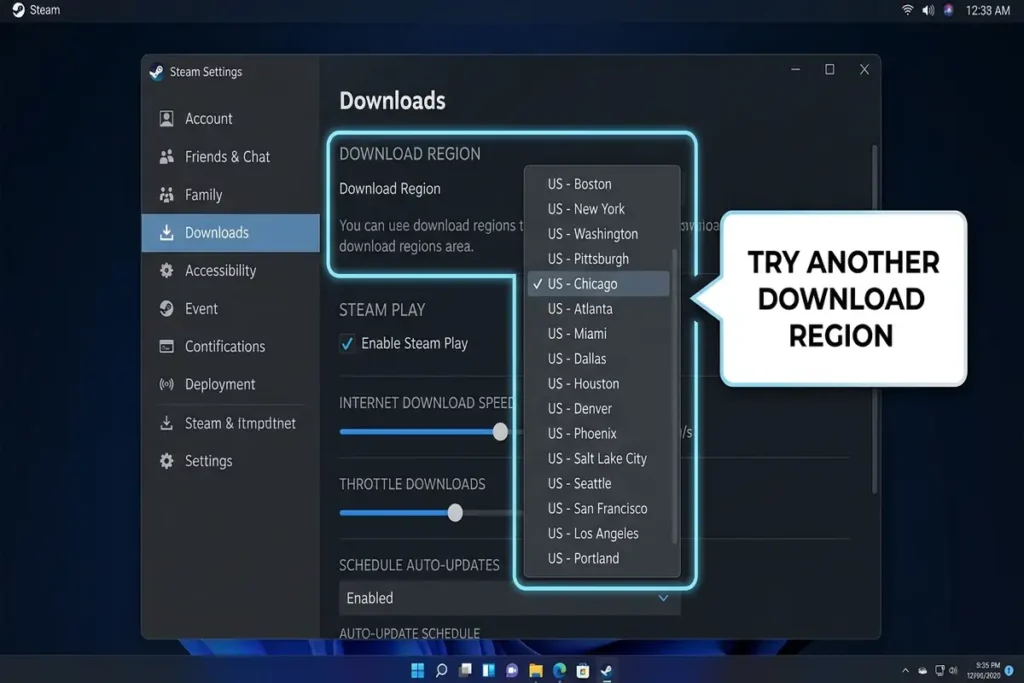
Steam recommends checking the Download Region when download performance is poor.
You don’t need to choose a distant server. Start with another region relatively close to you.
4. Clear Steam’s Download Cache
A problem with Steam’s cached download data can sometimes prevent downloads from progressing normally.
Go to:
Steam → Settings → Downloads → Clear Download Cache
Follow the confirmation steps and then sign back into Steam if requested.
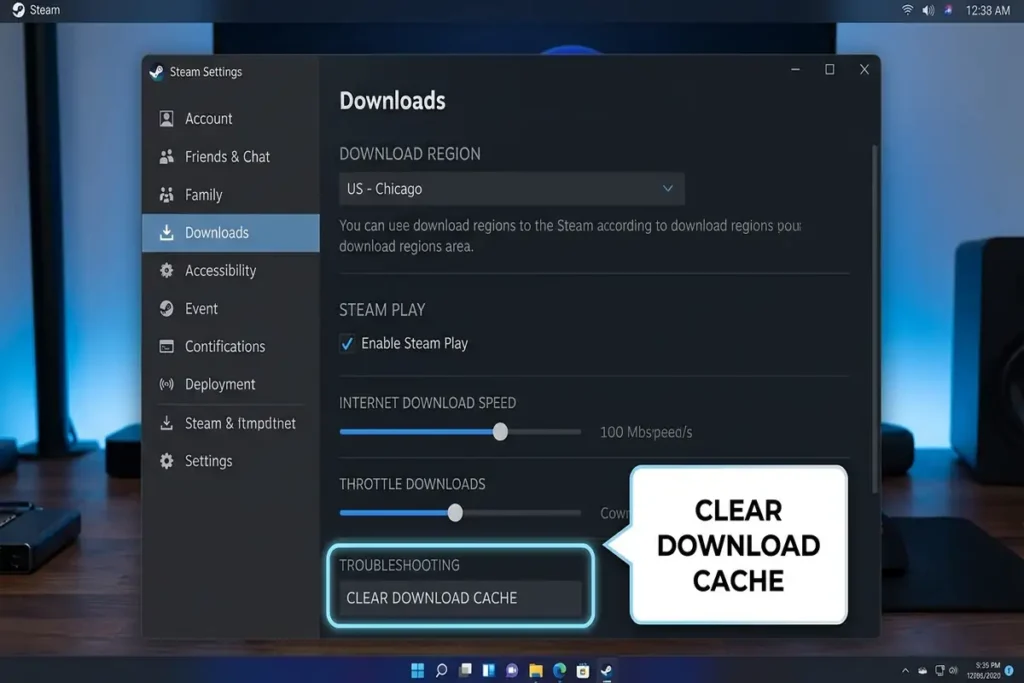
Start the download again and check whether the speed returns.
This is a useful step before considering a Steam reinstall.
5. Check Your Internet Connection
If Steam is stuck at 0 B/s and the disk is also idle, test your connection outside Steam.
Open a few websites or try another download.
Also remember that Steam normally shows download speed in bytes per second, while internet providers advertise speeds in bits per second. These are not the same measurement.
If everything else works normally but Steam alone is stuck, the issue may be related to Steam’s servers, client, or your PC rather than your internet connection.
6. Check Storage Space
Open File Explorer → This PC and check the drive where the game is being installed.
Make sure there is enough free space.
Steam may need additional temporary space while it downloads, unpacks, and installs game files. A drive that is nearly full can also become a bottleneck.
If the drive is still heavily active, let Steam finish processing the files before restarting the download.
7. Check VPN and Security Software
If you use a VPN, disconnect it temporarily and test Steam again.
Also consider whether you recently changed your firewall, antivirus, or other network-security software.
Steam notes that third-party applications and security software can interfere with Steam connections.
You don’t need to permanently disable your antivirus. The goal is simply to identify whether another program is interfering with Steam.
8. Restart Steam Completely
If nothing has changed, close Steam completely.
Right-click the Steam icon in the system tray and choose Exit.
Then open Steam again and check the download.
If the problem continues, restart Windows as well. A full restart can clear temporary processes and release resources that Steam may be waiting for.
How to Know If Steam Is Working Again
You don’t need Steam to maintain a constant download speed.
The important thing is that the downloaded amount continues increasing.
You may see the speed move between normal downloading and 0 B/s while Steam processes files. That’s not necessarily a problem.
The warning sign is when:
- The downloaded amount doesn’t change
- Network activity stays at zero
- Disk activity also stays at zero
- The download remains at the same point for a long time
If all four happen together, continue troubleshooting rather than simply waiting.
If Steam Is Still Stuck at 0 B/s
If several games have the same problem after changing the Download Region, clearing the cache, checking your connection, and restarting Steam, the issue may be related to Steam itself, your network, or software running on Windows.
At that point, check whether other Steam downloads behave the same way.
If only one game is affected, the problem may be specific to that download or its files.
If every Steam download stays at 0 B/s, focus on the Steam client, connection, Download Region, and software that may be filtering your network traffic.
Reinstalling Steam should not be your first step.
FAQ
Why is my Steam download stuck at 0 B/s?
Steam may show 0 B/s while it is unpacking or writing game files to your drive. If disk activity continues, the download may still be progressing normally.
Why does Steam show 0 B/s but my disk is at 100%?
Steam may be processing downloaded game data. Check the Downloads page and Windows Task Manager before assuming the download has stopped.
Should I change my Steam Download Region?
Yes. If your download is consistently slow or stuck, trying another nearby Download Region is a reasonable troubleshooting step.
Will clearing Steam’s download cache delete my games?
Clearing the download cache is a troubleshooting action and is not the same as uninstalling your Steam games.
Related Guides
If you’re troubleshooting other common Windows and internet problems, these guides may also help:
- How to Fix Windows 11 WiFi Keeps Disconnecting
- Android Connected to Wi-Fi but No Internet? 10 Fixes That Work
- How to Fix Chrome Not Responding on Windows 11
Final Thoughts
A Steam download stuck at 0 B/s isn’t always an internet problem.
First check whether Steam is still using your disk. If the drive is active and the downloaded amount continues increasing, give Steam time to finish processing the files.
If both network and disk activity stop for several minutes, start troubleshooting the Download Region, cache, connection, storage, and software that may interfere with Steam.
Check the disk first. Then troubleshoot the connection.