
ChatGPT Not Loading? How to Tell If It’s Down or Just You
You open ChatGPT, but the page keeps loading.
Maybe the chat is blank. Maybe your messages won’t send. Or ChatGPT opens normally, but every response ends with an error.
Before clearing your browser or reinstalling anything, there is one important question to answer:
Is ChatGPT actually down, or is the problem only happening on your device?
That distinction can save you a lot of time. If OpenAI is having an outage, there is nothing to fix on your computer—you simply need to wait for the service to recover. If ChatGPT works for everyone else, however, the problem is more likely related to your browser, network, extensions, or login session.
Here’s how to tell the difference.
First: Check If ChatGPT Is Down
Start with the official OpenAI status page.
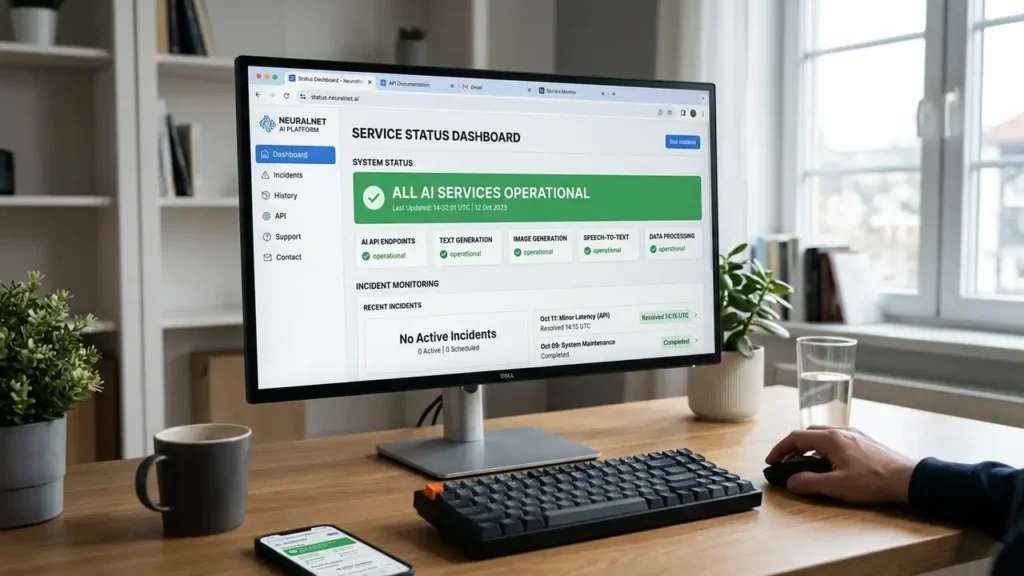
If OpenAI is reporting an active ChatGPT incident, don’t waste time changing browser settings. Wait until the service is restored.
This matters because ChatGPT can occasionally experience service incidents that affect loading, conversations, or responses.
If the official status page reports an active incident, the problem may not be on your device at all.
You can also open ChatGPT on your phone or another device.
If ChatGPT fails everywhere, it is more likely to be a service-side problem.
If it works on another device, the problem is probably local to your browser, network, or computer.
If ChatGPT Works Elsewhere, Try a Private Window
This is one of the fastest ways to identify a browser problem.
Open an Incognito window in Chrome or a private window in your browser, then visit ChatGPT and sign in.

If ChatGPT loads normally there, your regular browser session is the likely culprit.
Cached website data or a browser extension can interfere with ChatGPT. OpenAI specifically recommends trying an incognito window and clearing cached data when troubleshooting login and access problems.
If private browsing works, don’t immediately reinstall your browser. Continue with the next step.
Disable Extensions Temporarily
Browser extensions are easy to overlook.
Privacy tools, ad blockers, security extensions, VPN extensions, and script-blocking tools can sometimes interfere with websites.
Open your browser’s extensions page and temporarily disable the extensions you don’t need.
Then reload ChatGPT.
If the page suddenly works, enable your extensions one at a time until you find the one causing the problem.
You don’t need to remove the extension permanently.
Clear ChatGPT’s Site Data
If ChatGPT is stuck loading, repeatedly logs you out, or shows a blank page, corrupted or outdated browser data can be responsible.
Open your browser settings and clear the cached data and cookies associated with ChatGPT.
Then close the browser, open it again, and sign in.
OpenAI recommends clearing browser cache and cookies as part of troubleshooting access and login problems.
If you use ChatGPT regularly, this is worth trying before making bigger changes to your computer.
Test Another Browser
Still stuck?
Open ChatGPT in another browser.
For example, if you’re using Chrome, test Edge or Firefox.
This gives you a useful clue:
- Works in another browser: your original browser is the problem.
- Fails in every browser: check your network or OpenAI’s status.
- Works on your phone but not your PC: focus on the PC.
This simple test is often more useful than changing several settings at once.
Check Your Network
If ChatGPT works on mobile data but not your Wi-Fi, the browser may not be the problem.
Restart your router and test ChatGPT again.
If you’re using a VPN, proxy, work network, school network, or other filtered connection, temporarily test another network if possible.
OpenAI notes that network configuration, filtering, VPNs, proxies, and firewalls can interfere with ChatGPT connections.
A quick test using your phone’s mobile hotspot can tell you a lot.
Works on the hotspot → your normal network is worth investigating.
Still doesn’t work → the problem is probably somewhere else.
If ChatGPT Loads but Won’t Respond
This is slightly different from ChatGPT not loading.
Before changing your browser or network settings, try starting a new chat first.
If ChatGPT works normally but one conversation keeps loading or failing, the problem may be limited to that chat.
Open a new chat and send a simple message. If it works, you don’t need to change anything else yet.
If the website opens but a response gets stuck, try:
- Refresh the page.
- Sign out and sign back in.
- Try another browser or private window.
- Check the OpenAI status page.
OpenAI’s troubleshooting guidance also recommends refreshing, starting a new chat, checking the status page, and testing with a private window when ChatGPT produces errors.
If every conversation is failing at the same time, don’t assume your account is broken. A temporary service problem can produce exactly the same symptoms.
What If ChatGPT Says “Something Went Wrong”?
Don’t keep clicking Retry for several minutes.
First, wait briefly and refresh the page.
Then check whether OpenAI has reported an incident.
If there is no known outage, try an incognito window and another browser. If that works, clear your normal browser’s cache and cookies and check your extensions.
These are among the troubleshooting steps recommended by OpenAI’s official troubleshooting guide for generic access and login errors.
A Quick Way to Find the Cause

Use this simple test:
| What happens? | Most likely cause |
|---|---|
| ChatGPT fails on every device | OpenAI service issue |
| Works on phone but not PC | Browser or PC issue |
| Works in Incognito | Extension or cached data |
| Works in another browser | Original browser issue |
| Works on mobile data but not Wi-Fi | Network issue |
| Page loads but responses fail | Temporary ChatGPT issue or browser/network problem |
You don’t need to try every possible fix.
Find the pattern first.
That’s usually much faster.
When You Should Just Wait
If OpenAI’s status page shows an active incident and ChatGPT is failing across multiple devices, there may be nothing wrong with your setup.
In that situation, repeatedly clearing cookies, reinstalling browsers, or changing Windows settings won’t solve the underlying problem.
Wait for the service to recover, then test ChatGPT again.
More Troubleshooting Guides
Still having trouble with your device or browser? These troubleshooting guides may help:
- How to Fix Chrome Not Responding on Windows 11
- How to Fix Windows 11 WiFi Keeps Disconnecting
- Android Connected to Wi-Fi but No Internet? 10 Fixes That Work
Final Thoughts
When ChatGPT isn’t loading, the fastest solution isn’t always a technical fix.
First find out whether the problem is ChatGPT itself, your browser, or your network.
Check OpenAI’s status page, test a private window, try another browser or device, and switch networks if possible. Those few tests can usually narrow the problem down without wasting time on unnecessary changes.
And if ChatGPT is experiencing a confirmed outage, there’s nothing wrong with your computer—you just need to wait for OpenAI to restore the service.