

AirPods Connected but No Sound? What to Check First
Your AirPods say Connected, but you can’t hear anything.
The music may still be playing through your iPhone speaker. Or both AirPods appear connected, but there is no sound at all.
That can be confusing, but connected doesn’t always mean your AirPods are currently selected as the audio output.
Before resetting your AirPods, check where the sound is actually going. In many cases, the problem can be fixed in less than a minute.
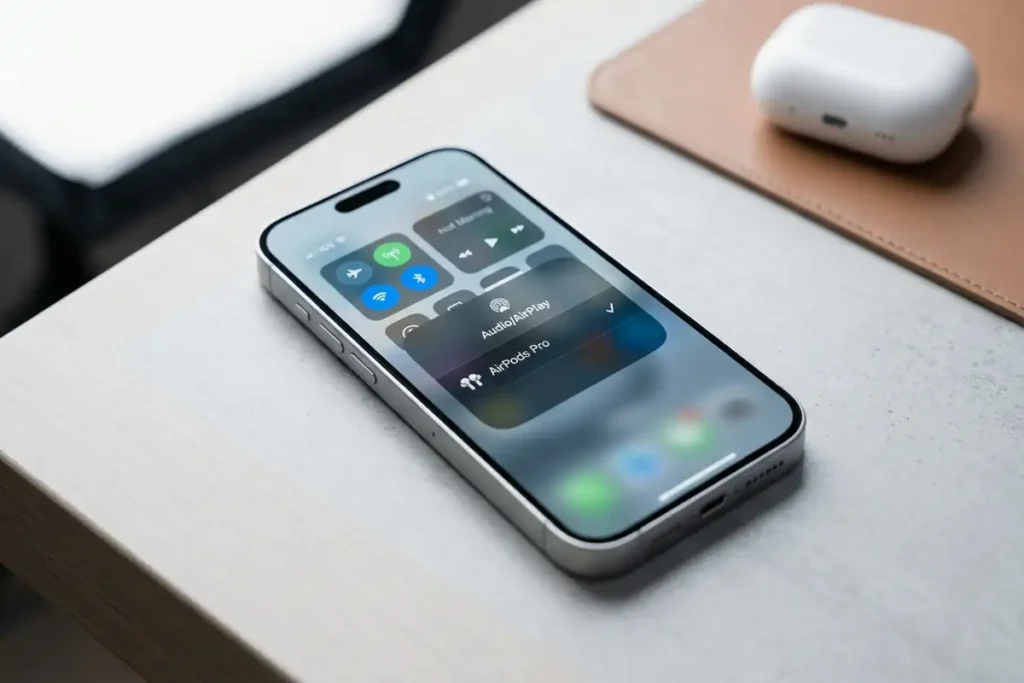
Quick test: Play a song and open Control Center. If your AirPods are connected but the audio output is still set to iPhone, switch the output to your AirPods. If you hear sound immediately, the problem was audio routing—not the AirPods themselves.
First: Check Where Your Audio Is Playing
Start playing a song, video, or podcast.
Then open Control Center on your iPhone and check the audio output.
If your AirPods appear in the list, select them and test the audio again.
Apple recommends checking the AirPlay/audio output and making sure the device volume is turned up when AirPods appear connected but aren’t playing audio.
If the sound is coming from your iPhone
Your AirPods may be connected through Bluetooth, but your iPhone is still sending audio to its own speaker or another device.
Select your AirPods as the audio output, then test again.
Check the Volume
Next, raise the volume while audio is playing.
Don’t check the volume only from the Home Screen. Start playing music or a video first, then press the Volume Up button.
Also make sure your AirPods are properly in your ears and connected to the device you are actually using.
If the volume is already high and there is still no sound, move to the audio output and connection checks rather than repeatedly increasing the volume.
Is Only One AirPod Silent?
If one AirPod works and the other doesn’t, don’t treat it as a Bluetooth problem immediately.
First, put both AirPods back in the charging case for about 30 seconds.
Then open the case near your iPhone and check the battery status of each AirPod.
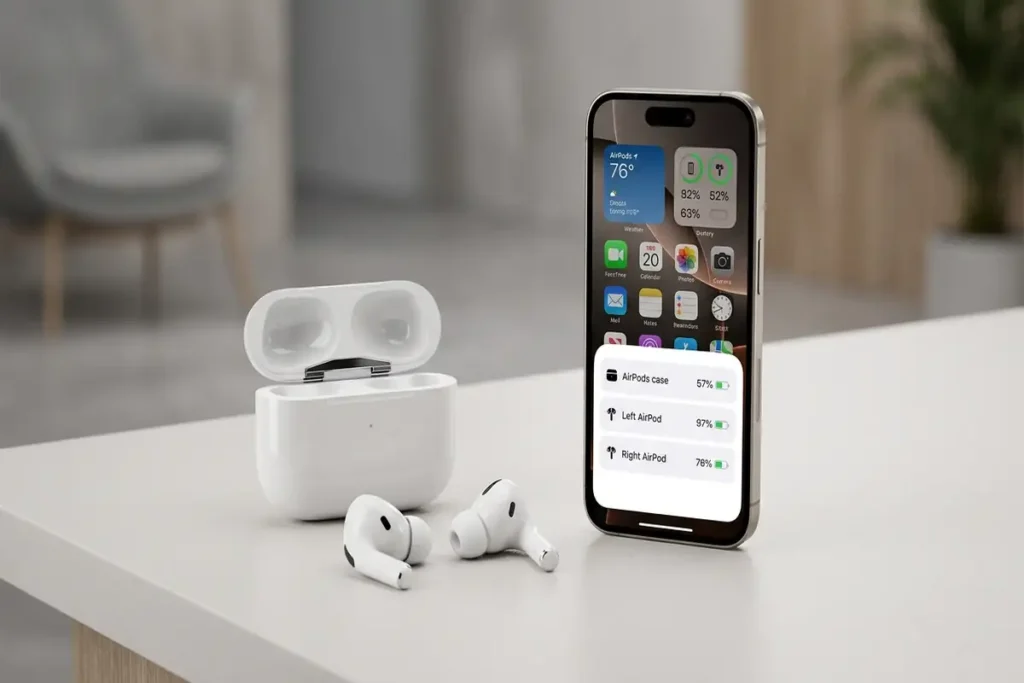
Apple recommends confirming that both AirPods are charging when one side isn’t producing sound.
If one AirPod has little or no charge, let it charge and test again.
Check the speaker mesh
If both AirPods are charged but one sounds very quiet or produces no sound, inspect the speaker mesh.
Dust and debris can block the sound.
Apple recommends checking the microphone and speaker mesh and cleaning the AirPods if debris is visible.
Use a clean, dry, soft brush. Avoid pushing debris further into the mesh.
Check the Left and Right Audio Balance
This setting is easy to miss.
On your iPhone, go to:
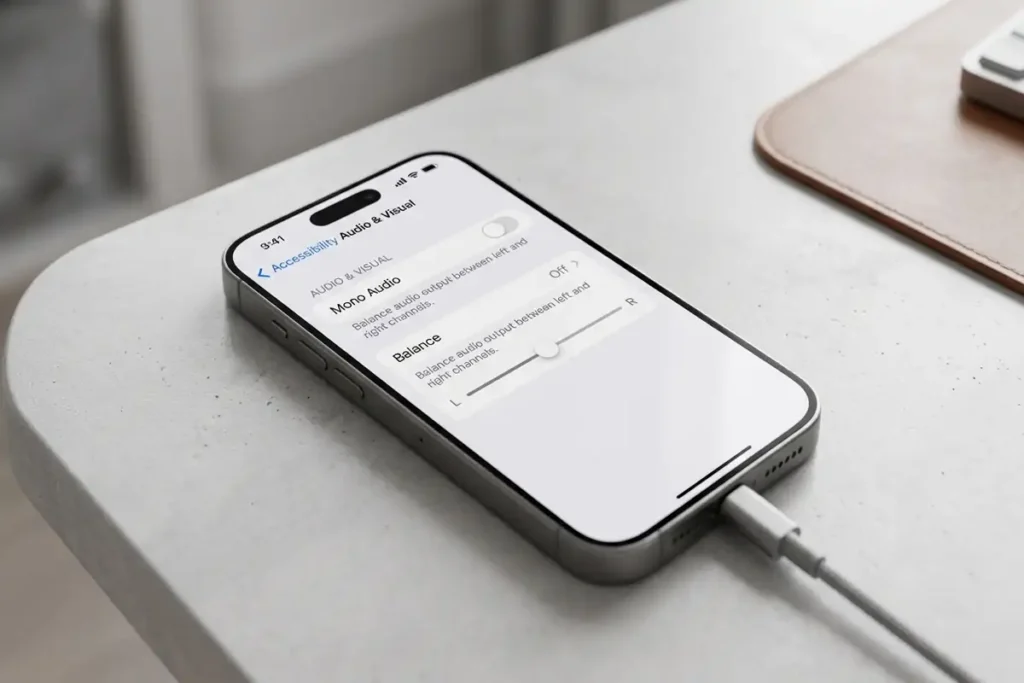
Settings → Accessibility → Audio & Visual → Balance
Make sure the balance slider is positioned in the middle.
If the slider has accidentally moved fully to the left or right, one AirPod may appear to have stopped working.
Apple specifically recommends checking this setting when one AirPod is quieter or not producing sound.
Disconnect and Connect Again
If your AirPods are selected as the audio output but still produce no sound, reconnect them.
Go to:
Settings → Bluetooth
Find your AirPods.
You can disconnect and reconnect them, or use Forget This Device if necessary and pair them again.
Apple recommends pairing AirPods again when connection problems continue, and resetting them if pairing still doesn’t solve the issue.
After reconnecting, play audio immediately to test the result.
Restart Your iPhone
If your AirPods work with another device but not with your iPhone, restart the iPhone.
A temporary Bluetooth or audio-routing problem can sometimes disappear after a restart.
Once the iPhone turns back on, reconnect your AirPods and test the audio before changing more settings.
If Your AirPods Keep Cutting Out
This is a different problem from having no sound.
If audio starts normally but repeatedly cuts out, Bluetooth interference may be involved.
Apple notes that Bluetooth signals can be weakened or affected by physical obstructions and environments with heavy Wi-Fi activity or other wireless devices.
Try these quick tests:
- Keep your iPhone close to your AirPods.
- Move away from crowded Wi-Fi areas or other wireless devices.
- Test downloaded audio instead of streaming.
- Disconnect and pair the AirPods again.
This test helps separate a Bluetooth problem from a network or streaming problem.
If downloaded audio works normally but streaming audio cuts out, the issue may be related to your network or streaming connection rather than the AirPods themselves.
When Should You Reset Your AirPods?
Resetting should not be your first step.
Try it after checking:
- Audio output
- Volume
- Battery levels
- Speaker mesh
- Left/right balance
- Bluetooth connection
If these checks don’t solve the problem, resetting your AirPods and pairing them again is a reasonable next step. Apple also recommends resetting AirPods when connection or one-sided audio problems continue after basic checks.
Quick Diagnosis
| What you see | What to check first |
|---|---|
| AirPods connected, sound from iPhone | Select AirPods as audio output |
| No sound from either AirPod | Volume and audio output |
| Only one AirPod has no sound | Battery, speaker mesh, Balance |
| One AirPod is very quiet | Clean mesh and check Balance |
| Sound cuts in and out | Bluetooth interference |
| AirPods won’t stay connected | Reconnect or pair again |
FAQ
Why are my AirPods connected but there is no sound?
Your AirPods may be connected through Bluetooth but not selected as the current audio output. Check Control Center and select your AirPods.
Why is sound still coming from my iPhone?
The iPhone may still be using its own speaker or another connected audio device. Change the audio output to your AirPods.
Why is only one of my AirPods not working?
Check whether that AirPod is charging, inspect the speaker mesh for debris, and make sure the Left/Right Balance slider is centered.
Should I reset my AirPods?
Try the basic checks first. Resetting makes more sense when reconnecting and other troubleshooting steps have not solved the problem.
More Troubleshooting Guides
Having another iPhone or device issue? These troubleshooting guides may also help:
- Gmail Notifications Not Working on iPhone: 9 Fixes
- iPhone System Data Taking Up Too Much Space: How to Reduce It
- iPhone Storage Full but You Have Space? 10 Fixes
Final Thoughts
When AirPods show Connected but produce no sound, don’t immediately assume they are broken.
Start with the simplest question: where is the audio actually playing?
Check the audio output and volume first. If only one AirPod has a problem, check its battery, speaker mesh, and audio balance. If the connection itself seems unstable, reconnect the AirPods before moving on to a reset.
That approach is faster than trying random fixes—and it helps you identify whether the problem is with your AirPods, your iPhone, or the Bluetooth connection.