
Google Search Not Working? What to Check First
Google Search usually works in seconds, so it can be confusing when Google opens but searches keep loading, results stay blank, or nothing happens after you press Search.
The good news is that you usually don’t need to reinstall Chrome or change complicated settings right away. The first step is figuring out where the problem is: Google itself, your browser, an extension, or your internet connection.
Here’s how to narrow it down without wasting time.
Start With a Simple Test
Open Google and search for something simple, such as:
weather today
Then try opening another website in the same browser.
Pay attention to what happens:
- Google and other websites won’t load: your connection may be the problem.
- Other websites work, but Google doesn’t: check Google or Chrome.
- Google works in another browser: Chrome is likely involved.
- Google works in Incognito: an extension or stored site data is a strong suspect.
- Google works on your phone but not your computer: focus on the computer, browser, or its network settings.
This quick test can save you from changing settings that aren’t related to the problem.
Check If Google Search Is Down
Before changing anything on your computer, make sure the problem isn’t affecting Google itself.
Google provides a Search Status Dashboard where you can check for reported issues affecting Google Search. You can also check whether other users are reporting problems.
This matters because browser troubleshooting won’t fix a temporary server-side outage.
A useful clue is to compare more than one device. If Google Search isn’t working on your computer, phone, and another browser at roughly the same time, don’t immediately assume every device has a problem. That pattern makes a wider service or network issue more likely.
If Google is having a widespread problem, the best option is usually to wait for the service to recover and try again later.
Try Google in Incognito Mode
Open a new Incognito window in Chrome and visit Google.
If Search works normally there, your internet connection is probably not the main issue. The problem is more likely related to something in your normal Chrome profile.
Extensions are one of the first things to check.
You can also use Incognito as a quick diagnostic test before changing Chrome settings.
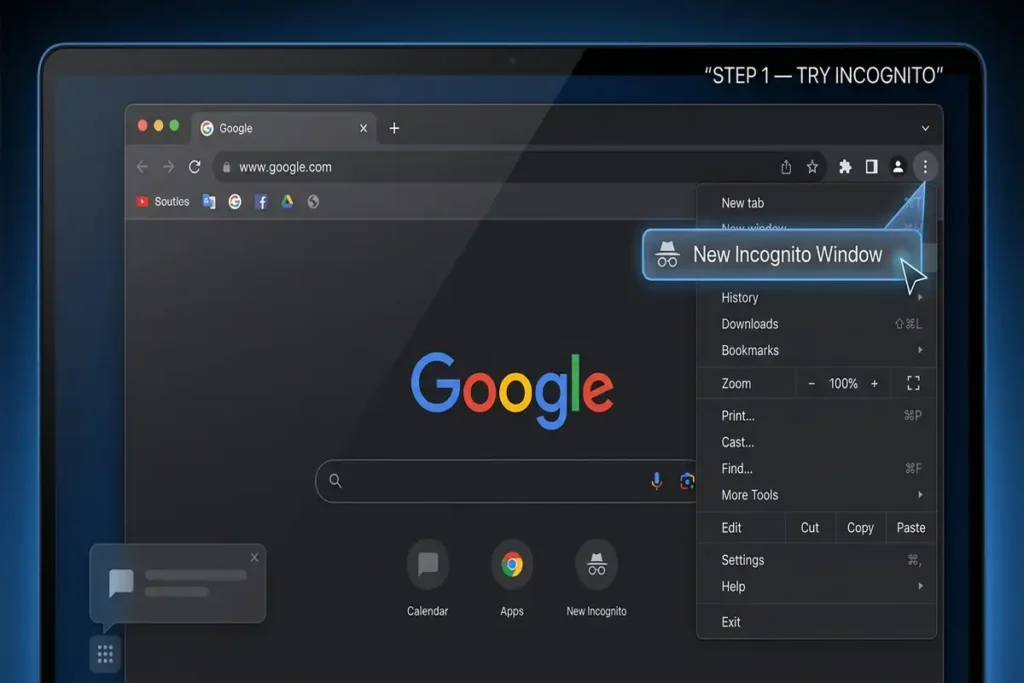
If Google works in Incognito
Go back to your regular Chrome window and temporarily disable your extensions.
Open:
Chrome → Extensions → Manage Extensions
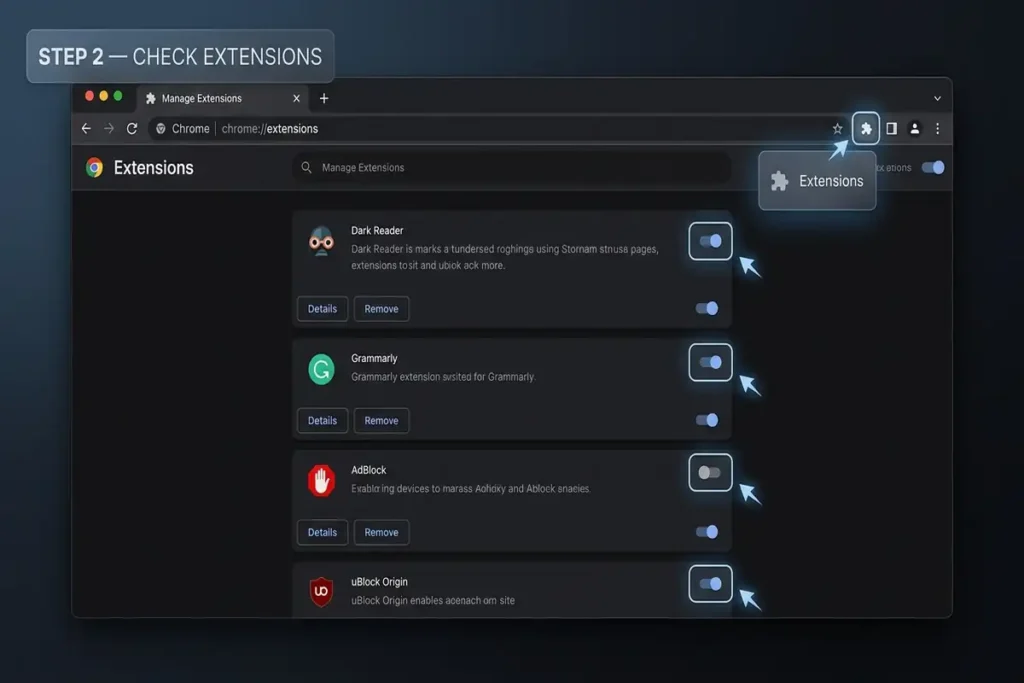
Disable them temporarily and test Google again.
Pay particular attention to ad blockers, privacy tools, VPN extensions, and security-related extensions.
If Search starts working, turn your extensions back on one at a time until you find the one causing the problem.
Try Another Browser
This is another useful test that takes less than a minute.
Open Google in Microsoft Edge or another browser installed on your computer.
If Google works there but not in Chrome, the problem is probably limited to Chrome rather than your internet connection.
That gives you a much narrower place to troubleshoot.
If Google doesn’t work in another browser either, don’t immediately reset Chrome. Check your connection and Google’s service status first.
Check Your Internet Connection
A Google Search problem isn’t always a Google problem.
Try opening several unrelated websites.
If they also fail to load, restart your Wi-Fi connection and test again. If possible, connect your computer to a different network, such as a phone hotspot.
This test is especially useful when:
- Google works on your phone but not your computer.
- Multiple websites fail on the computer.
- The problem disappears when you use another network.
If everything works normally on another network, your original network, router, DNS configuration, or network provider may be involved.
Clear Google’s Stored Site Data
If Google opens but behaves strangely, old or corrupted browser data can sometimes interfere with the site.
Instead of immediately deleting all of your Chrome data, start with Google’s stored site data.
In Chrome, open Google’s site settings and clear the stored data for the site. Then reload Google and try a new search.
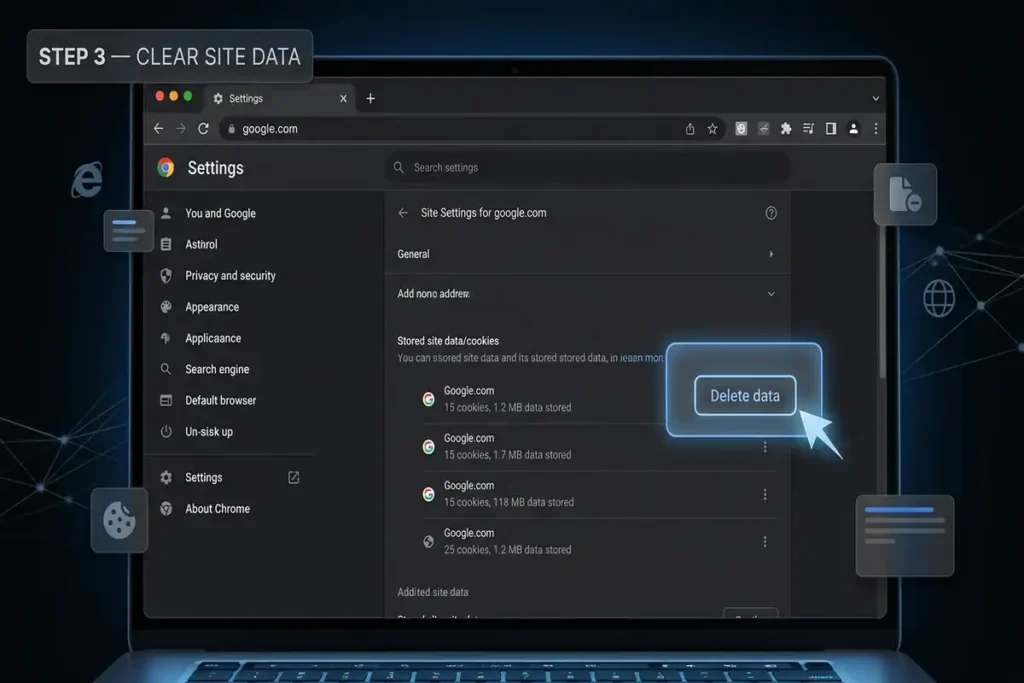
You may need to sign in again to Google services depending on what data was removed.
If this fixes the problem, there is no reason to make more aggressive changes.
Check VPN, Proxy, and Security Software
A VPN or proxy changes how your browser connects to the internet. Security software can also interfere with web traffic.
If you’re using a VPN, temporarily disconnect it and test Google again.
If Google suddenly works, you’ve found an important clue.
The same applies to a proxy or certain security tools. Don’t permanently disable protection just to troubleshoot. Test temporarily, identify the cause, and then restore your normal security settings.
What If Google Loads but Results Stay Blank?
This is slightly different from Google not opening at all.
If the Google homepage loads but the results page stays blank or keeps loading, start with the browser:
- Refresh the page.
- Try Incognito mode.
- Disable extensions.
- Clear Google’s site data.
- Update Chrome.
- Restart the browser.
If the problem happens only with one Google account, sign out and test again. This can help determine whether the issue is connected to your browser profile or account rather than your internet connection.
If Nothing Has Worked
At this point, avoid randomly changing DNS settings or reinstalling Chrome.
First, test Google on another device using the same network.
For example:
Computer → Google doesn’t work
Phone on same Wi-Fi → Google works
That points more strongly toward the computer or browser.
But if Google fails on multiple devices connected to the same network, the network itself becomes much more likely to be responsible.
As a final Chrome troubleshooting step, you can reset Chrome settings. Keep this for later because most Google Search problems can be isolated without resetting the entire browser.
Quick Diagnosis
| What you’re seeing | Where to look first |
|---|---|
| Google won’t open and other sites fail | Internet/network |
| Google won’t open but other sites work | Google/Chrome |
| Google works in Incognito | Extensions/site data |
| Google works in Edge but not Chrome | Chrome |
| Google works on your phone but not PC | PC/browser/network |
| Google opens but results stay blank | Extensions/site data/Chrome |
| Problem disappears when VPN is off | VPN/network configuration |
| Google fails on several devices | Network or Google service |
Frequently Asked Questions
Why is Google Search not working but other websites are?
If other websites load normally, the problem is more likely related to Google, Chrome, an extension, or stored site data rather than your internet connection.
Why does Google work in Incognito but not normally?
An extension or stored browser data is a common reason. Disable extensions one at a time and test Google again.
How can I tell if Google Search is down?
Check Google’s Search Status Dashboard and compare the problem across another browser, device, or network. A widespread problem affecting multiple users is more likely to be a Google-side issue.
Don’t Change Everything at Once
When troubleshooting Google Search, change one thing at a time and test again.
For example, don’t disable extensions, clear all browser data, reset Chrome, and change your DNS settings at the same time.
If Google starts working afterward, you won’t know which change actually fixed the problem.
Start with the simple tests first and move to bigger changes only when the earlier checks don’t help.
More Troubleshooting Guides
Having another browser or internet connection problem? These troubleshooting guides may also help:
- YouTube Not Working on Chrome? 10 Fixes
- Chrome Not Responding on Windows 11? 10 Fixes That Work
- Windows 11 Connected to WiFi but No Internet: 10 Fixes
Final Thoughts
When Google Search stops working, the fastest solution isn’t always a complicated fix. The fastest solution is finding out what’s actually broken.
Test another website, try Incognito, use another browser, and check another device or network. These simple comparisons can quickly tell you whether you’re dealing with Google, Chrome, an extension, or your connection.
Once you know where the problem is, you can fix the right thing instead of changing settings that were never causing the problem.