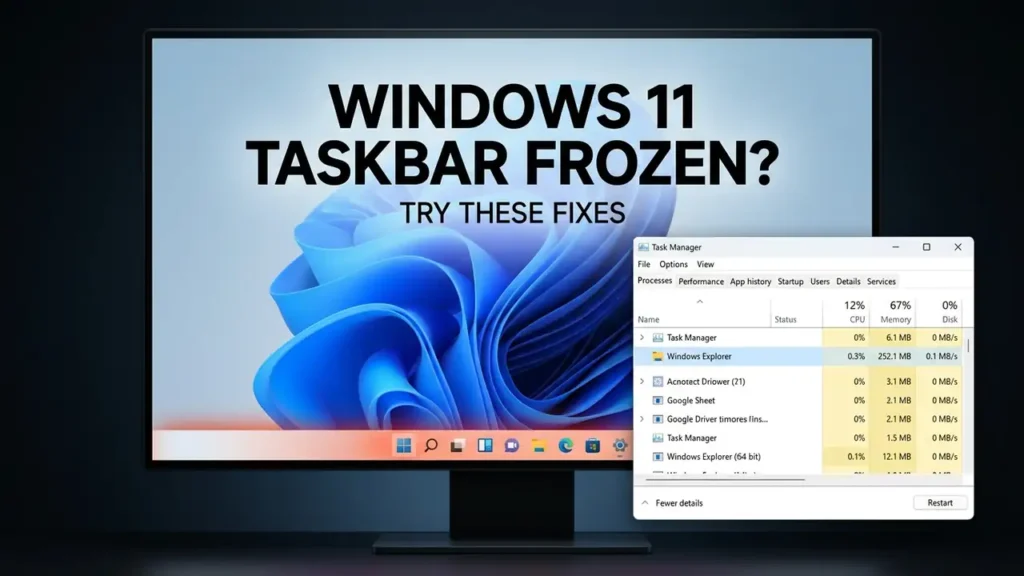

Windows 11 Taskbar Not Responding? Try These Fixes
You click the Start button, but nothing happens.
Your taskbar may still be visible, yet the icons do not respond. Maybe Search is frozen, pinned apps will not open, or the entire bottom bar seems stuck.
Before you reset Windows or start changing system settings, it helps to identify what is actually frozen. In many cases, the problem is temporary and can be fixed by restarting the Windows shell. More persistent problems may be related to a Windows update, corrupted system files, drivers, or software that interferes with the desktop.
Here is what to check, starting with the quickest options.
First, Check What Still Works
Try clicking a few different parts of the taskbar:
- Start button
- Search
- A pinned app
- System tray icons
- Clock and notifications
If everything is unresponsive, Windows Explorer or another part of the Windows shell may be stuck.
If only one icon or feature is affected, the problem may be more specific.
Also try pressing Ctrl + Shift + Esc.
If Task Manager opens, that’s useful because you can troubleshoot the taskbar even when the taskbar itself cannot be clicked.
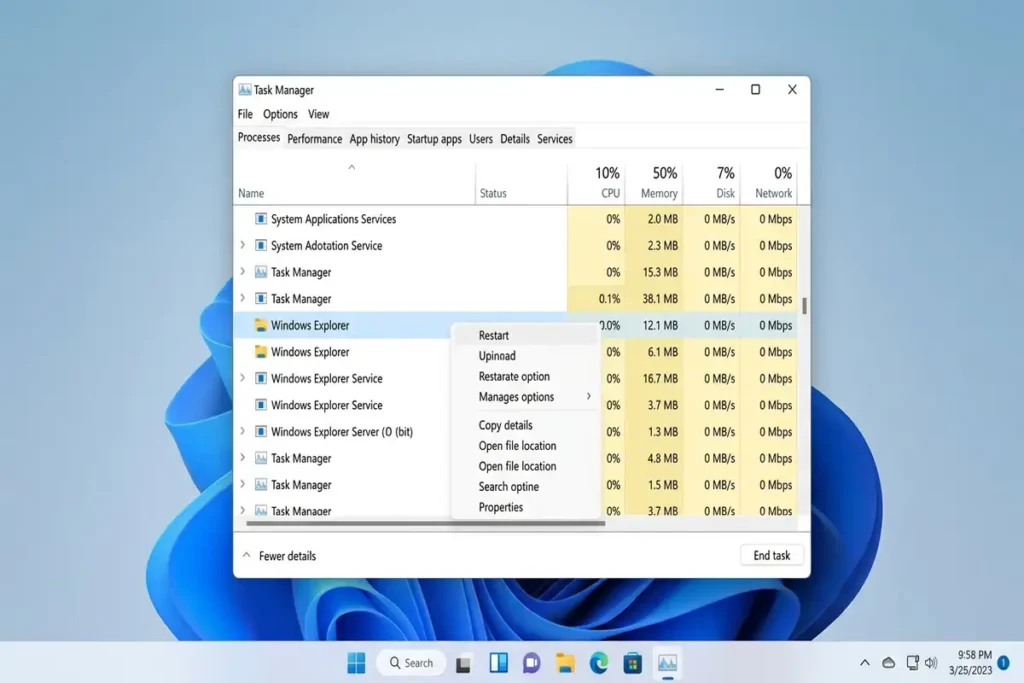
1. Restart Windows Explorer
This is the first fix I’d try.
The Windows taskbar is closely connected to the Windows shell, and restarting Windows Explorer can refresh the desktop and taskbar without restarting the entire computer.
Press:
Ctrl + Shift + Esc
Then:
- Open Task Manager.
- Stay on the Processes tab.
- Find Windows Explorer.
- Right-click it.
- Select Restart.
Your screen may briefly flicker and the taskbar may disappear for a moment.
Wait a few seconds, then test Start, Search, and your taskbar icons again.
If the taskbar starts working normally, don’t immediately try more complicated fixes. A temporary Explorer problem may have been all that was wrong.
2. Restart the PC
If restarting Explorer didn’t help, perform a normal restart.
This is especially worth trying if the problem appeared after:
- waking the PC from sleep
- installing an application
- connecting another monitor
- installing a Windows update
- leaving the computer running for a long time
A restart reloads the Windows shell and other system components.
If you cannot use the Start menu, press Ctrl + Alt + Delete, select the power icon, and choose Restart.
Check Whether Windows Is Still Responding
Before assuming the taskbar itself is the problem, check whether the rest of Windows is responding normally.
Try:
- Pressing Alt + Tab to switch between open apps.
- Opening Task Manager with Ctrl + Shift + Esc.
- Pressing Windows + R and checking whether the Run dialog opens.
If other parts of Windows also fail to respond, the issue may be larger than the taskbar itself.
If Windows responds normally but only the taskbar is frozen, focus on Windows Explorer and taskbar-related troubleshooting first.
3. Check Windows Update
If the taskbar problem started recently, check whether Windows has another update available.
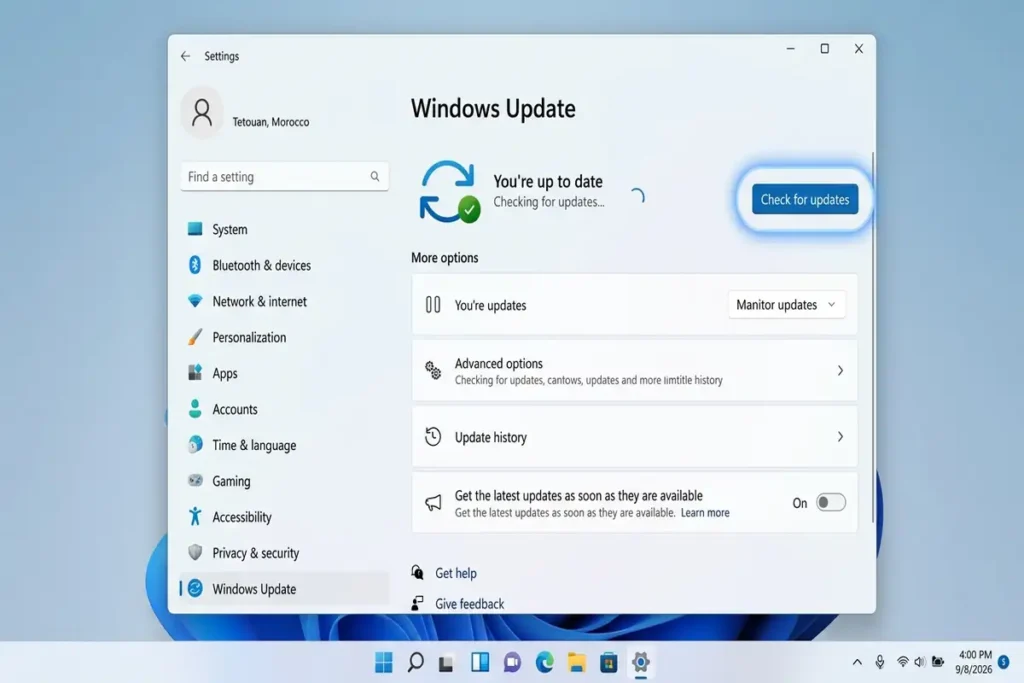
Go to:
Settings → Windows Update → Check for updates
Install available updates and restart your PC if Windows asks you to.
Microsoft recommends keeping Windows 11 updated and provides Windows Update troubleshooting when updates fail or behave unexpectedly.
This is particularly important if the problem began immediately after another update. A later cumulative update may contain a fix for a previously reported issue.
4. See If the Problem Is Only in Your Windows Account
Here’s a useful diagnostic test that many basic troubleshooting guides skip.
If you have another Windows account on the computer, sign into it and test the taskbar.
If the taskbar works normally there, but remains frozen in your main account, the problem may be related to your Windows user profile rather than the entire operating system.
That changes what you should troubleshoot next.
You don’t necessarily need to reinstall Windows just because the taskbar works in another account.
5. Think About What Changed Recently
Ask yourself:
Did the taskbar stop responding after I installed or changed something?
Pay particular attention to:
- Windows updates
- graphics driver updates
- third-party taskbar customization tools
- Start menu replacements
- desktop customization software
- new antivirus or security software
- external displays or docking stations
If the problem appeared immediately after one of these changes, undoing or updating that specific component may be more useful than trying random fixes.
For example, if the taskbar worked normally before you installed a taskbar customization tool and stopped responding immediately afterward, remove or disable that tool before changing unrelated Windows settings.
Microsoft Q&A discussions also show that graphics drivers and hardware-specific issues can matter for some taskbar problems, especially when the issue involves display behavior rather than simple frozen clicks.
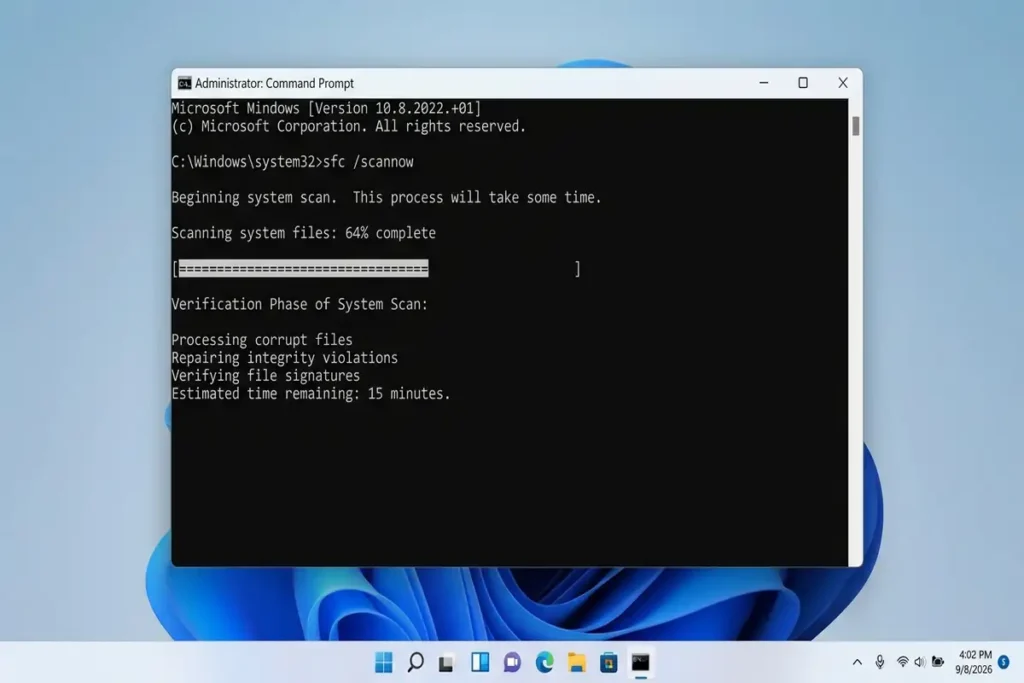
6. Repair Windows System Files
If the taskbar keeps freezing, Windows may have damaged or corrupted system components.
Microsoft provides two built-in tools for this:
- DISM
- System File Checker (SFC)
Microsoft explains that corrupted or missing system files can cause Windows features to malfunction or become unresponsive.
Open Command Prompt as administrator and run:
DISM.exe /Online /Cleanup-image /RestorehealthWait for it to finish.
Then run:
sfc /scannowDon’t close the Command Prompt while SFC is running.
When both commands finish, restart the PC and test the taskbar again.
7. If Search Is the Only Thing Not Working
If the taskbar itself works but Windows Search does not respond, don’t treat it as a complete taskbar failure.
Try restarting Windows Explorer first.
You can also test whether other taskbar functions work normally, such as:
- Start
- pinned apps
- system tray
- notifications
If those work, concentrate your troubleshooting on Windows Search instead of changing the entire Windows shell.
Quick Diagnosis
| What you see | What to try first |
|---|---|
| Entire taskbar is frozen | Restart Windows Explorer |
| Taskbar disappeared | Restart Explorer, then restart PC |
| Start button doesn’t work | Restart Explorer |
| Search doesn’t respond | Restart Explorer and test Search separately |
| Problem started after an update | Check Windows Update |
| Problem returns after every restart | Repair Windows system files |
| Works in another account | Investigate your Windows profile |
| Display/taskbar looks visually broken | Check graphics/display drivers |
When You Shouldn’t Reset Windows Yet
A frozen taskbar can be frustrating, but a Windows reset should not be your first response.
If restarting Explorer fixes the problem, you don’t need a reset.
If the problem continues, work upward:
Restart Explorer → Restart PC → Check Windows Update → Identify recent changes → Repair system files
This approach is safer because you are testing the likely cause instead of changing several things at once.
FAQ
Why is my Windows 11 taskbar not responding?
Common possibilities include a frozen Windows Explorer process, Windows update problems, corrupted system files, driver issues, or software conflicts. Start by restarting Windows Explorer.
How do I restart Windows Explorer when the taskbar is frozen?
Press Ctrl + Shift + Esc, find Windows Explorer in Task Manager, right-click it, and select Restart.
Why does my taskbar keep freezing after restarting?
If the problem repeatedly returns, look for a recent Windows update, driver change, third-party customization tool, or corrupted system files. Running DISM followed by SFC can help repair damaged Windows components.
Do I need to reset Windows 11?
Usually, no. Try the simpler troubleshooting steps first. A reset should be considered only after less destructive options fail and you’ve backed up your important files.
More Windows 11 Troubleshooting Guides
Still having problems with Windows 11? These troubleshooting guides may also help:
- How to Fix Windows 11 File Explorer Not Responding
- How to Fix Windows 11 Black Screen: 10 Solutions
- How to Fix Bluetooth Not Working on Windows 11
Final Thoughts
When the Windows 11 Taskbar is not responding, don’t start by changing advanced settings or reinstalling Windows.
First, determine whether the whole taskbar is frozen or whether only one feature is affected. In many cases, restarting Windows Explorer is enough to bring the taskbar back.
If the problem keeps returning, move to Windows Update, recent software or driver changes, and finally system-file repair with DISM and SFC.
That gives you a much better chance of finding the actual cause instead of applying random fixes.