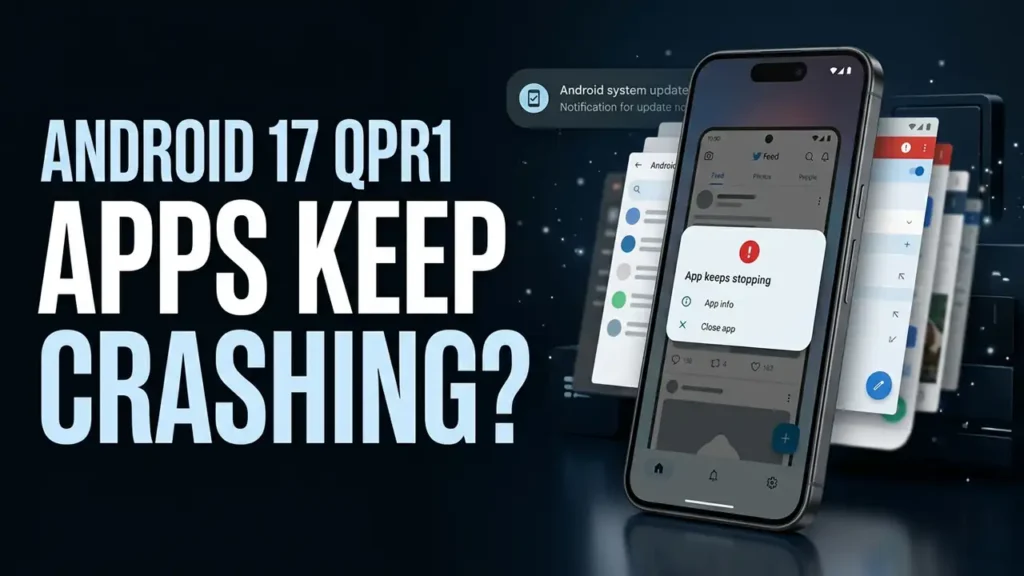

Android 17 QPR1 Apps Keep Crashing? What to Check
Did your Android apps start crashing, freezing, or closing unexpectedly after the Android 17 QPR1 update?
Some Pixel users have reported problems after the recent update, including app crashes, lag, freezes, and other unusual behavior. Google’s September Pixel update also included fixes for several app and system-related issues.
But before blaming the update, there is an important distinction to make: is one app crashing, or are several unrelated apps failing?
That can tell you where to start.
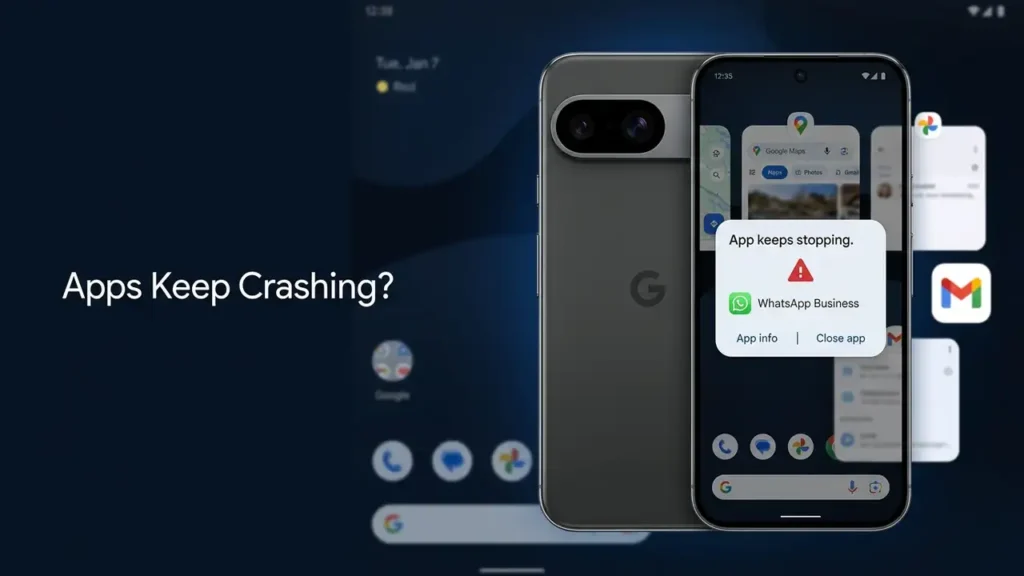
If Several Apps Started Crashing, Start Here
If Gmail, YouTube, a banking app, and other unrelated apps suddenly started crashing around the same time, don’t treat them as separate app problems.
That pattern can point toward Android, Google Play components, available storage, or an issue that appeared after the recent update.
If only one app is affected, skip ahead to the app-specific steps.
1. Restart Your Pixel
It sounds basic, but it’s worth doing first.
After a major Android update, background processes and system components may need to settle properly. A restart can clear temporary problems without changing your apps or personal data.
Press and hold the power button, then select Restart.
After the phone boots back up, test the apps that were crashing.
If several apps still fail, continue with the next steps.
2. Update the Apps That Are Crashing
Open the Google Play Store and check for available app updates.
Go to:
Profile picture → Manage apps & device → Updates available
Install the pending updates, especially for apps that started crashing after Android 17 QPR1.
An Android update can arrive before an individual app has received its latest compatibility fixes, so keeping your apps current is one of the simplest things to check.
Google’s Android app troubleshooting guide
3. Clear the App’s Cache
If one particular app keeps crashing, try clearing its cache before deleting anything.
Go to:
Settings → Apps → See all apps → [App] → Storage & cache → Clear cache
Then open the app again.
This removes temporary cached files without normally removing your account or personal data.
Don’t immediately choose Clear storage. That can remove locally stored information and may require you to sign in again.
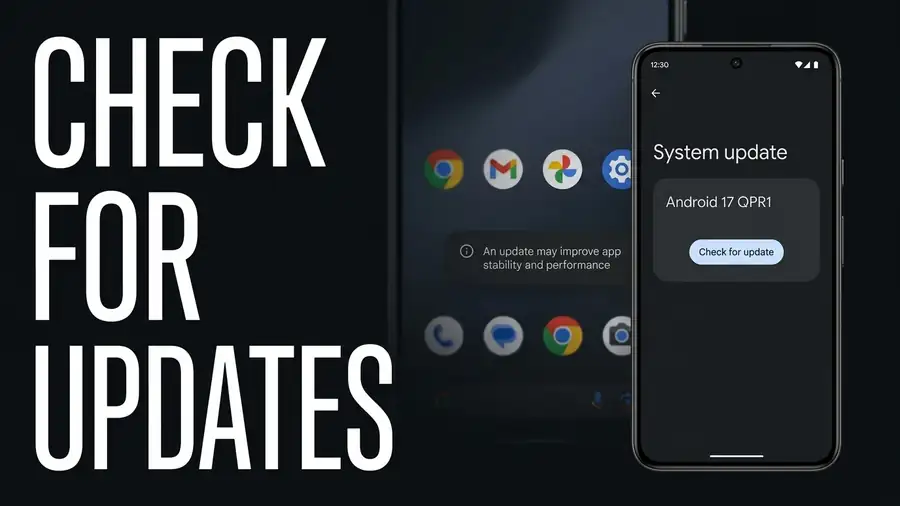
4. Check for Another Android Update
If the crashes began shortly after installing Android 17 QPR1, check whether another system update is available.
Go to:
Settings → System → Software updates
Install anything available and restart your phone.
This step matters because Pixel updates can contain follow-up fixes after an Android release. Google’s September 2026 Pixel update included fixes involving app crashes, system stability, Wi-Fi/Bluetooth, and other issues.
5. Check Google Play System Update
Don’t confuse an Android system update with a Google Play system update. They are separate.
On your Pixel, check:
Settings → Security & privacy → System & updates → Google Play system update
If an update is available, install it and restart the phone.
This is an easy check to miss when you’re troubleshooting app crashes.
6. Make Sure Your Storage Isn’t Almost Full
Check:
Settings → Storage
If your phone is nearly full, free up some space before doing anything drastic.
Google notes that Android devices can experience problems when less than about 10% of storage remains available.
You don’t need to delete your photos blindly. Start by checking large downloads, unused apps, and other files you no longer need.
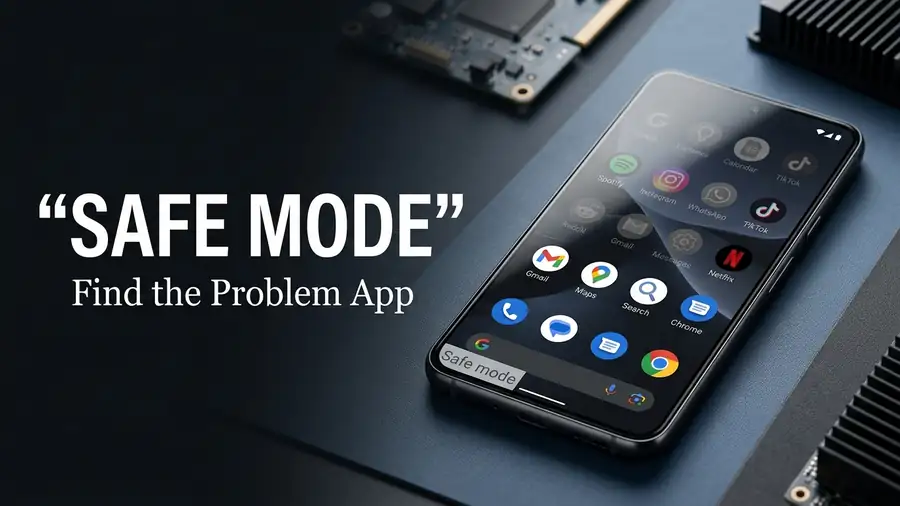
7. Use Safe Mode If Several Apps Keep Crashing
If multiple apps are still crashing, Safe Mode can help determine whether a downloaded app is interfering with your Pixel.
Safe Mode temporarily disables downloaded apps. If the crashes stop, a recently installed or updated third-party app may be involved.
If the same problems continue in Safe Mode, the cause is less likely to be a normal third-party app.
This is particularly useful when you can’t identify one specific app responsible for the problem.
Are You Seeing a Bigger Problem Than App Crashes?
Pay attention to what else is happening.
If your Pixel is also:
- noticeably slower than before
- freezing on the home screen
- getting unusually warm
- draining the battery faster
- having several unrelated apps crash
then the problem may be broader than one bad app.
This is especially worth noting if everything started around the same time as the Android 17 QPR1 update.
Some recent Pixel user reports describe combinations of crashes, lag, UI problems, heat, and other performance issues after QPR1. These reports can help identify patterns, but they don’t prove that the update is responsible for every case.
Should You Factory Reset Your Pixel?
Not yet.
A factory reset is a major step, and it won’t necessarily fix an issue caused by an app or a system bug.
Before considering one, make sure you’ve already:
- restarted the phone
- updated your apps
- checked for another Android update
- installed the latest Google Play system update
- checked your storage
- cleared the cache of affected apps
- tested Safe Mode if several apps are crashing
If several apps started crashing immediately after QPR1, checking for a newer official update is a better first move than wiping the phone straight away.
Quick Diagnosis
| What you’re seeing | Start with |
|---|---|
| One app keeps crashing | Update it + clear its cache |
| Several apps crash | Check Android and Play system updates |
| Apps + phone are slow | Check storage and restart |
| Problems started after QPR1 | Check for a newer Android update |
| Several apps crash but no clear cause | Try Safe Mode |
| Phone is hot + apps crash | Check updates and background activity |
FAQ
Why are my apps crashing after Android 17 QPR1?
Some Pixel users have reported crashes and other problems after QPR1, but that doesn’t mean the update is automatically the cause. App bugs, low storage, outdated apps, and system issues can produce similar symptoms.
Should I uninstall an app that keeps crashing?
Not immediately. Update it first, restart your phone, and clear its cache. Reinstalling can be the next step if the problem continues.
Can low storage cause Android apps to crash?
Very low storage can contribute to Android performance problems. Check your available space before assuming the update caused the issue.
Should I factory reset my Pixel?
A factory reset should be a last resort, especially when the problem appeared immediately after a recent update.
More Android Troubleshooting Guides
Having another Android problem? These troubleshooting guides may also help:
- WhatsApp Not Working on Android? 7 Fixes to Try First
- Spotify Not Working on Android? 9 Fixes to Try
- Android Connected to WiFi but No Internet: How to Fix It
- Google Play Store Not Downloading Apps? Here’s What to Check
Final Thoughts
If your Android 17 QPR1 apps keep crashing, don’t start by wiping your Pixel.
First figure out whether you’re dealing with one problematic app or several unrelated apps. Then work through app updates, a restart, cache clearing, Google Play system updates, storage, and Safe Mode.
If multiple apps began failing around the same time as QPR1, keep an eye out for the next official Android update before making a drastic change.