
YouTube Not Working on Chrome? 10 Fixes That Actually Work
If YouTube is not working on Chrome, you may see a video that keeps buffering, a black screen, a player that never starts, or a message asking you to try again later.
Sometimes the problem is your internet connection. Other times, Chrome itself is responsible because of an extension, corrupted site data, outdated software, or a browser setting.
There’s also an important clue that many troubleshooting guides overlook:
Does YouTube fail completely, or does the page load normally while the video refuses to play?
Those two situations can have very different causes.
This guide starts with a quick diagnosis before moving to the fixes, so you don’t have to change ten Chrome settings without knowing what caused the problem.
First: What Exactly Is YouTube Doing?
Before trying the fixes, find the symptom that matches your problem.
| What you’re seeing | Start here |
|---|---|
| YouTube won’t open | Check connection + Chrome |
| Page opens but video won’t play | Extensions + site data |
| Video keeps buffering | Connection + browser |
| Black screen | Hardware acceleration |
| Audio works but video is black | Hardware acceleration |
| YouTube works in Incognito | Browser extension |
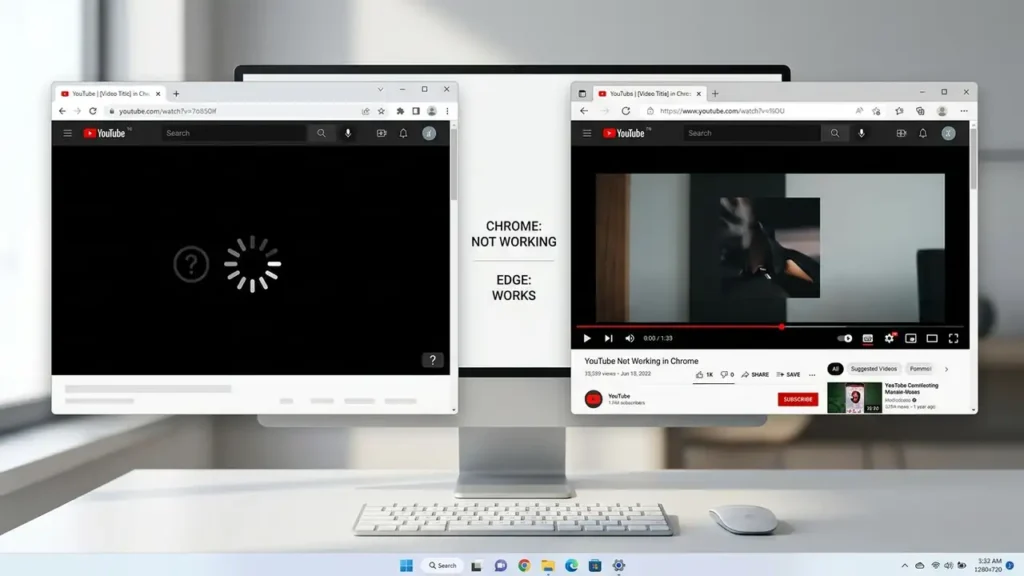
| YouTube works in Edge but not Chrome | Chrome-specific issue |
| Only one video doesn’t play | Video-specific problem |
| Every video shows an error | Browser/network |
| YouTube suddenly stopped working | Update + cache + extensions |
This diagnosis matters because you don’t want to reset Chrome if an extension is the actual problem.
1. Check Whether YouTube Works in Another Browser
Before changing Chrome, perform one quick test.
Open:
- Microsoft Edge
- Firefox
- Another browser installed on your PC
Then open YouTube and play the same video.
What does the result tell you?
YouTube works in another browser
→ Chrome is the likely problem.
YouTube doesn’t work anywhere
→ Look at your internet connection, YouTube itself, or Windows.
This is one of the fastest ways to separate a Chrome problem from a YouTube/network problem.
Why start here?
Because troubleshooting becomes much easier when you know which component is failing.
2. Open YouTube in Chrome Incognito Mode
This is another excellent diagnostic test.
Press:
Ctrl + Shift + N
This opens an Incognito window.
Go to YouTube and play a video.
If YouTube works in Incognito
That’s a strong clue that something in your normal Chrome profile is interfering with playback.
The most likely suspects include:
- Browser extensions
- Stored site data
- Cookies
- Certain browser settings
If YouTube still doesn’t work
Continue to the next fixes.
Don’t assume the problem is an extension just because you’re using Chrome.
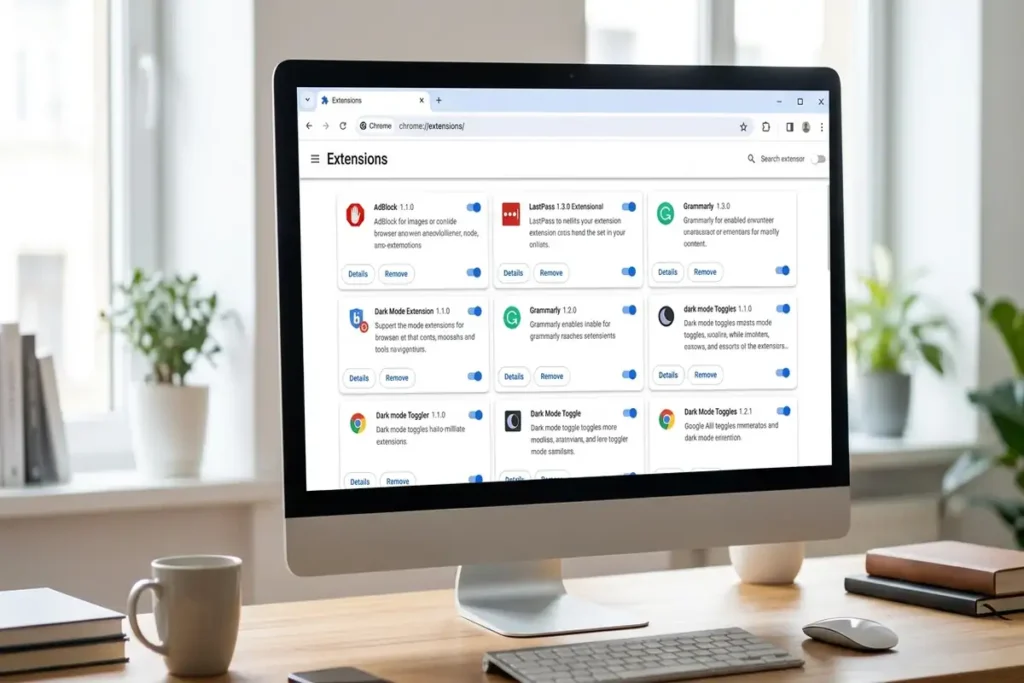
3. Disable Chrome Extensions One at a Time
If YouTube works in Incognito but not in normal Chrome, extensions should be your next suspect.
Open:
chrome://extensions
Temporarily disable extensions that modify webpages, especially:
- Ad blockers
- Privacy extensions
- Script blockers
- Video-related extensions
- Security extensions
Then reload YouTube.
Important: don’t disable everything permanently
Disable them one at a time.
After each change:
- Reload YouTube.
- Play the same video.
- Check whether the problem disappears.
If YouTube suddenly works, you’ve identified the likely conflict.
Extensions and outdated site data can interfere with YouTube playback in Chrome.
4. Clear YouTube’s Site Data
You don’t necessarily need to erase your entire Chrome browsing history.
A better first step is to clear the data associated with YouTube.
Chrome stores website information such as cookies and cached resources.
If that data becomes outdated or corrupted, YouTube may behave strangely.
After clearing YouTube’s site data:
- Close the YouTube tab.
- Open YouTube again.
- Sign in if necessary.
- Test a video.
What might this fix?
It can help when:
- The player doesn’t load
- YouTube keeps refreshing
- Videos suddenly stopped playing
- The page works but playback doesn’t
- YouTube behaves normally in Incognito
Extensions and outdated site data can interfere with YouTube playback in Chrome.
5. Update Google Chrome
An outdated Chrome version can cause compatibility problems with modern websites.
To check:
Open Chrome.
Select:
⋮ → Help → About Google Chrome
Chrome will automatically check for an available update.
If one is available, allow Chrome to install it and then relaunch the browser.
After Chrome restarts, open YouTube and test the same video again.
An outdated version of Chrome can sometimes cause compatibility or playback problems on modern websites. Keeping Chrome updated ensures you have the latest browser fixes and security improvements.
6. Turn Hardware Acceleration Off as a Test
This is especially useful when you see:
- A black video
- Audio but no picture
- Flickering
- Video freezing
- Chrome crashing during playback
- Graphics-related playback problems
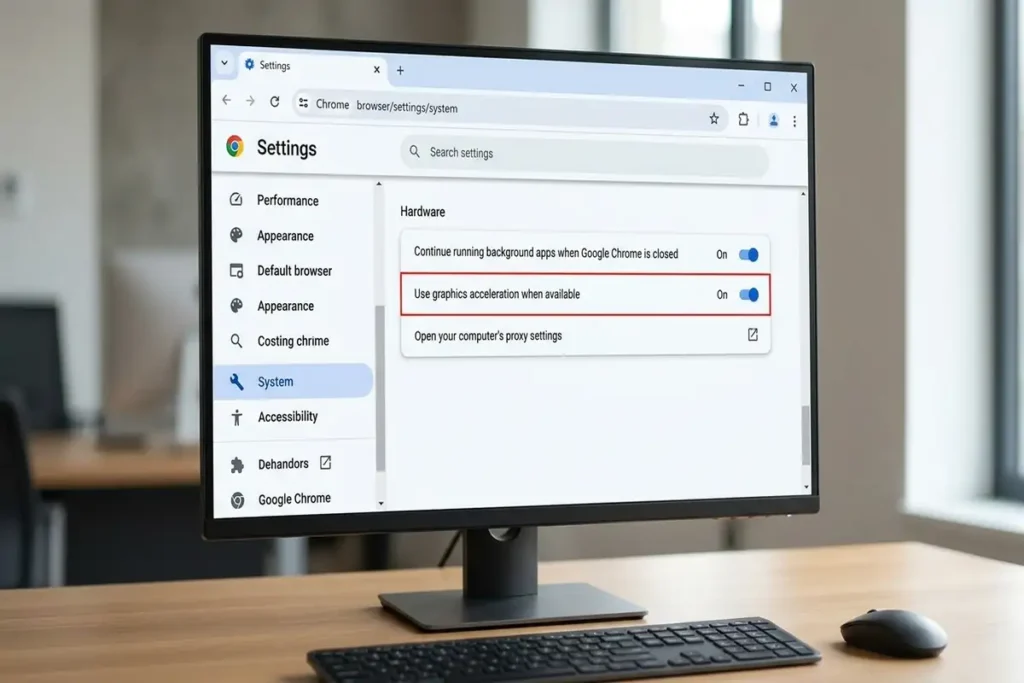
Open Chrome settings and search for:
hardware acceleration
Turn off:
Use graphics acceleration when available
Then relaunch Chrome.
Test YouTube again.
Why can this help?
Chrome can use your computer’s graphics hardware to render certain content.
If the browser, graphics driver, or hardware acceleration path isn’t behaving correctly, video playback can be affected.
Recent 2026 troubleshooting guides specifically identify hardware acceleration as a possible cause of YouTube playback problems in Chrome.
7. Check Your Internet Connection
If YouTube loads but videos keep buffering, don’t automatically blame Chrome.
Test another website.
For example:
Open a normal website and see whether it loads quickly.
Then try YouTube again.
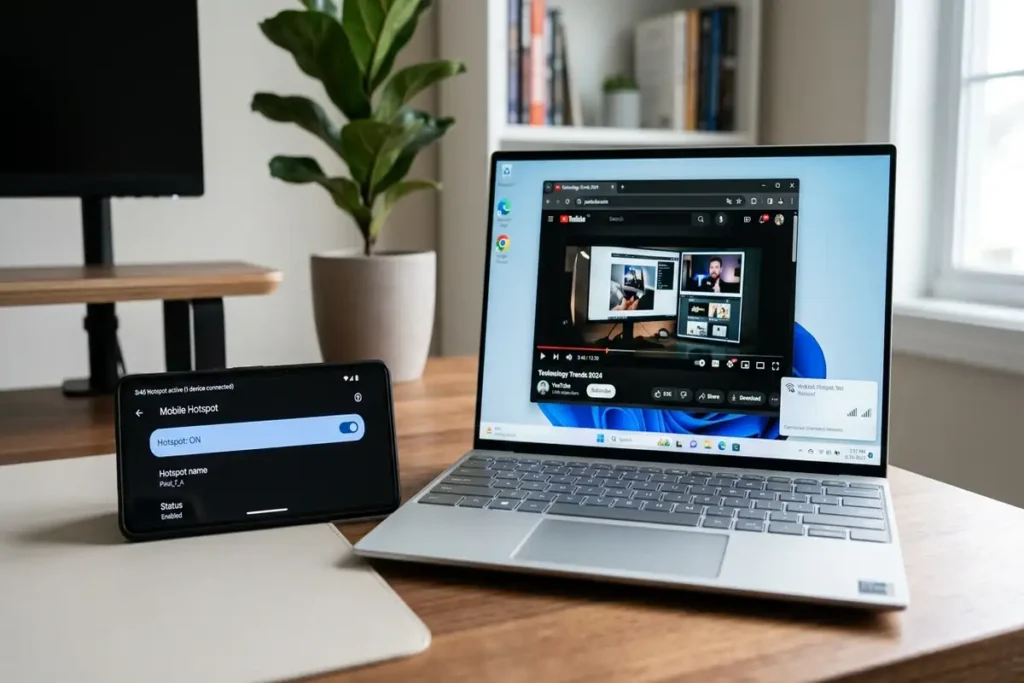
Try a different connection
If you’re on Wi-Fi, temporarily test your PC using:
Phone hotspot
If YouTube works normally through the hotspot, your original network may be contributing to the problem.
Another useful test
Lower the YouTube video quality temporarily.
For example:
1080p → 720p → 480p
If lower quality plays normally while higher quality constantly buffers, the problem may be related to the available connection rather than Chrome itself.
8. Make Sure JavaScript Is Enabled
YouTube relies heavily on browser functionality that can be affected if JavaScript is blocked.
In Chrome settings, search for:
JavaScript
Make sure sites are allowed to use it.
If JavaScript was disabled manually or by a privacy/security configuration, YouTube may fail to load correctly.
Don’t randomly change other Chrome experimental settings at the same time.
Change one setting, reload YouTube, and test again.
9. Restart Chrome Completely
Sometimes the browser simply needs a clean restart.
Close all Chrome windows.
Then reopen Chrome and try YouTube again.
If Chrome has been running for a long time with many tabs and extensions, a fresh session can sometimes clear a temporary problem.
If the problem keeps returning
Pay attention to what happens immediately before YouTube stops working.
For example:
- You opened a new extension
- Chrome updated
- You changed privacy settings
- You installed security software
- You connected to a different Wi-Fi network
- Windows installed an update
That information can be more valuable than simply restarting the browser repeatedly.
10. Reset Chrome Settings — Only If Nothing Else Worked
If you’ve tried the previous fixes and YouTube still doesn’t work correctly, Chrome includes a reset option.
Use this as a later troubleshooting step, not your first one.
Resetting Chrome can undo customized browser settings, so don’t do it just because one YouTube video isn’t playing.
Before resetting, try:
Another browser → Incognito → Extensions → Site data → Update → Hardware acceleration → Network
If none of those solves the issue, Chrome’s reset option becomes more reasonable.
Frequently Asked Questions
Why is YouTube not working on Chrome?
Common causes include browser extensions, corrupted site data, outdated Chrome, network problems, and hardware acceleration issues. Start by testing YouTube in Incognito or another browser to identify the likely cause.
Why does YouTube work in Incognito but not Chrome?
If YouTube works in Incognito, an extension or stored browser data is a strong suspect. Disable extensions one at a time and test again.
Why is YouTube showing a black screen?
A black screen can sometimes be related to Chrome’s hardware acceleration or graphics rendering. Temporarily disabling hardware acceleration and restarting Chrome can help identify the cause.
Why does YouTube keep buffering on Chrome?
Buffering is often related to the internet connection, but browser issues, extensions, or video quality can also contribute. Test another browser or network to narrow down the problem.
Why does YouTube work in Edge but not Chrome?
If YouTube works normally in Edge on the same computer and network, focus on Chrome-specific issues such as extensions, site data, settings, or hardware acceleration.
Related Guides
If you’re having another common technology problem, these guides may help:
Chrome Not Responding on Windows 11
Android Connected to WiFi but No Internet
WhatsApp Web Not Working? 10 Fixes That Actually Work
Final Thoughts
When YouTube isn’t working on Chrome, don’t start changing random browser settings.
First find out whether the problem belongs to Chrome, your network, an extension, or YouTube itself.
The fastest way to do that is to test YouTube in Incognito, another browser, and—if necessary—another network.
If Incognito works, investigate extensions and site data.
If Edge works but Chrome doesn’t, focus on Chrome.
If YouTube fails everywhere, look beyond the browser.
And if you see a black screen or video rendering problems, test hardware acceleration.
That approach can save you from making unnecessary changes and gives you a much better chance of finding the actual cause