
iPhone System Data Taking Up Too Much Space? 9 Fixes
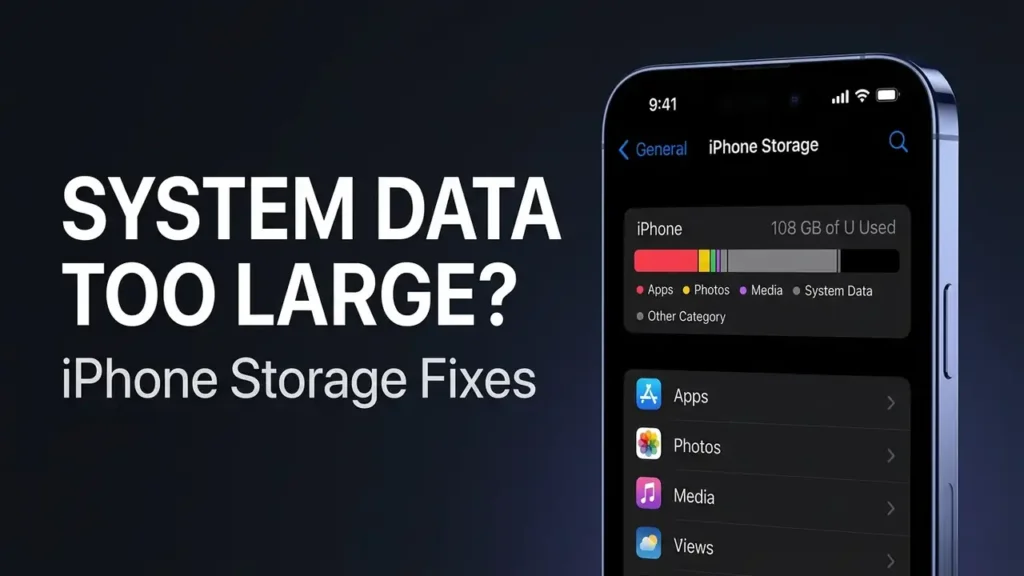
If System Data is taking up too much space on your iPhone, you may be wondering where all that storage went.
You might have already deleted photos, removed unused apps, or cleared large downloads, yet your iPhone still says that storage is almost full.
The confusing part is that System Data isn’t a normal folder you can simply open and delete.
Apple says the storage categories shown on iPhone can include things such as caches, logs, Spotlight index data, Siri voices, fonts, dictionaries, and other system-related data. The amount can also vary depending on the device and software.
So before deleting random apps or resetting your iPhone, it’s better to find out what is actually consuming your storage.
First: Check How Much Storage System Data Is Using
Before trying any cleanup method, check how much space your iPhone is using.
Go to:
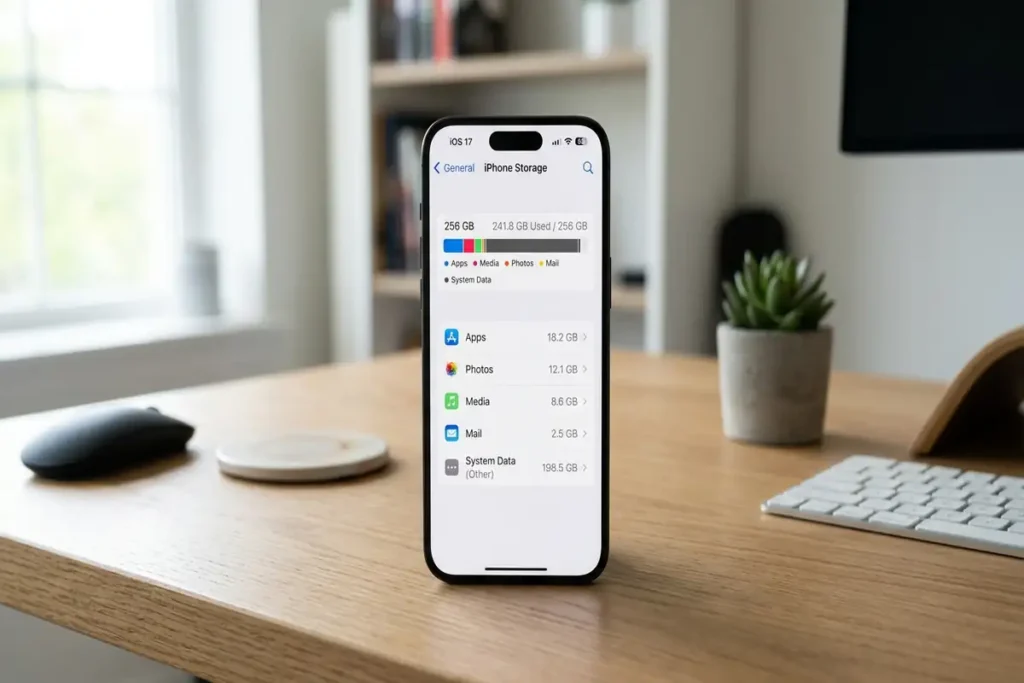
Settings → General → iPhone Storage
Wait for the storage breakdown to finish loading.
You’ll see your available storage and a list of categories and apps using space. Apple also provides storage recommendations on this screen when they are available.
Before you change anything
Write down:
- Available storage
- System Data
- Your three largest apps
Then take a screenshot so you can compare the numbers after troubleshooting.
1. Restart Your iPhone and Check Storage Again
Start with a simple restart before deleting anything.
After restarting, go to:
Settings → General → iPhone Storage
Wait for the storage information to load again, then compare the numbers with your earlier screenshot.
iPhone storage categories can change as iOS manages temporary and cached data.
Why start here?
A restart is quick, doesn’t delete your personal files, and gives you a new storage reading before you make more significant changes.
If System Data is still unusually large after the restart, continue with the next fixes instead of repeatedly restarting your iPhone.
2. Check Which Apps Are Using the Most Space
Don’t assume System Data is the only problem.
Open:
Settings → General → iPhone Storage
Look at the apps near the top of the list.
An app can occupy significantly more space than its original download size because of its documents and data.
Tap an app to see its storage details.
Apple notes that iPhone Storage shows how much space individual apps use and may provide options such as Offload App or Delete App.
Offload vs. Delete
Offload App
Removes the app itself while keeping its documents and data.
Delete App
Removes the app and its associated data.
If you still use the app, offloading can be a less destructive first step.
3. Check Photos and Videos
Photos and especially videos can consume far more storage than people realize.
Go to
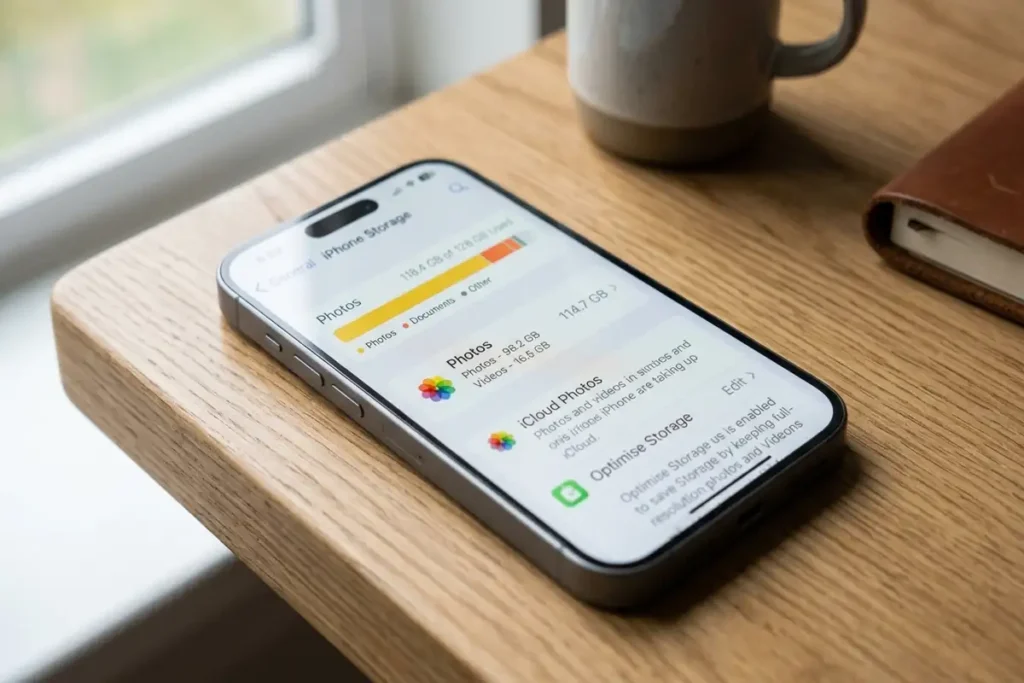
Settings → General → iPhone Storage and tap Photos if it appears in the list.
Review your library.
Look for:
- Long videos
- Screen recordings
- Duplicate photos
- Large downloaded videos
- Old screenshots
- Unwanted media
If you use iCloud Photos, you can also consider Optimize iPhone Storage.
But remember:
iCloud storage is not the same as iPhone storage.
Apple explicitly distinguishes cloud storage from physical device storage.
4. Check Messages and Large Attachments
Your Messages app can quietly accumulate a lot of storage.
Photos, videos, GIFs and other attachments sent through conversations can add up over time.
Open:
Settings → General → iPhone Storage → Messages
Review the largest categories and attachments.
If you find old conversations containing huge files that you no longer need, removing them can free actual device storage.
Important
Don’t delete conversations simply because you’re trying to reduce System Data.
First check whether Messages is actually one of your largest storage categories.
That distinction matters.
5. Review Downloads and Files
Downloaded files can remain on your iPhone even when you no longer remember downloading them.
Check the Files app.
Look inside:
On My iPhone
and
Downloads
Also review files downloaded from:
- Safari
- Cloud storage apps
- Messaging apps
- Video apps
6. Check Safari Data
Safari can store website data and cached content, which may contribute to storage usage.
Open:
Settings → Safari
Review Safari’s website data and history options, then remove data you no longer need.
Don’t expect this to remove a large amount of System Data. The goal is to check whether Safari is contributing to the problem.
7. Check for an iOS Update
Open:
Settings → General → Software Update
Check whether your iPhone has an available update.
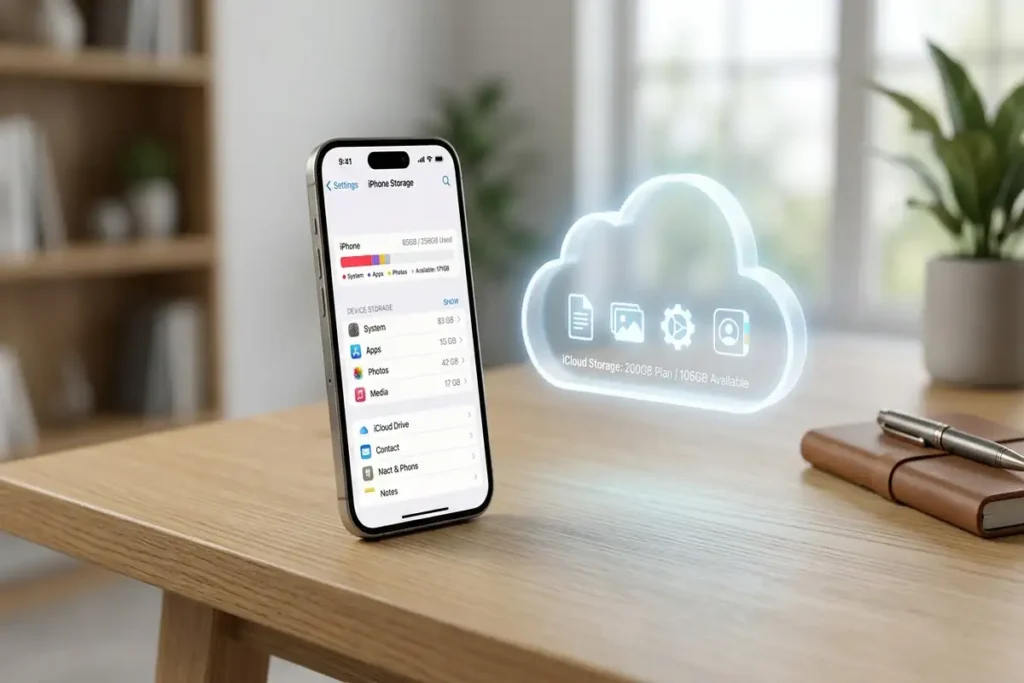
8. Check iCloud Storage Separately
This is one of the biggest sources of confusion.
You may see:
iCloud Storage: Almost Full
while your iPhone has plenty of physical storage.
Or the opposite can happen.
These are not the same storage pool.
Apple explains that iCloud storage is cloud storage for things such as photos, files and backups, while device storage is the physical storage built into your iPhone.
To check iCloud:
Settings → [Your Name] → iCloud
To check iPhone storage:
Settings → General → iPhone Storage
Don’t buy iCloud+ just because your iPhone says storage is full
First determine which storage is actually full.
9. Backup and Restore Only as a Last Resort
If System Data remains unusually large after you’ve checked your apps, photos, messages, files and other storage categories, a backup-and-restore approach may become an option.
But don’t jump straight to erasing your iPhone.
Before considering a reset:
- Make a current backup.
- Verify that important photos and files are backed up.
- Make sure you know your Apple Account credentials.
- Understand what will be erased.
- Try the less destructive options first.
A reset is a last resort, not a normal way to manage iPhone storage.
What Is System Data on iPhone?
System Data isn’t simply “junk files.”
It can include caches, logs, Spotlight index data, Siri voices, fonts, dictionaries, and other system resources.
iOS manages much of this data automatically, so there isn’t a normal Delete System Data button.
System Data vs. iPhone Storage: What’s the Difference?
| Storage type | What it means |
|---|---|
| iPhone Storage | Physical storage on your device |
| System | Space used by the operating system |
| Other/System Data | Various system resources, caches, logs, indexes and related data |
| iCloud Storage | Cloud storage associated with your Apple Account |
Apple explicitly distinguishes iCloud storage from device storage.
This is important because buying more iCloud storage does not increase the physical storage capacity of your iPhone.
Avoid These Common Mistakes
Don’t install unknown “cleaner” apps that promise to delete System Data instantly.
Also avoid:
- Factory resetting your iPhone without a backup
- Deleting important photos just to reduce System Data
- Buying iCloud+ before checking which storage is actually full
Start with Apple’s built-in storage tools first.
Frequently Asked Questions
Why is System Data taking so much space on my iPhone?
System Data can include caches, logs, Spotlight index data and other system-related resources. Its size can change depending on the device and what iOS is doing.
Can I delete System Data on iPhone?
There isn’t a normal button that lets you manually delete all System Data. iOS manages temporary and cached files itself.
Why is my iPhone storage full when I deleted photos?
Photos may not be the only category using storage. Apps, Messages, Files, downloads and system-related data can also consume device storage. Check Settings → General → iPhone Storage before deleting more content.
Does buying iCloud storage give me more iPhone storage?
No. iCloud storage and physical iPhone storage are separate. Buying more iCloud storage doesn’t increase the built-in storage capacity of your iPhone.
Why does System Data change size?
iOS can create and remove temporary or cached data, so storage categories can change over time. Apple notes that cached and temporary files may not always be represented exactly the same way in storage calculations.
Should I factory reset my iPhone?
Not as a first step. Check your storage categories, apps, photos, messages and files first. If the problem remains severe, make a verified backup before considering a reset.
More iPhone & Device Troubleshooting Guides
If you’re dealing with another device problem, these troubleshooting guides may help:
- iPhone Won’t Turn On? 9 Fixes to Try Before Repair
- Android Connected to WiFi but No Internet? 10 Fixes
- Chrome Not Responding on Windows 11? Try These Fixes
Final Thoughts
If System Data is taking up too much space on your iPhone, start by checking Settings → General → iPhone Storage and identifying what’s actually using your device storage.
Restart your iPhone, review large apps and media, check downloads and Safari data, and make sure you’re not confusing iPhone storage with iCloud storage.
If the problem remains unusually large after these checks, make a verified backup before considering a reset.
The goal isn’t to delete everything. It’s to find out what is actually using your storage.