
Gmail Notifications Not Working on iPhone? 9 Fixes That Actually Work
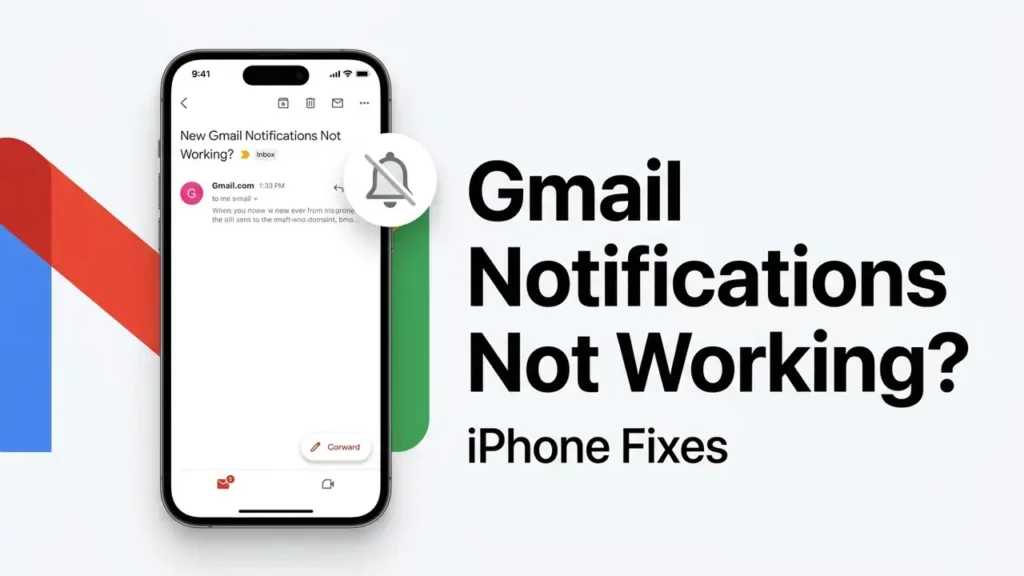
If Gmail notifications are not working on your iPhone, you may receive new emails without seeing an alert on your Lock Screen or hearing a notification sound.
The problem can come from Gmail’s notification settings, iPhone notification permissions, Focus, Background App Refresh, or an issue affecting a specific Gmail account.
Before changing advanced settings, check whether the emails are actually arriving. If new messages appear when you open Gmail manually, the problem is likely related to notifications rather than email delivery.
First: Check If the Email Is Arriving
Before changing any settings, send a test email to the affected Gmail account from another email address. Then wait a few minutes without opening Gmail.
- The email arrives but no notification appears: The problem is likely related to Gmail or iPhone notification settings.
- The email appears only after you open Gmail: Check Background App Refresh and Gmail’s account or app settings.
- The email doesn’t arrive at all: The issue may be related to Gmail delivery, filters, Spam, or the account itself rather than iPhone notifications.
This tells you whether you’re dealing with a notification problem or an email delivery problem.
1. Check Gmail’s Notification Settings
Start by checking Gmail’s own notification settings.
- Open the Gmail app.
- Tap ☰ → Settings.
- Select the Gmail account that’s having the problem.
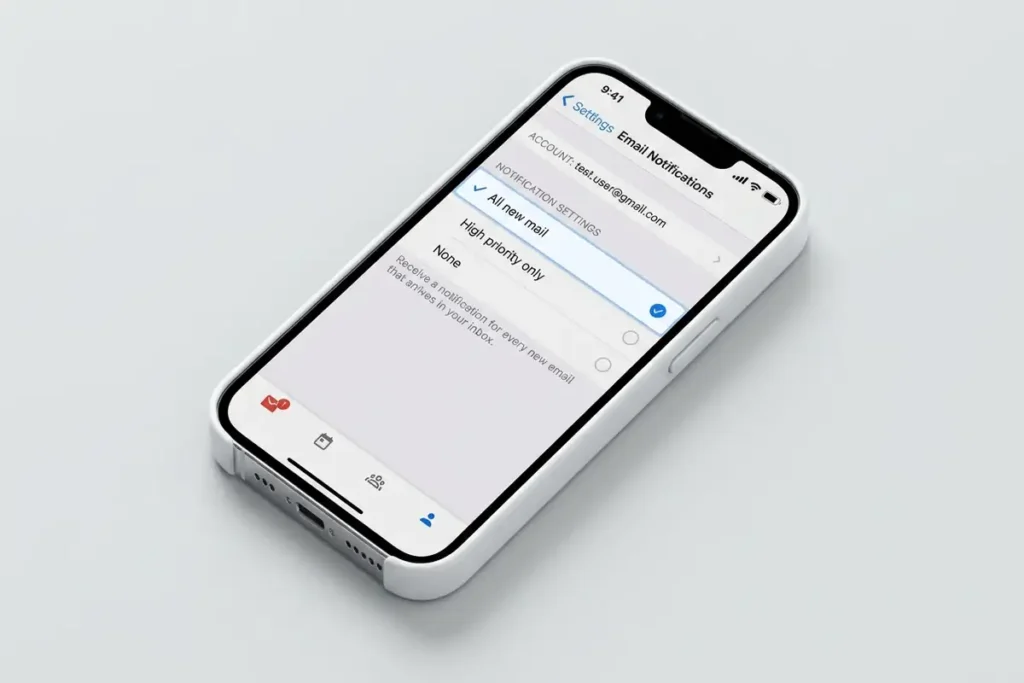
- Tap Notifications.
- Make sure notifications are enabled for new emails.
If you see an option such as All new mail, select it instead of High priority only or None.
If You Have Multiple Gmail Accounts
Check the notification setting for each account separately. One account may have notifications enabled while another is set differently.
Test it: Send yourself another email and wait without opening Gmail. If the notification appears, the setting was likely the problem.
2. Check iPhone Notification Permissions for Gmail
Even if Gmail’s internal notification setting is correct, iOS can block the alerts.
Open:
Settings → Notifications → Gmail
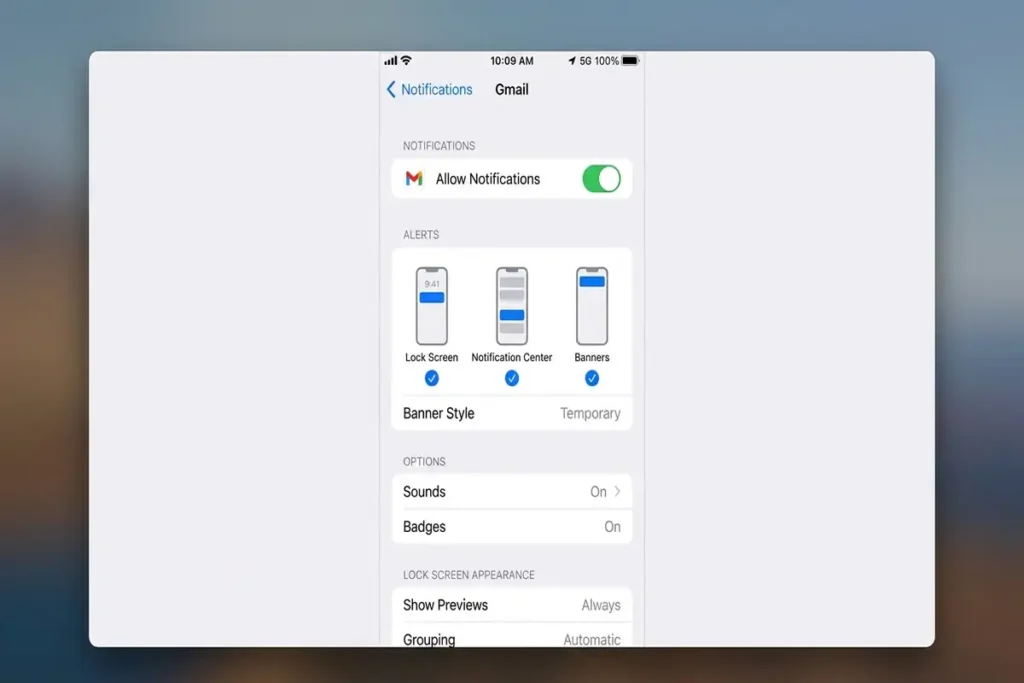
Make sure:
Allow Notifications is enabled.
Then check the available alert locations, such as:
- Lock Screen
- Notification Center
- Banners
Also check that notification sounds are enabled if you want an audible alert.
Why check both places?
Because there are two layers:
Gmail settings
and
iPhone notification permissions
Fixing only one may not solve the problem.
3. Make Sure Gmail Can Refresh in the Background
If new emails appear only after you open Gmail, check whether the app is allowed to refresh in the background.
- Open Settings on your iPhone.
- Tap General.
- Select Background App Refresh.
- Make sure Background App Refresh is enabled.
- Find Gmail and turn it ON.
Then send yourself a test email and wait without opening Gmail.
Tip: This is especially worth checking if new emails appear only after you open Gmail.
4. Check Focus and Scheduled Summary
Even if Gmail and iPhone notification settings are correct, Focus or Scheduled Summary can delay or hide alerts.
Check Focus
- Open Control Center.
- Tap Focus.
- If a Focus mode is active, turn it off temporarily.
- Send yourself a test email.
- Wait without opening Gmail.
If the notification appears after turning Focus off, check whether Gmail is allowed to send notifications during that Focus mode.
Check Scheduled Summary
Go to:
Settings → Notifications → Scheduled Summary
Check whether Gmail is included.
If Gmail is part of a scheduled summary, notifications may appear later instead of immediately.
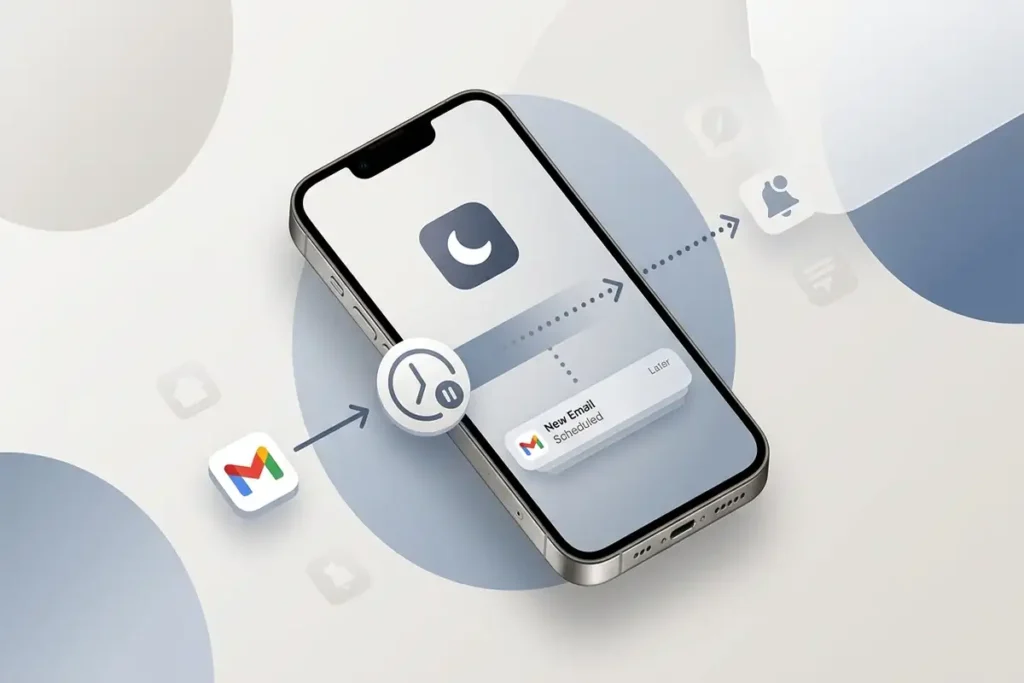
Tip: If Gmail notifications are delayed rather than completely missing, check Focus and Scheduled Summary first.
5. Check Whether Only One Gmail Account Is Affected
If you use multiple Gmail accounts on your iPhone, test each account separately.
For example:
Account A → notification works
Account B → no notification
If only one account has the problem, check that account’s notification settings in Gmail before changing your iPhone settings.
Send a test email to each account and compare the results.
Tip: If other Gmail accounts receive notifications normally, the problem is more likely specific to the affected account or its Gmail settings.
6. Update Gmail and iOS
If Gmail notifications suddenly stopped working, check for updates to both Gmail and iOS.
Update Gmail
Open the App Store, search for Gmail, and install an available update.
Update iOS
Go to:
Settings → General → Software Update
Install an available update if one is offered.
After updating, restart your iPhone and send yourself a test email.
7. Restart Your iPhone
A simple restart can clear a temporary app or iOS problem affecting notifications.
- Restart your iPhone.
- Open Gmail and confirm you’re signed in.
- Send yourself a test email.
- Don’t open Gmail.
- Wait for the notification.
If the notification appears normally after the restart, the problem may have been temporary.
8. Reinstall Gmail
If Gmail notifications still aren’t working after checking your notification and iPhone settings, reinstalling the Gmail app can help fix a temporary app problem.
Before deleting Gmail, make sure you know your Gmail password and can sign in again.
Follow these steps:
- Press and hold the Gmail app.
- Tap Remove App.
- Select Delete App and confirm.
- Restart your iPhone.
- Open the App Store and reinstall Gmail.
- Sign in to your Gmail account.
- Allow notifications when iPhone asks.
- Open Gmail and check its notification settings again.
- Send yourself a test email and wait without opening Gmail.
If notifications start working after reinstalling Gmail, the problem may have been caused by a temporary app or notification state.
Tip: Reinstalling Gmail should be a later troubleshooting step. Check Gmail and iPhone notification settings first because those fixes are quicker and don’t require reinstalling the app.
9. Check Gmail on the Web or Another Device
If Gmail notifications still don’t work, check whether the problem is limited to your iPhone.
- Open Gmail on a computer or another device.
- Check whether the test email arrived.
- If the message is missing, check Spam and Trash.
- Check your Gmail filters to make sure the message isn’t being automatically moved or deleted.
- If possible, test another Gmail account on the same iPhone.
If the email arrives normally on Gmail Web or another device but you don’t receive a notification on your iPhone, focus on the Gmail app and iPhone notification settings.
If the email doesn’t arrive anywhere, the problem may be related to Gmail delivery or the account rather than iPhone notifications.
Tip: If Gmail receives the email but your iPhone doesn’t show an alert, don’t change email delivery settings. Focus on notification and iPhone settings instead.
Frequently Asked Questions
Why are my Gmail notifications not working on iPhone?
Gmail notifications may stop working because of Gmail’s notification settings, iPhone notification permissions, Focus, Scheduled Summary, Background App Refresh, or an issue with the Gmail app or account.
Why do I only see new Gmail emails after opening the app?
If new emails appear only after you open Gmail, check Gmail’s notification settings and make sure Background App Refresh is enabled. Also check whether Focus or Scheduled Summary is delaying notifications.
Why does Gmail notify me for one account but not another?
If you have multiple Gmail accounts on your iPhone, check the notification settings for each account separately. One account can have notifications enabled while another is set to a different notification level.
Will reinstalling Gmail fix notifications on iPhone?
Reinstalling Gmail can fix temporary app problems that affect notifications. Before reinstalling, make sure you know your Gmail password and can sign in again. After reinstalling, allow notifications and check Gmail’s notification settings.
Why are Gmail notifications delayed on my iPhone?
Delayed notifications can be caused by Focus, Scheduled Summary, Background App Refresh, or an issue with the Gmail app or account. Check these settings first and test Gmail again.
Why does Gmail receive emails but not show notifications?
If the email appears in your Gmail inbox but no alert appears on your iPhone, the problem is usually related to notification settings rather than email delivery. Check both Gmail’s notification settings and Settings → Notifications → Gmail on your iPhone.
More iPhone & Device Troubleshooting Guides
If you’re dealing with another device problem, these troubleshooting guides may help:
- iPhone Storage Full but You Have Space
- iPhone System Data Taking Up Too Much Space? 10 Fixes
- iPhone Won’t Turn On? 9 Fixes to Try Before Repair
- Android Connected to WiFi but No Internet? 10 Fixes
Final Thoughts
If Gmail notifications aren’t working on your iPhone, first confirm that new emails are actually arriving. Then check Gmail’s notification settings, iPhone notification permissions, Focus, Background App Refresh, and Scheduled Summary.
If the problem affects only one account, troubleshoot that account separately. For persistent issues, update or reinstall Gmail before considering more drastic changes.