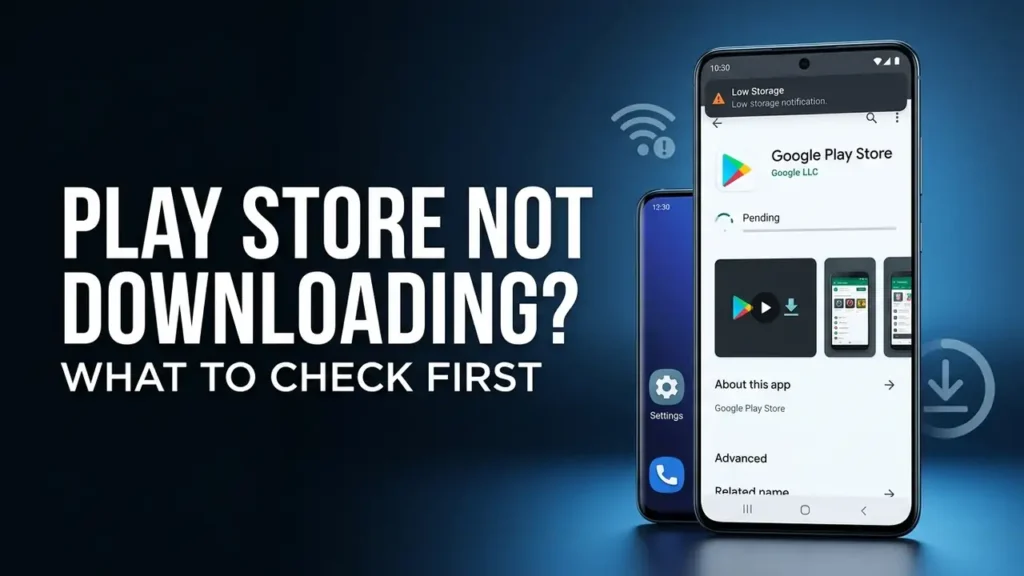

Google Play Store Not Downloading Apps? What to Check First
You tap Install, but nothing happens.
The app may stay on Pending, the download may stop halfway, or Google Play Store may show a download button without actually installing anything.
Before clearing data or resetting your Android phone, it helps to find out what is preventing the download.
In most cases, the problem comes down to one of four things: your connection, available storage, the Play Store itself, or your Google account.
Start with the checks below and test the download after each one.
First, Look at What the Download Is Doing
The word “not downloading” can describe several different problems.
For example:
- The app stays on Pending
- The download starts but never finishes
- The Install button does nothing
- One app won’t download, but others work
- No apps or updates will download
That difference matters.
If only one app won’t download
The problem may be related to that specific app. Check the app’s Play Store page to see whether it is available for your device.
An app that is not compatible with your Android device cannot be installed normally.
If nothing downloads
When multiple apps and updates are stuck, start by checking your connection, storage, and Google Play Store before focusing on a specific app.
Check Your Internet Connection
A weak connection is one of the simplest reasons for a Play Store download to remain stuck.
Try opening a website or streaming a short video.
Then try switching networks:
- Wi-Fi → mobile data
- Mobile data → Wi-Fi
If the download starts working after changing networks, your previous connection was likely part of the problem.
You don’t need to change advanced network settings immediately. First, simply confirm that your phone has a stable connection.
Check Your Available Storage
Your phone can have enough space for photos and still be too low on storage for a new app or update.
Open:
Settings → Storage
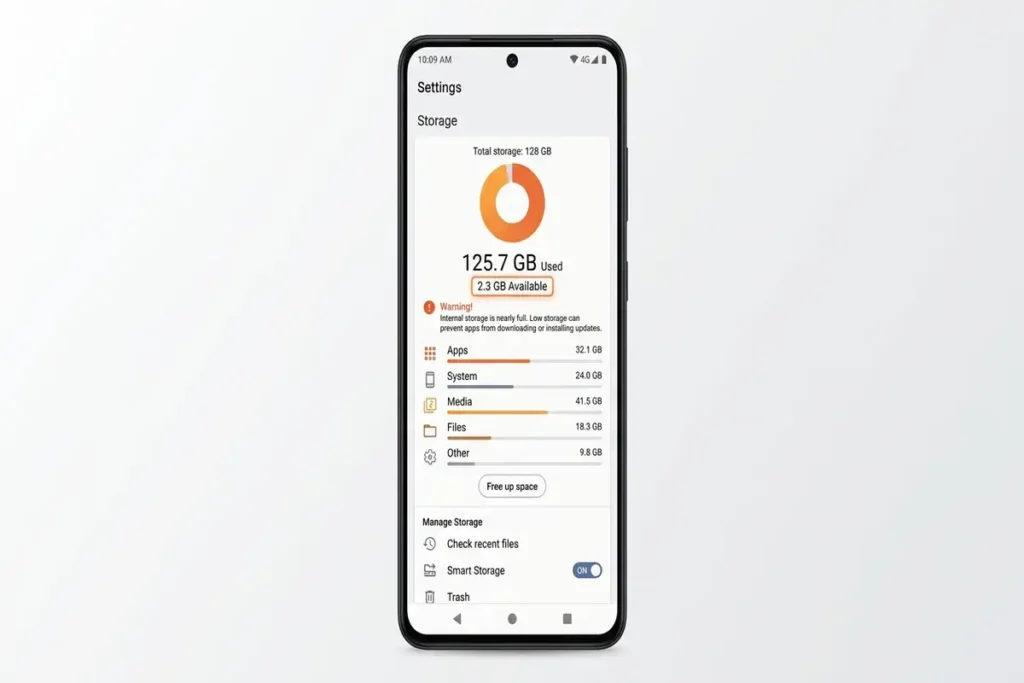
If your available space is very low, remove apps, downloads, videos, or files you no longer need.
Then reopen Google Play Store and try the download again.
A useful clue
If every app fails to install and your phone is almost full, storage is a much stronger suspect than the Play Store itself.
Close the Play Store and Restart Your Phone
If your connection and storage look normal, close Google Play Store completely.
Then restart your Android device.
After the phone starts again:
- Open Google Play Store.
- Try downloading the app again.
- Check whether the download moves past Pending.
This simple step can resolve temporary app or system problems without deleting anything.
Check Date and Time Settings
Incorrect date or time settings can sometimes interfere with communication between your device and online services.
Go to:
Settings → System → Date & Time
The exact location can be different depending on your Android phone.
Make sure automatic date, time, and time zone settings are enabled.
Then restart the phone and test the Play Store again.
Clear the Play Store Cache
If downloads remain stuck, the Play Store itself may be holding temporary data that is causing a problem.
Go to:
Settings → Apps → Google Play Store → Storage & Cache
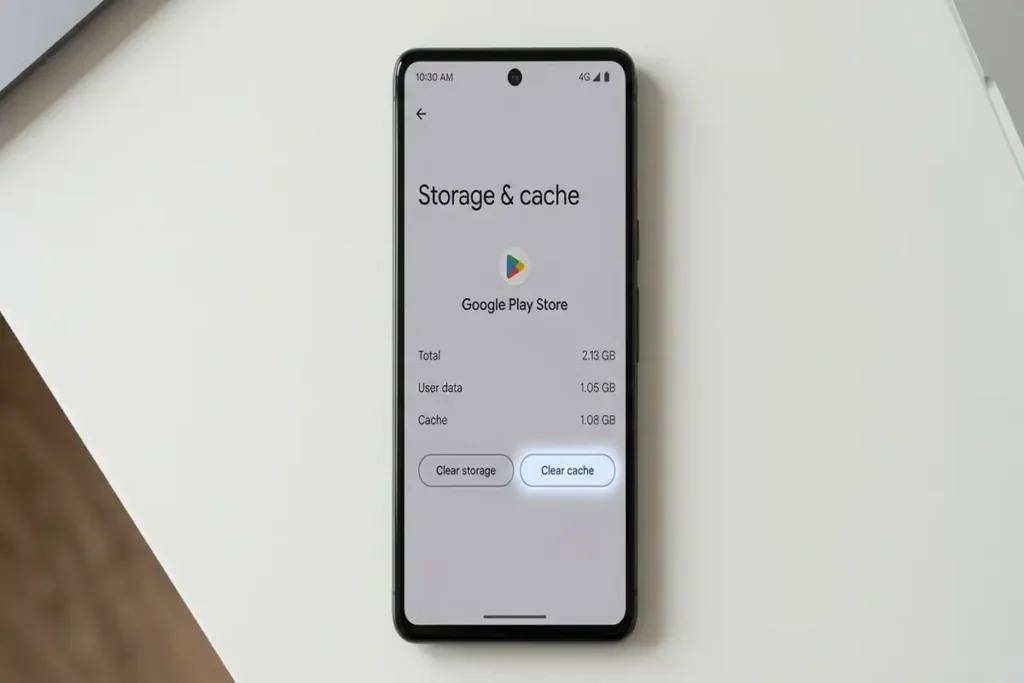
Start with:
Clear Cache
Then reopen Google Play Store and try the download again.
If clearing the cache does not help, you can consider clearing the Play Store’s storage as the next step. Keep in mind that this can reset certain Play Store settings.
Google lists clearing Play Store cache and storage among its advanced troubleshooting steps for downloads that continue to fail.
Is It One App or Every App?
This is one of the most useful tests in this article.
Try downloading a small, different app.
If another app downloads normally
The problem may be specific to the original app.
Check:
- Device compatibility
- Whether the app is available in your region
- Whether the app has a temporary issue
If nothing downloads
The problem is more likely related to your Play Store, account, connection, storage, or Android system.
This helps you avoid troubleshooting the wrong thing.
Check for Android Updates
An outdated Android system can sometimes cause compatibility or service problems.
Go to:
Settings → System → Software Update
Install any available update, restart your phone, and test Google Play Store again.
You don’t need to assume that an update will fix every download problem. However, keeping Android updated removes one possible compatibility issue.
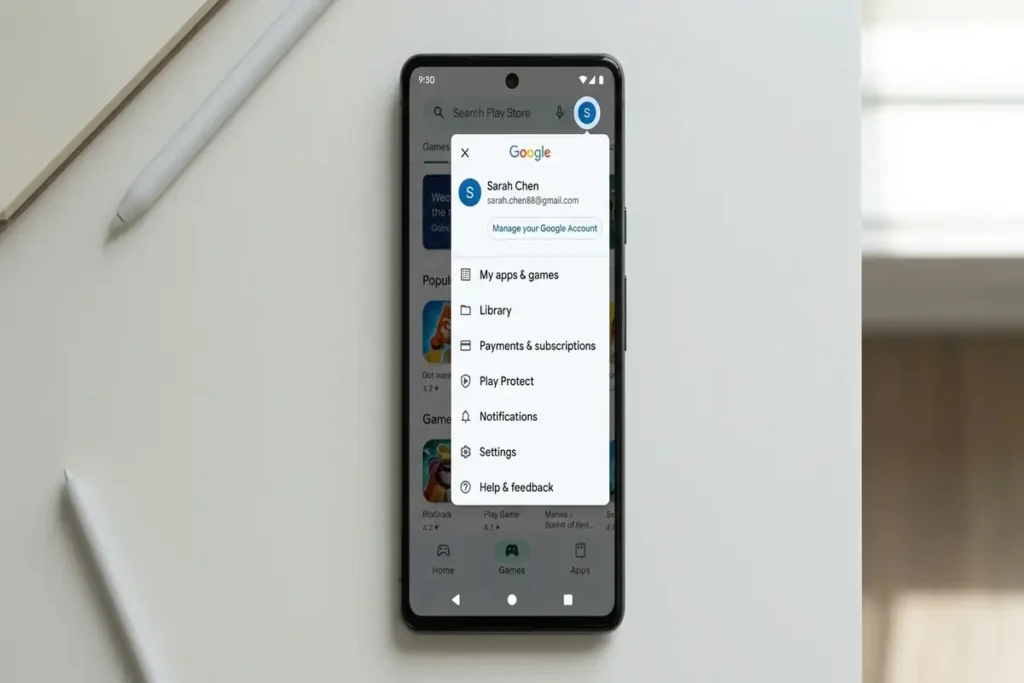
When to Check Your Google Account
If the Play Store opens normally but downloads repeatedly fail, your Google account can also be part of the troubleshooting process.
Before removing your account, try the simpler checks first.
If basic troubleshooting and clearing the Play Store cache have not worked, check Google’s official guidance for removing and re-adding the account.
Leave Google Play Services for Later
You may find advice online telling you to immediately clear Google Play services data.
Don’t make that your first step.
Google treats clearing Google Play services storage as a later troubleshooting option because it can remove saved information and may require you to sign in again or reauthenticate some services.
Try connection, storage, restart, Play Store cache, and system updates first.
Quick Diagnosis
| What you see | Check first |
|---|---|
| Download stuck on Pending | Internet connection and restart |
| Download starts but never finishes | Connection and available storage |
| Only one app won’t download | App compatibility and availability |
| No apps or updates download | Storage, Play Store, connection |
| Problem started after Play Store behaves strangely | Clear Play Store cache |
| Phone date or time is incorrect | Automatic date and time |
| Basic checks don’t work | Google account and advanced troubleshooting |
Frequently Asked Questions
Why does Google Play Store say Pending and not download?
A Pending download can be related to a weak connection, temporary Play Store activity, low storage, or another download waiting to finish. Start by checking your connection and restarting the phone.
Why won’t Google Play Store download any apps?
If multiple apps fail to download, check your internet connection and available storage first. Then restart your phone and clear the Google Play Store cache if necessary.
Why will one app not download, but other apps work?
The specific app may not be compatible with your device, available in your region, or temporarily experiencing a problem.
One Simple Rule
Change one thing at a time and test the download again.
If you switch networks, clear the Play Store cache, restart your phone, and remove your Google account all at once, you won’t know which change actually fixed the problem.
Start with the simplest checks and only move to bigger changes if the download is still stuck.
More Troubleshooting Guides
Having another Android or internet-related problem? These troubleshooting guides may also help:
- Android Connected to WiFi but No Internet
- Android Phone Keeps Restarting? 10 Fixes to Try Now
- Spotify Not Working on Android? 9 Fixes to Try
Final Thoughts
When Google Play Store stops downloading apps, don’t immediately clear everything or reset your phone.
Start by checking what kind of download problem you have.
If only one app fails, focus on that app. If nothing downloads, check your connection, storage, and Play Store. If the basic checks don’t solve the problem, move gradually toward cache, account, and advanced troubleshooting.
Finding the cause first is usually faster than trying every possible fix.